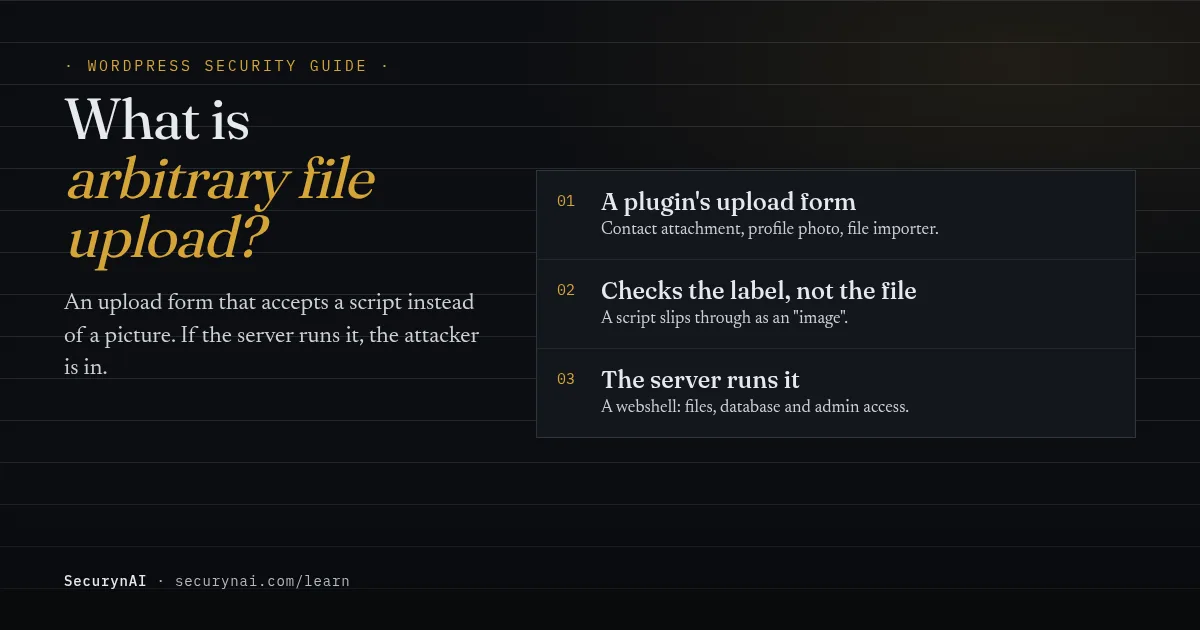
An arbitrary file upload vulnerability is a flaw where an upload feature accepts a file it should refuse, such as a PHP script posing as an image, and saves it where the server will run it. On WordPress, it usually lives in a plugin and ends with a backdoor called a webshell.
If you're here because of an alert about a file in your uploads folder, here's the safe first step. Don't delete anything yet. Check that every plugin is up to date, especially form, gallery and file manager plugins, and back up the site as it is now. The rest of this guide explains what to look for next.
How an arbitrary file upload works, in plain English
An upload form is a promise: "send us a picture, and we'll treat it as a picture." A contact form attachment, a profile photo, a CSV importer or a frontend gallery all make that promise. The vulnerability appears when the plugin's code doesn't actually check what it received.
PHP is the language WordPress runs on. If an attacker uploads a PHP file into a public folder, they can visit its web address, and the server runs it with the same access to files and the database as your site. That file is usually a webshell, a control panel for the attacker.
The upload flaw is the delivery route; the webshell is what stays behind.
Four ways a weak upload check gets fooled
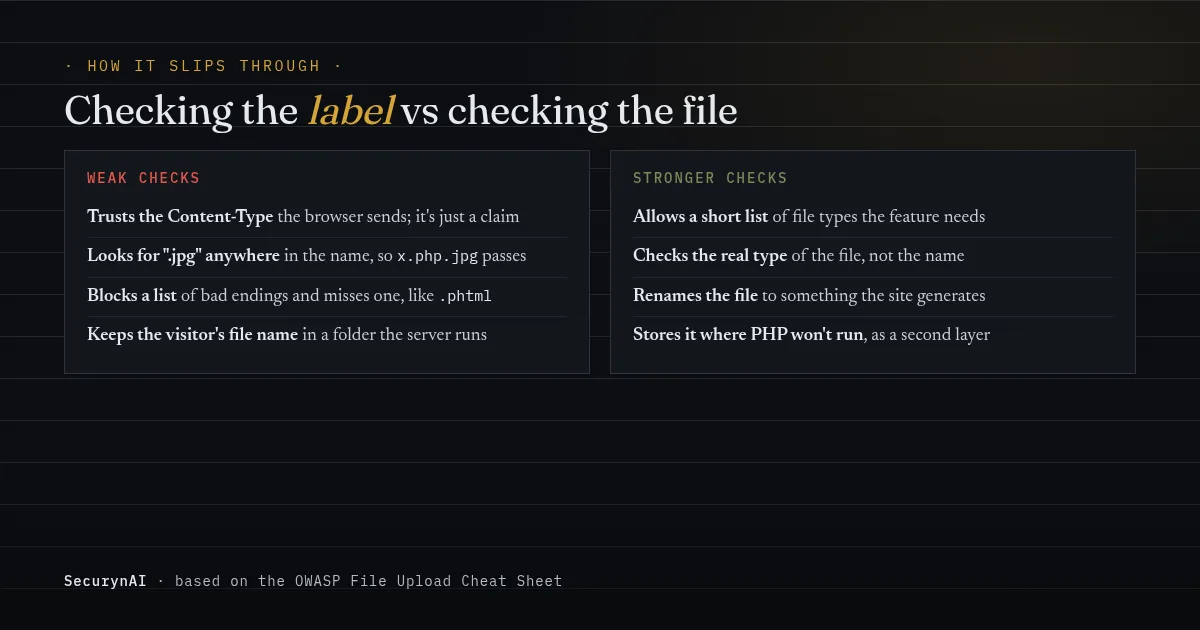
- Trusting the file type the browser reports. OWASP's File Upload Cheat Sheet is blunt: the Content-Type "is provided by the user, and as such cannot be trusted, as it is trivial to spoof."
- Checking that ".jpg" appears somewhere in the name. A name like
photo.php.jpgpasses. On some older Apache setups, a file with several extensions can still be handed to PHP. - Blocking a list of bad endings. If the list has
.phpbut not.phtmlor.phar, the attacker uses the one that's missing. OWASP calls blocking extensions "a weak protection method on its own." - Keeping the uploaded file where PHP runs, under the visitor's own name. Then the attacker knows exactly which web address to visit.
The double-extension trick comes from how Apache's mod_mime treats file names: "Files can have more than one extension." A Hacker News commenter in a 2014 thread on file upload pitfalls warned that "many Apache configurations will use mod_mime, which by default enables multiple extensions," so checking the content alone isn't enough.
Why an arbitrary file upload is so serious
Most flaws need a second step. This one goes straight to running code on your server. Once the script runs, the attacker can read wp-config.php, add an administrator, plant more backdoors and send spam from your server.
And attackers move fast. Patchstack's State of WordPress Security in 2026 counted 11,334 new WordPress vulnerabilities in 2025, 91% of them in plugins. For heavily exploited flaws, it put the weighted median time to first exploit at 5 hours.
The same report found that "46% of vulnerabilities did not receive a fix from the developer in time for public disclosure." So sometimes there's no update to install yet, and the safe move is to switch off or remove the plugin until one arrives.
Real arbitrary file upload examples in WordPress plugins
These three cases share one shape: an upload feature, a missing check, and a fixed version that closed it. Details come from NVD or the vendor's own page, checked in October 2026.
File Manager, 2020: exploited, then added to CISA's list
The File Manager plugin before version 6.9 let attackers "upload and execute arbitrary PHP code," according to the NVD record for CVE-2020-25213, which scores it 9.8 out of 10. NVD notes exploitation in the wild in August and September 2020. The US cybersecurity agency CISA added it to its Known Exploited Vulnerabilities catalog on November 3, 2021.
Multi Uploader for Gravity Forms, 2025: a webshell dressed as an image
CVE-2025-23921 let anyone, without logging in, upload files to sites running Multi Uploader for Gravity Forms 1.1.3 or earlier. Patchstack's advisory scores it 9.0 and lists the fix as version 1.1.5.
Researchers at TXOne Networks reported that "exploit attempts have been detected consistently since August 2024," months before public disclosure. The attempts sent .phtml webshells disguised as images, which is exactly the kind of ending a short block list misses.
Drag and Drop Multiple File Upload for Contact Form 7, 2026: fix, bypass, fix
This plugin shows why block lists are fragile. CVE-2026-5718, published April 17, 2026 and scored 8.1, describes PHP files slipping past its block list via non-ASCII file names. A first fix was bypassed, and the changelog lists more upload fixes in 1.3.9.8 and 1.3.9.9.
The lesson isn't "avoid this plugin." Sites on the latest version got every fix, and sites that skipped updates didn't.
Is WordPress itself vulnerable to file upload attacks?
WordPress core's own uploader is built around an allow list, which is the approach OWASP recommends. The list of file types WordPress accepts covers images, documents, audio and video. It doesn't include PHP, PHTML or PHAR files.
WordPress also tries to check the real type, not just the name: wp_check_filetype_and_ext() "attempts to determine the real file type of a file." Trouble starts when a plugin builds its own upload handler and skips those checks. The more a plugin "built its own pipe" for files, the more places a gap can hide.
Found a PHP file in your uploads folder? What it means
A PHP file in wp-content/uploads is a strong warning sign, but not always proof of a hack. That folder is meant for media and documents. A few plugins keep small helper files there, and many folders hold a harmless index.php that says only "Silence is golden."
The question still comes up on the forums. In a 2026 WordPress.org thread about webshell uploads, a moderator's advice was to "check the entire uploads directory to see if there are any PHP files inside," adding, "if you don't recognize them, delete them." Another reply noted that blocked attempts alone don't prove anything was saved.
Remember that the file is the payload, not the way in. In an older WordPress.org thread, a moderator explained that the attacker had "got in through some other means" and left the file as a way back in. Here's how to read what you find.
| What you see | What it likely means | Do this |
|---|---|---|
| A tiny index.php holding only a comment | A placeholder that stops folder listing | Nothing |
| A PHP file inside a plugin's own uploads folder | Possibly that plugin's helper file | Check with the plugin's docs or developer |
| An odd name like x.php or random letters | Very likely a webshell | Treat it as a hack |
| A .phtml, .phar or .php5 file anywhere in uploads | Almost never legitimate | Treat it as a hack |
If either of the last two rows applies, back up the site as it is now before you delete or change anything. Then follow our guide to removing WordPress malware, because one webshell rarely travels alone. Our guide to the signs of WordPress malware covers what else to check.
How to protect a WordPress site from arbitrary file upload
Updates do most of the work. Everything else limits the damage if a gap gets through. In order of impact:
- Keep plugins and themes updated, especially anything that accepts files: forms, galleries, file managers, importers and membership plugins. Our guide to automatic updates covers the trade-offs.
- Turn off upload features you don't use, and delete plugins you've stopped using. A public form that takes attachments from anyone is a bigger risk than an admin-only uploader.
- Find out when a plugin you run has a known flaw. A vulnerability feed or alert service tells you within days, not weeks. Our guide on how to read a CVE explains the scores.
- Stop PHP from running in the uploads folder. On Apache, that's a small
.htaccessfile inside uploads. Nginx ignores.htaccess, so the rule goes in the server settings; ask your host. Our WordPress hardening checklist covers it with other settings. - Put a firewall in front as a second layer. Our guide on whether you need a WAF explains what different types can and can't see.
If you write or commission upload code
OWASP's advice comes down to four things: allow only the types the feature needs, check the real type, rename the file to "something generated by the application," and store it outside the web root where possible. In WordPress, use core's upload functions with type checking on, not a home-made handler.
What SecurynAI does about arbitrary file upload, and what it can't
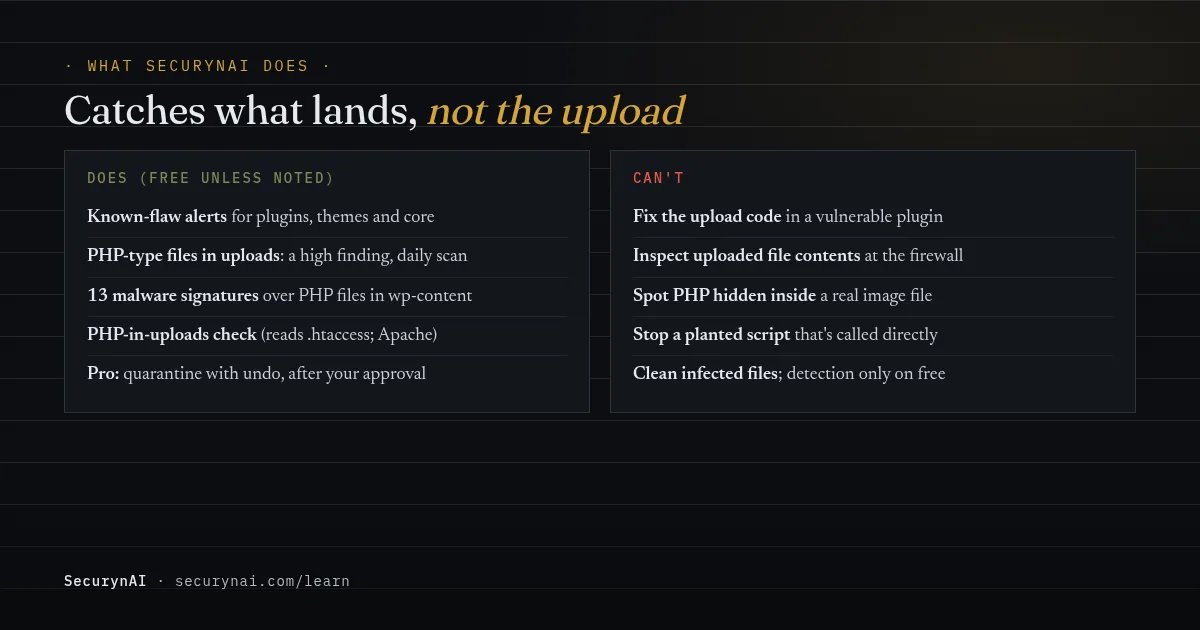
We at SecurynAI can't fix a plugin's upload code, so we focus on two things: telling you when a plugin has a known flaw, and spotting what an attacker leaves behind. Here's exactly where that help starts and stops.
Known-flaw alerts (free)
The free plugin checks your plugins, themes and WordPress version against the wpvulnerability.net feed every 4 days by default (1 to 30 in Settings), and after updates. For an upload flaw that needs no login, the built-in text reads: "Anyone on the internet, without logging in, could upload malicious files to your server."
Spotting what lands in your files (free)
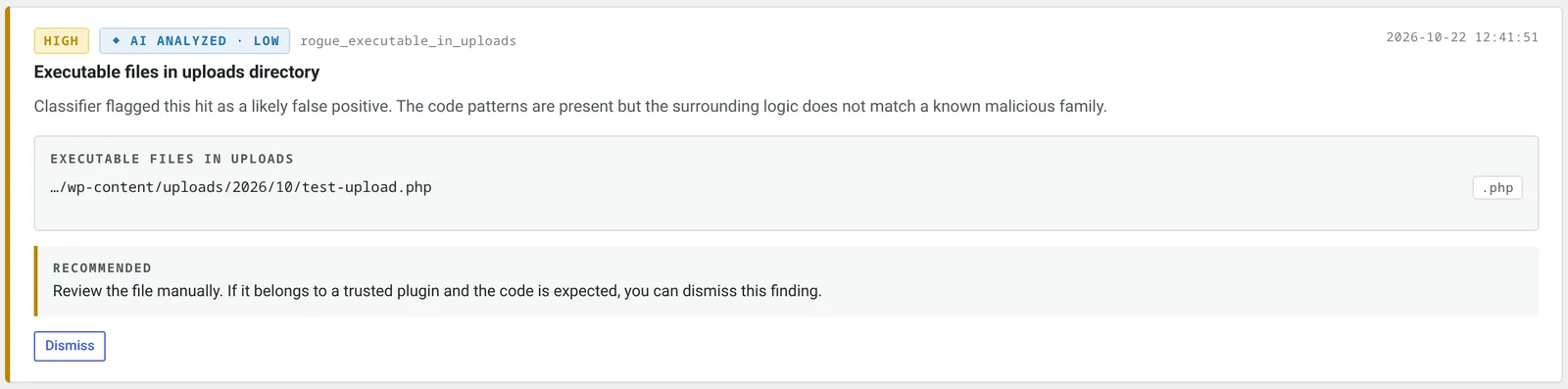
- PHP-type files in uploads. The daily file scan walks the whole uploads folder and raises a high "Executable files in uploads directory" finding for any .php, .phtml, .phar, .pht or .php3 to .php8 file, including double names like
photo.php.jpg. Comment-only placeholders are ignored. - Malware signatures. The same scan checks every PHP-type file under wp-content against 13 bundled signatures, with no live feed. Two target upload backdoors directly: code that saves an upload to a path taken from the request, and code that writes request data into a file.
- A PHP-in-uploads hardening check. It reads the uploads
.htaccessfor a rule that stops PHP; a deny that only covers one named file doesn't count. Nginx sites fail it because Nginx doesn't use.htaccess, so check your server settings instead. - A changed uploads .htaccess shows up as a medium "Server or WordPress config file changed" finding, since attackers sometimes rewrite it to let scripts run.
The scan only detects; it doesn't clean files. PHP hidden inside a real image with no PHP extension anywhere in its name isn't flagged, and the signature scan reads only files whose last extension is a PHP one. Email alerts for high and critical findings are off until you turn them on in Settings.
The Audit Log records files added through the Media Library. A vulnerable plugin that writes files straight to disk skips it, so those files show up only in the next file scan.
What the firewall can and can't see
The free firewall reads the text fields of a form submission, the web address and the user agent. It doesn't read the uploaded file itself, its name or its contents, so it isn't built to stop a malicious upload. The firewall starts in Monitor mode, logging matches without blocking until you switch it to Block.
There's a second limit. The firewall runs inside WordPress, so a request straight to a planted script, such as /wp-content/uploads/x.php, never reaches it. That's why blocking PHP in uploads at the server level matters.
What Pro adds
On Pro ($79 per site per year), the uploads finding has a Quarantine fix. It moves the flagged files into a locked folder, with Undo. Over 25 files, it refuses and leaves them for you. It waits for your approval by default and skips files of installed plugins or the active theme.
Pro also writes the PHP-blocking rules into the uploads .htaccess automatically, as a low-risk fix with undo. That only helps on Apache. With your own AI key, the free plugin and Pro can read flagged files and explain each one in plain English.
Here's what neither version does. SecurynAI doesn't fix the upload code inside a plugin, doesn't inspect uploaded files as they arrive, and doesn't clean infected files on the free plan. None of this replaces backups, updates or good hosting.
Quick check: is your site exposed to arbitrary file upload?
- Are all plugins and themes on their latest versions, especially form and file plugins?
- Have you turned off upload fields and deleted plugins you don't use?
- Would you hear about a known flaw in a plugin within a few days?
- Is PHP blocked from running in
wp-content/uploads? - Have you looked in uploads for PHP files you can't explain?
- Do you have a recent backup you've actually restored from?
Six yeses is a solid baseline. A no on the first one is the one to fix today. If a no on number five turns up a strange file, start with our guide to restoring from backup after a hack.
Arbitrary file upload FAQ
Can an image file contain malware?
A real image that only gets displayed is harmless. The danger is a file that looks like an image but holds PHP code, and a server or a buggy plugin that runs it. That's why a strong upload check looks at what the file actually is, and why uploads should sit in a folder where PHP won't run.
Should I delete PHP files I find in wp-content/uploads?
Back up the site first, then check each file. A tiny index.php that only holds a comment is a harmless placeholder, and a few plugins keep real files there. Anything else is worth treating as a backdoor, and deleting it alone won't close the hole the attacker used.
Does blocking PHP in the uploads folder stop arbitrary file upload?
It stops the most common result, a script in uploads that the server runs. It doesn't fix the plugin, and a flaw that lets an attacker choose where the file lands can put it somewhere else. Treat it as a second layer behind updates.
Does a firewall stop arbitrary file upload attacks?
Sometimes, if it inspects uploaded files and the request matches a rule. Ours reads form fields but not the uploaded file itself, so check what yours inspects. The fix is still updating or removing the vulnerable plugin.
Want to know the day a plugin you run gets a known upload flaw, and hear about a PHP file in your uploads folder the next morning, not months later? The free SecurynAI plugin does both from the day you install it.
Install free →