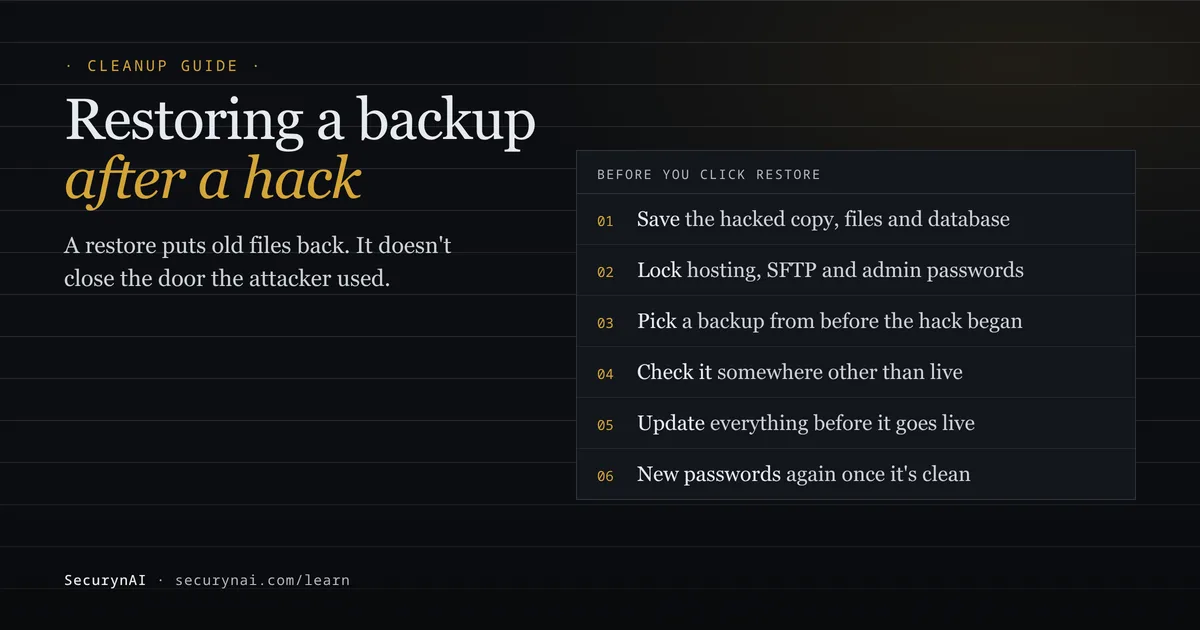
Restoring from backup after a hack means replacing your hacked WordPress files and database with a copy saved before the attacker got in. Done well, it's often the fastest way back to a clean site. Done in a hurry, it brings back the same hack, or the same weak plugin, and you're cleaning up again next week.
If your site is hacked right now, don't click Restore yet. The safest first step is to back up the site exactly as it is, files and database, and keep that copy off the server. It's your record of what happened and your safety net if the restore goes wrong. Then work through the checks below.
Should you restore a backup, or clean the hacked site?
Restore when you have a backup from before the hack and can accept losing what changed since. Clean when you don't.
| Your situation | Usually the better route |
|---|---|
| You have a backup from before the hack, and little has changed since | Restore it, then update and change passwords before going live |
| The clean backup is old, and you've had orders, posts or sign-ups since | Restore files, keep or carefully merge the database, or clean by hand |
| Every backup you have was taken after the hack began | Clean the site by hand; a restore just brings the hack back |
| You don't know when the hack started | Date it first (see below), then decide |
For the cleanup route, our WordPress malware removal guide walks through it step by step. If you can't log in to WordPress at all, start with locked out of wp-admin, then come back here.
Before you restore: save the hacked copy and lock access
A restore overwrites the evidence, so keep a copy first. WordPress.org's "My site was hacked" FAQ recommends taking "one more snapshot of the environment" before cleaning, even if it's infected, so you have "that bad copy to reference".
Use your host's backup tool, or download the site folder and export the database. With WP-CLI, this writes the database to a file you name:
wp db export hacked-copy.sqlLabel it clearly, store it off the server, and make sure nobody restores it by mistake later.
Then change your hosting, SFTP and database passwords, because a restore doesn't touch them. While you work, wp maintenance-mode activate shows visitors a short maintenance message instead of the hacked pages.
How far back to restore after a hack
Restore to the newest backup taken before the hack started, not the newest backup you have. Hacks often sit unnoticed for weeks. If yours began three weeks ago, every backup from the last three weeks already contains it.
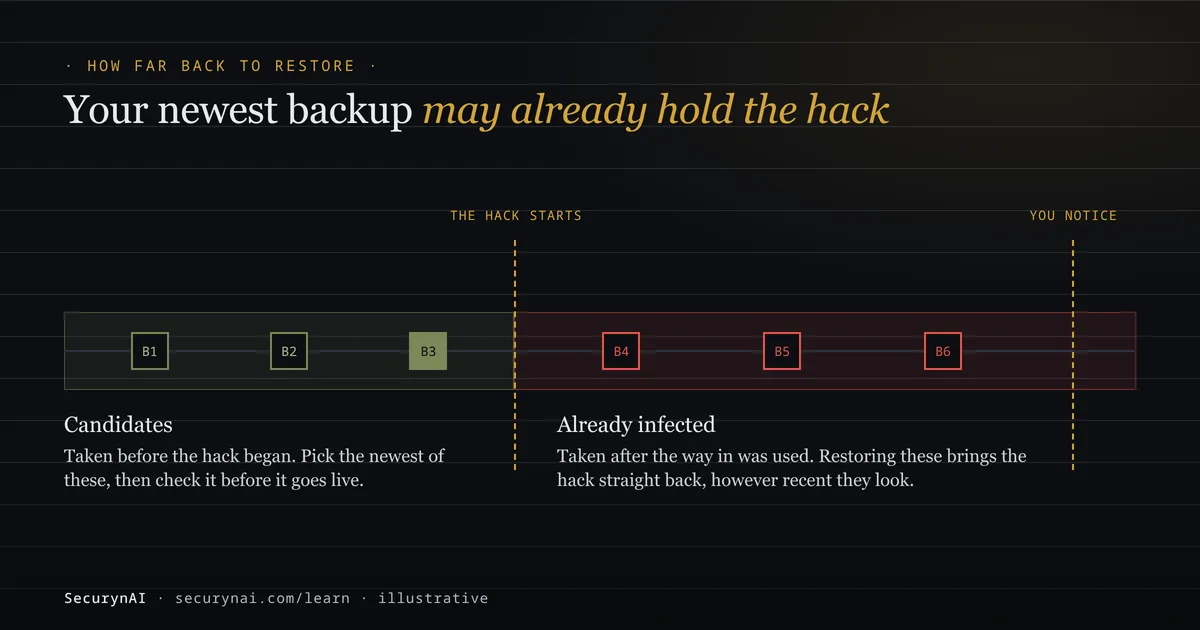
That's exactly what happened to one owner in a WordPress.org thread. They reinstalled twice from a month-old backup and were hacked again within an hour. A forum moderator replied: "It could be your backup is not clean, hacks can sometimes be in place a long time before discovery."
Clues that date the start of a hack
- The oldest suspicious file. A PHP file in
wp-content/uploads, or a theme file changed on a day nobody touched it. Its date is a hint only; attackers can fake it. - A user you didn't create. The account's registration date is recorded in the database. Our guide to a new admin user you didn't create shows where to look.
- The first outside warning. A Google Search Console security issue, a host's abuse email, or a "Deceptive site ahead" report. The hack began before that date, sometimes well before.
Check how long your backups go back before you need them. In a 2024 forum thread, an owner found "the host only keeps 20 days of backups", and the first infection was older than that. When in doubt, go further back and accept losing a few extra days of changes.
How to check a backup is clean before restoring it
A backup's date is a clue, not a guarantee. Restore it somewhere other than the live site first, such as a staging copy or a local install. Our playbook on staging vs production security covers keeping a staging copy separate from the live site.
On that copy, compare WordPress core with the official files using wp core verify-checksums. Then check every plugin from the WordPress.org directory with wp plugin verify-checksums --all, which "verifies plugin files against WordPress.org's checksums".
wp core verify-checksums
wp plugin verify-checksums --all
wp user list --role=administrator
wp cron event list
The last two list every administrator and every scheduled task. A hidden admin, or a task you don't recognise, can come back with an old database. Our guide to a rogue cron job explains how to tell a normal task from a planted one.
What the checksum tools can't check
- Themes and premium or custom plugins. WordPress.org has no official copy to compare them with. Compare them with a fresh download from the vendor instead.
- The uploads folder. It should hold media, not PHP files. Any
.phpfile in it needs a close look. - Config files. Read
wp-config.phpand every.htaccessline by line. The WordPress FAQ calls.htaccessone of the files "most often updated and used for nefarious activities". - The database. Check Settings › General for the Site URL and Home, and skim recent posts and pages for links you didn't add.
If a candidate backup fails any of these, go back to an older one. Our guide to finding a webshell shows what a hidden backdoor looks like.
Restoring the WordPress backup safely, step by step
Back up first, replace rather than merge, and update before anyone can reach the site. Each step below overwrites what's there now, so make sure the hacked copy from earlier is saved and labelled before you start.
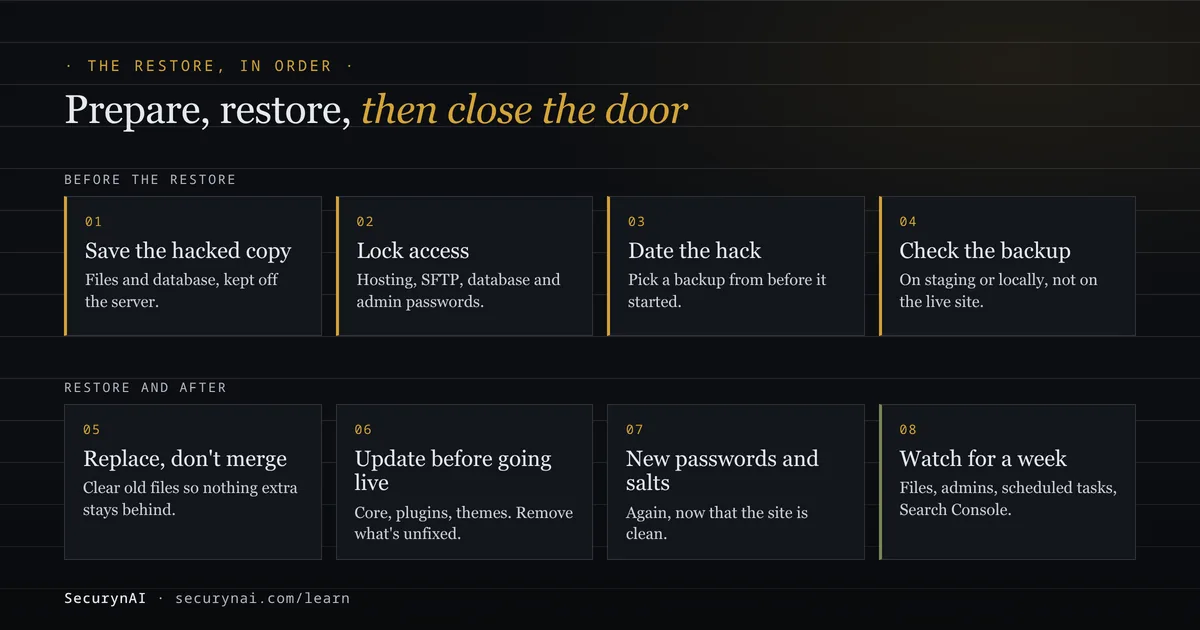
- Replace the files, don't copy over them. Copying a backup on top of the hacked site leaves any extra files the attacker added. A WordPress.org moderator in the 2024 thread put it simply: "Delete all files and the database in the hosting beforehand."
- Restore the database from the same backup, unless you've decided to keep the current one. Export any orders, comments or posts made since the backup first, so you can add them back by hand.
- Update everything before the site goes public. Keep maintenance mode on, then update WordPress, every plugin and every theme. Remove anything that has no fix yet.
- Change passwords again, and reset the salts.
wp config shuffle-saltslogs everyone out. Then reset WordPress, SFTP, hosting and database passwords one more time, and only then turn maintenance mode off.
Step 3 is the one people skip. In a 2020 forum thread, an owner worried that after a normal restore "the out-of-date plugins will be live before I update them." That worry is fair. Patchstack's State of WordPress Security in 2026 puts the median time to mass exploitation of heavily exploited flaws at 5 hours.
Why a restored site gets hacked again
A restore puts back old files. It also puts back the old plugin that let the attacker in, and it can't undo stolen passwords. If the way in is still open, the same hack can return within days, or hours.
The numbers back this up. Sucuri's 2023 Hacked Website Report found 49.21% of the compromised sites it cleaned had at least one backdoor, a hidden way back in. It also found 39.1% of the content management systems it saw were out of date when they were infected.
Patchstack counted 11,334 new WordPress vulnerabilities in 2025, 91% of them in plugins. And 46% had no fix from the developer by public disclosure. So sometimes "update it" means "remove it until there's a fix".
Not knowing how they got in is common. In one WordPress.org thread about a hack that kept returning, an older backup fixed the site, but the owner still didn't know how the code got in. If that's you, update everything, remove what you don't use, and watch closely for a week.
What SecurynAI shows after a restore, and what it doesn't
We at SecurynAI don't make backups, and neither the free plugin nor Pro can restore one. What the free plugin gives you is a second pair of eyes on the restored site.
SecurynAI keeps its own records in your WordPress database. Restore an old database and its Audit Log, findings and file baselines roll back too. So if it's installed, use the Export CSV button on the Audit Log page before you restore. Your record of what the attacker changed then survives the restore.
| After the restore | What SecurynAI free shows | What it misses |
|---|---|---|
| WordPress core files | "WordPress core integrity mismatch" (high), comparing every core file with the official WordPress.org checksums, plus extra PHP files in wp-admin, wp-includes and the site root | New subfolders in the site root |
| Plugins from WordPress.org | "Plugin integrity mismatch" (high), comparing every file, JavaScript included, with the official release for that version | Premium and custom plugins, which have no official copy to compare |
| Plugin and theme PHP files | "File hash drift detected" (high) for files that changed, appeared or went missing without a version change | Plugins restored at a different version are re-baselined silently, so rely on the checksum rows above for those |
| PHP files under wp-content and in uploads | Malware signature and obfuscation findings, and "Executable files in uploads directory" (high) | Theme JavaScript, images and anything outside PHP files; it detects only and doesn't clean |
.htaccess, .user.ini, php.ini, wp-config.php | "Server or WordPress config file changed" (medium), with the added lines | The comparison is with the last scan, which a database restore rolls back |
| Old plugin versions | Vulnerability findings for known flaws in the versions you now run | Flaws nobody has published yet |
The checks that compare with WordPress.org don't care what you restored, so they're the ones to trust right after a restore. The scan runs daily, or straight away with Run Scan Now on the File Integrity page. Sync advisories on the Vulnerabilities page refreshes the known-flaw list.
High and critical findings email you if you've turned on the optional alerts in Settings › General. Medium ones, like config file changes, show on the dashboard only.
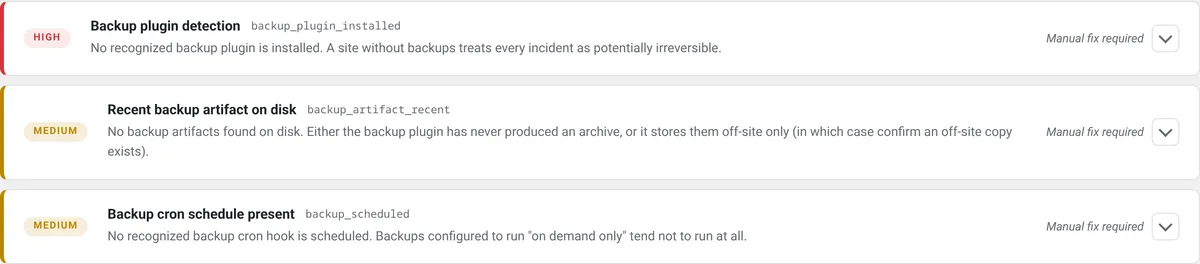
The free Hardening page also checks for a backup plugin, a recent backup archive and a backup schedule. It recognises five common backup plugins only, so backups kept by your host show as missing there.
On Pro ($79 per site per year), SecurynAI can propose replacing modified core files, and modified files in WordPress.org plugins, with the official copies. That waits for your approval by default. It has no undo, since undoing would put the modified file back, but a copy of the changed file is kept.
Pro doesn't restore themes, premium plugins, uploads or the database. None of this replaces a real backup, updates or good hosting. The firewall starts in Monitor mode, logging attacks until you switch it to Block, and login lockout works in either mode.
Quick check before the restored site goes live
- Is a labelled copy of the hacked site saved off the server?
- Was the backup taken before the hack started, not just before you noticed?
- Did core and WordPress.org plugin checksums pass on the restored copy?
- Can you name every administrator and every scheduled task?
- Did you replace the files rather than copy the backup over them?
- Is every plugin, theme and WordPress itself updated, with anything unfixed removed?
- Did you change every password and reset the salts after the restore?
Seven yeses means you've restored the site and closed the door behind it. If you're explaining the incident to a client, keep it short: what happened, what you restored, and what you changed. Our playbook on explaining a hack to a client has a template.
Restoring from backup after a hack: FAQ
Will restoring a backup remove the malware?
Only if the backup was taken before the hack began, and only if you replace the files rather than copy the backup over them. Even then, the flaw that let the attacker in comes back with the old plugin versions, so update everything before the site goes live.
How far back should I restore?
To the newest backup taken before the hack started, which is often well before you noticed. Date the hack from the oldest suspicious file, a new admin account, or the first warning from Google or your host. If you can't date it, go further back and check the backup before trusting it.
Should I restore the database as well as the files?
Usually yes, because hacks often add admin users, scheduled tasks or spam to the database. The cost is losing orders, comments and posts made since that backup, so export anything you need first. If you restore files only, check users, scheduled tasks and the Site URL by hand.
What if every backup I have is already infected?
Then a restore won't help on its own, and a manual cleanup is the better route. You can still use an infected backup for one thing: your own content, such as post text and images, checked and copied into a clean install.
Restored your site and want an independent check on what came back? The free SecurynAI plugin compares core and WordPress.org plugin files with the official copies, starting the day you install it.
Install free →