WordPress malware is code or content someone added to your site without your permission, to send your visitors somewhere else, sell spam links or keep a way back in. Google uses almost the same words when it explains hacked content.
So how do you tell if your WordPress site is hacked before a browser warning does it for you? Don't delete anything yet. Look first. The signs of WordPress malware below are all things you can check from wp-admin, a phone and a Google search, and most take a few minutes each.
Should one odd sign worry you?
One sign on its own often has a boring explanation. Two or more signs together are enough to stop guessing and start cleaning. An unknown admin plus a redirect you can reproduce is not a coincidence.
Two of the checks below matter more than the rest, and the numbers show why. In Sucuri's 2023 Hacked Website & Malware Threat Report, 49.21% of compromised sites had at least one backdoor when they were cleaned, and malicious WordPress admin users turned up in 55.2% of infected databases.
The way in is usually a plugin. Patchstack's State of WordPress Security in 2026 counted 11,334 new WordPress vulnerabilities in 2025. 91% were in plugins, and 46% had no fix ready when they were made public.
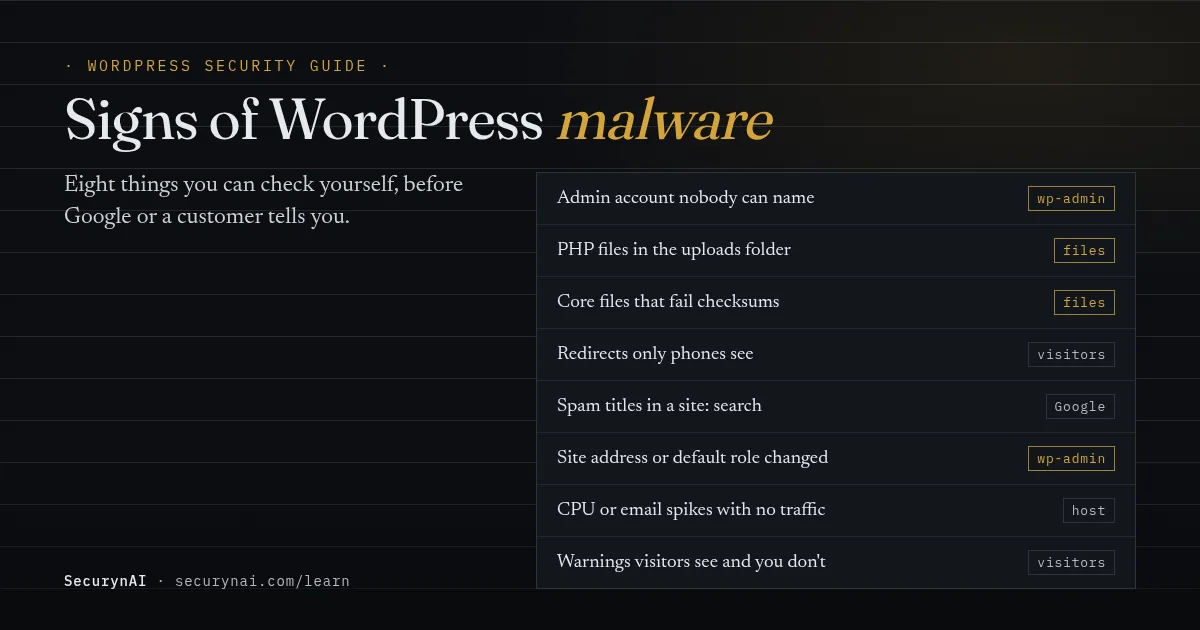
Eight signs of WordPress malware you can check yourself
Work through these in order. The first three are the strongest signals, and none of them change anything on your site. If you have SSH and WP-CLI, the commands below only read.
1. An administrator nobody can name
Go to Users, filter by Administrator and read every name. Look for accounts you didn't create, look-alike usernames such as "admln", and registration dates that match nothing you remember. An attacker's admin account survives a plugin cleanup, which is why it's so common.
wp user list --role=administrator --fields=ID,user_login,user_email,user_registeredIf you find one, our guide to a new admin user you didn't create walks through what to do, in order.
2. PHP files in the uploads folder
wp-content/uploads is for images, PDFs and video. A PHP file there, especially one with a random name or a double extension like photo.jpg.php, is one of the clearest single signs of a webshell.
find wp-content/uploads -name "*.php" -o -name "*.phtml" -o -name "*.phar"This is standard advice. In an October 2026 WordPress.org thread about uploaded webshells, a forum moderator's first step was: "Check the entire uploads directory to see if there are any PHP files inside."
3. Core or plugin files that don't match the official copy
WordPress core files should only change when WordPress updates. WP-CLI can compare yours against the official checksums from WordPress.org. The plugin check only works for plugins hosted on WordPress.org, not premium ones.
wp core verify-checksums
wp plugin verify-checksums --all
A file that "doesn't verify against checksum" needs an explanation. Our guide to a silently altered core file covers how to read the result.
4. A redirect only some visitors see
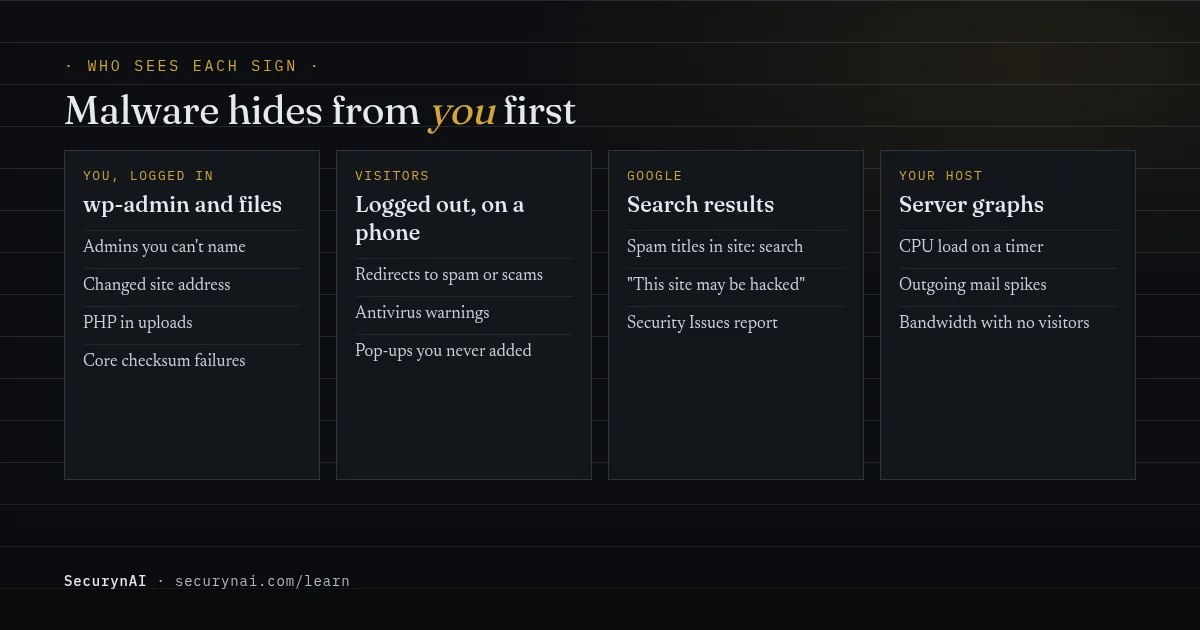
This is the one owners miss longest, because it's built to be missed. Many redirect infections skip anyone who is logged in, so your own visit looks clean. Sucuri found one in January 2025 that "bypasses execution for logged-in WordPress users", injected into the theme's functions.php.
Others target phones only. Sucuri documented a mobile-only redirect stored in the wp_options table, not in a file, and warned that "checking only your site's files for anomalies is not enough." Owners report the same pattern: in one WordPress.org thread, only the mobile site was being sent to an adult site.
To check, use your phone on mobile data, not Wi-Fi, in a private window. Search Google for your business and tap your own result, rather than typing the address. If that lands somewhere strange, read our guide to a WordPress site redirecting to another URL.
5. Spam in your Google results
Search site:yourdomain.com and read the titles and snippets, not just the count. Pages you never wrote, pills, casinos or Japanese text are the tell. Google's guide to the cloaked keywords hack suggests exactly this search, then the URL Inspection tool in Search Console to see what Google sees.
The page can look fine when you open it. In a WordPress.org thread on the Japanese keyword hack, the owner said Google "shows Japanese characters and spammy text that I did not add." Our pharma hack and SEO spam guide covers the cleanup.
6. Your site address or sign-up settings changed
Open Settings > General. Check that WordPress Address and Site Address are still your domain. Then check Membership and New User Default Role. A default role of Administrator is never right, and it's a known way attackers keep a door open.
7. Server activity your traffic can't explain
Look at your hosting dashboard. Sustained CPU load on a timer, a spike in outgoing email, or bandwidth with no matching visitors all suggest something is running in the background. That's often a rogue cron job or a site that's sending spam emails. Your host can usually show you which script is busy.
8. Warnings your visitors see and you don't
If a customer mentions an antivirus warning, odd pop-ups or a red browser page, take it seriously before calling it a false positive. A full-page red warning is Google Safe Browsing, which our "Deceptive site ahead" guide explains. In search results, Google may add "This site may be hacked" or "This site may harm your computer" instead.
If you run a WooCommerce store
Add one more check. Card skimmers often live in JavaScript or in a plugin's settings, so the checkout page can steal card details while every PHP file looks clean. Open your checkout page's source and ask where every script comes from. Our guide to Magecart-style skimmers shows what to look for.
Which signs are usually harmless?
Plenty of things look odd and aren't malware. The test is always the same: can someone on your side explain it?
- A tiny
index.phpin an uploads subfolder. Some plugins add an empty one to stop folder listings. Open it. If it's empty or a one-line comment, it's fine. - Plugin files changed after an update. That's what updates do. It's a change with no matching update that needs a look.
- A redirect you or an SEO plugin set up. Check your redirect plugin's rules before assuming the worst.
- A new admin a teammate or developer added. Ask first. Then decide whether they still need it.
Found two or more signs? Do this next
Move from looking to cleaning, but in a safe order. Deleting files at random tends to remove the visible symptom and leave the backdoor.
- Back up first, including the infected state. Take a full copy of files and database before you change anything. It's your evidence and your undo button.
- Change passwords. WordPress admins, hosting, FTP/SFTP and the database, from a device you trust.
- Tell your host. They can see server logs you can't, and some will help clean up.
- Clean in the right order. Our step-by-step malware removal guide covers it. If you have a clean backup from before the infection, read restoring from backup after a hack first.
If you look after the site for a client, our playbook on explaining a hack to a client has wording you can send the same day.
How SecurynAI checks for these signs (and what it can't see)
We at SecurynAI built the free plugin to run the file checks above every day, so you don't have to remember. It covers the first three signs well, and some of the rest only partly.
The free daily file scan checks every PHP file under wp-content (including .phtml, .phar and the cache drop-ins) against 13 bundled malware signatures, with no live feed. It flags high-confidence obfuscation only, such as a decoder fed into eval, or preg_replace with /e. It detects only, with no cleanup.
That scan runs alongside checksum checks of every core and WordPress.org plugin file, JavaScript included. Other PHP files in wp-content are tracked too, so a new PHP file in a plugin or theme that wasn't updated shows up.
- PHP in uploads: any PHP, phtml or phar file there is a high finding. Empty placeholder index.php files are ignored.
- New or promoted administrator: a critical finding on the Identity screen.
- Site address changed: a change to Site URL or Home is a high finding.
- Email alerts: you can turn them on for critical and high findings in Settings. They're off until you do.
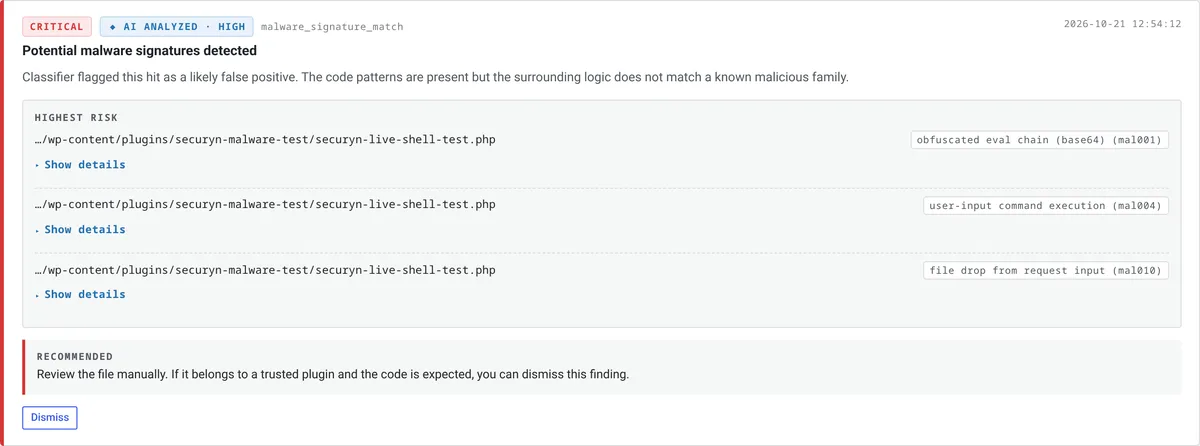
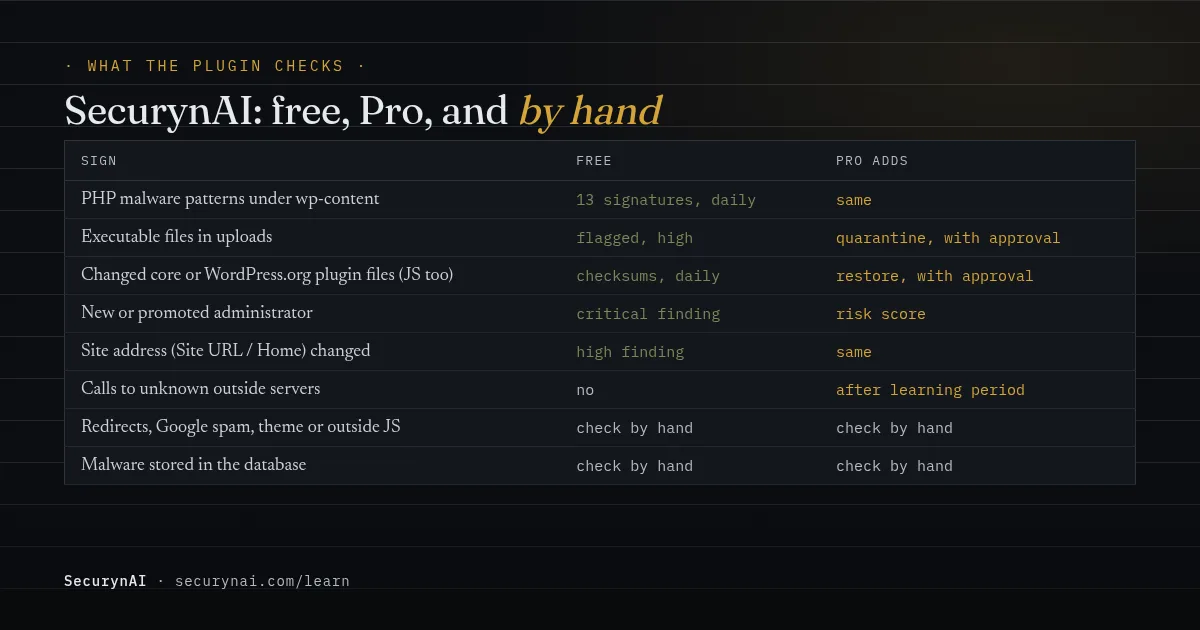
Here's what neither version sees. SecurynAI doesn't check theme JavaScript, premium or custom plugin JavaScript, scripts loaded from other sites, the database or plugin settings. It won't notice a redirect that only fires for phones, spam that only Google sees, or a skimmer stored in a setting. Signs 4, 5, 7 and 8 stay manual checks.
On Pro ($79 per site per year), we add three things:
- Quarantine: flagged files move out of uploads into a locked folder, up to 25 at a time, with a revert.
- Restore: changed core or WordPress.org plugin files are replaced with the official copy.
- Outbound monitoring: Pro learns which outside servers your site normally contacts, then flags new ones.
Quarantine and restore wait in your approval queue by default, so nothing moves until you say so.
None of this replaces backups, updates or a good host. It tells you sooner, in plain English, so you can act while the problem is small.
Quick check: would you spot malware this week?
- Can you name every administrator on your site?
- Have you checked uploads for PHP files in the last month?
- Have you visited your own site from a phone, logged out, recently?
- Have you read your
site:search results this quarter? - Would someone tell you within a day if a core file changed?
Five yeses means you're in good shape. Two to four is common, and quick to fix this week. Fewer is a normal starting point. Our WordPress hardening checklist and, for shops, the WooCommerce security checklist are good next steps.
Signs of WordPress malware: FAQ
Can my WordPress site have malware if it looks normal to me?
Yes. A lot of WordPress malware skips logged-in users on purpose, and some only fires for phones or visitors arriving from Google. Check from a private window on your phone, and run a site: search, before you decide it's clean.
Is a PHP file in wp-content/uploads always malware?
Not always. Some plugins leave a small empty index.php to stop folder listings. But uploads is meant for media, so any PHP file there with real code in it deserves a close look before you decide it's harmless.
Will Google tell me if my WordPress site is hacked?
Sometimes, but late. Google can label your results "This site may be hacked" and list the problem in Search Console's Security Issues report, but only once its systems have noticed. The checks in this guide often show the problem first.
Does a security plugin find all WordPress malware?
No. File scanners are good at changed files and known PHP patterns. Malware stored in the database, JavaScript added to a theme or loaded from another site, and redirects that only some visitors see are much harder to catch, so a few hand checks still matter even with a plugin installed.
Rather not run these file checks by hand every week? The free SecurynAI plugin checks your files, uploads and admin accounts every day from the moment you install it.
Install free →