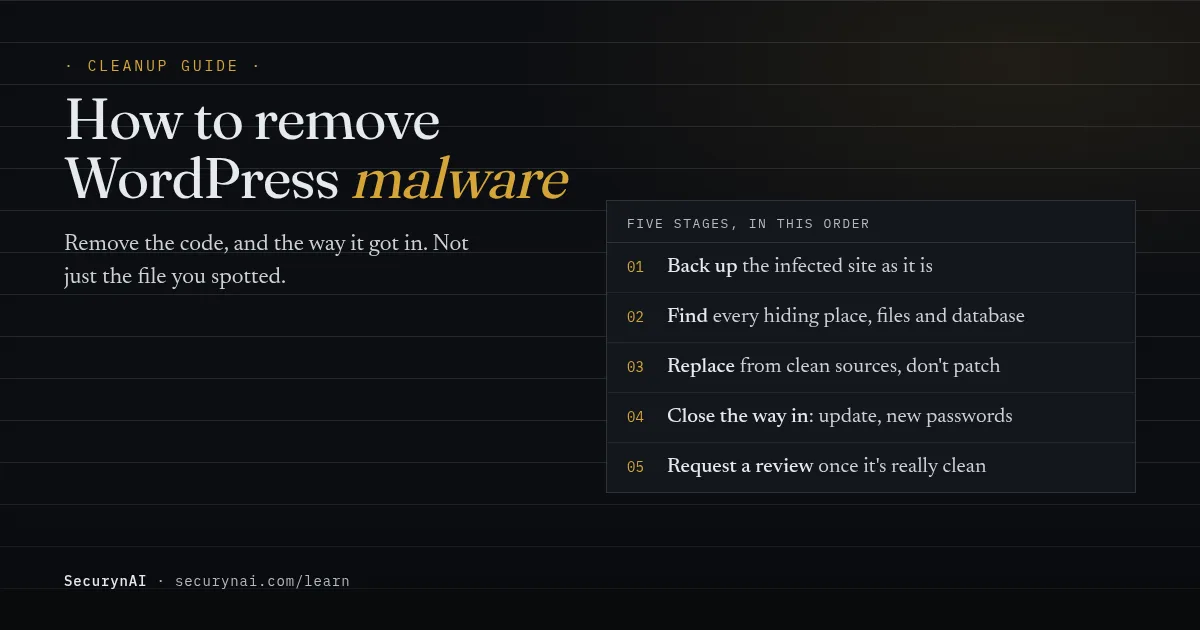
WordPress malware is code an attacker has added to your site's files or database so it does something you didn't ask for. It might redirect visitors, post spam pages, send email or keep a back door open. To remove WordPress malware for good, remove that code and the way it got in, not just the file you spotted.
If your hacked WordPress site is live right now, start with one safe step: take a full backup of it as it is, infection included. Don't delete anything yet. That copy is your safety net if the cleanup breaks something, and your record of what the attacker changed.
Is it really malware, or something else?
A real infection usually shows a specific, visible sign, not just a scary email. WordPress's own "My site was hacked" FAQ lists the clear ones: the site is blocklisted, your host disabled it, visitors' antivirus flags it, or you see changes nobody authorised.
- Redirects to a site you don't own. See site redirecting to another URL.
- Spam pages in Google results. See pharma hack and SEO spam.
- A red browser warning. See "Deceptive site ahead".
- An admin account you didn't create.
An unsolicited "your site is infected" email is often a scam. Our guide to the signs of WordPress malware helps you tell a real infection from noise.
Before you remove WordPress malware: three things to do first
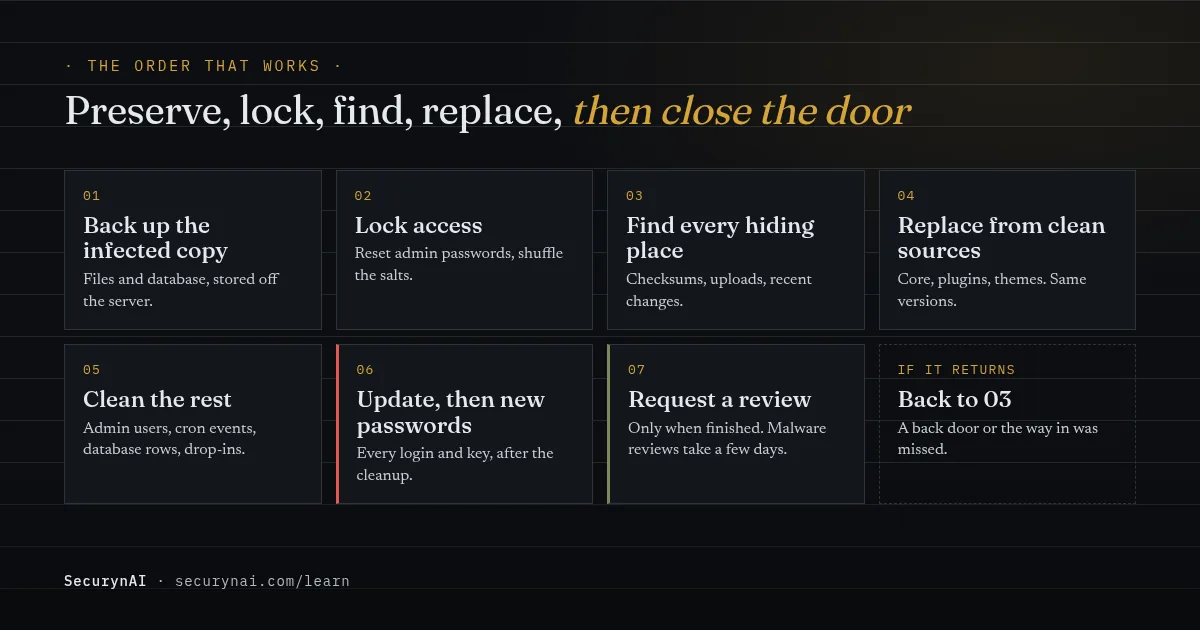
Preserve first, then lock the doors, then clean.
1. Back up the infected site, files and database
Download the whole site folder and export the database. Your host's backup tool is fine. With WP-CLI, this exports the database to a file you name:
wp db export infected-copy.sqlKeep this copy off the server and label it clearly. Never restore it by accident.
2. Write down what you see, and when
The WordPress FAQ calls this the first real step: note the symptoms, when you noticed, and anything that changed recently, like a new plugin. It becomes your incident record.
3. Lock access now, and again at the end
Reset every administrator password and log everyone out. Changing the secret keys in wp-config.php forces every session to end, which the FAQ recommends. wp config shuffle-salts does that in one line. You'll change passwords again once the site is clean, in case the attacker is still watching.
How to remove WordPress malware, step by step
Replacing files from a clean source beats editing infected files line by line, because you can't be sure you found every injected line.
Step 1: Find where the infection lives
If you have SSH and WP-CLI, these commands only read:
wp core verify-checksums
wp plugin verify-checksums --all
find wp-content/uploads -name "*.php"
find wp-content -name "*.php" -mtime -14
core verify-checksums flags core files that don't match the release. plugin verify-checksums does the same for plugins from WordPress.org. Premium plugins and themes have no public checksums, so compare those against a fresh download from the vendor.
The find lines list PHP files in uploads, which should hold only media, and PHP files changed in the last 14 days. A file you can't account for is worth opening, but don't run it.
Step 2: Replace WordPress core completely
Download the same WordPress version you run and replace wp-admin and wp-includes entirely over SFTP. The FAQ is specific: don't use the dashboard's reinstall button, because "those installers often only overwrite existing files, and hacks often introduce new files." Using a different version can break the site.
Step 3: Reinstall plugins and themes from their source
Delete each plugin and theme folder and put back a fresh copy from WordPress.org or the vendor. Delete anything you don't use, rather than deactivating it. An unused, outdated plugin is a common way in. Keep your child theme, but read its functions.php and template files by hand.
Step 4: Clean users, scheduled tasks and the database
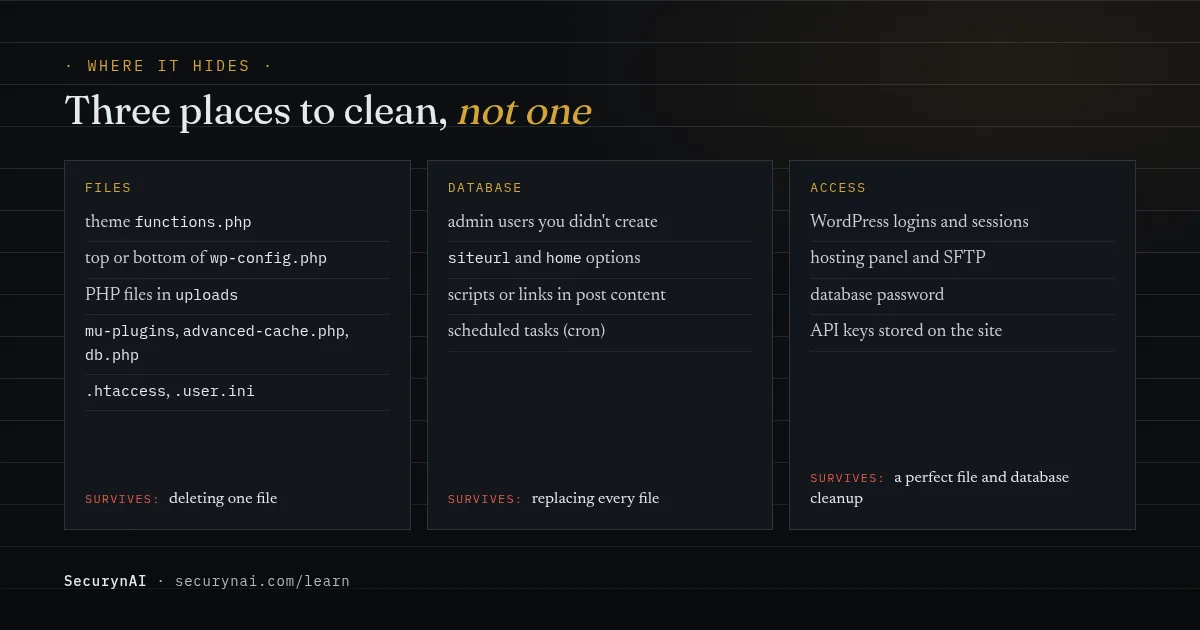
Malware in the database survives every file replacement. List your administrators with wp user list --role=administrator and remove any you can't name. In its 2023 Hacked Website Report, Sucuri found that 55.2% of WordPress sites with database malware had at least one malicious admin user.
Then run wp cron event list and look for hooks no plugin you know would add. See our rogue cron job guide. In the database, check the siteurl and home options, and search post content for scripts or links you didn't write.
Step 5: Check the files that run on every request
Some files sit outside the folders you just replaced and run on every request. Check wp-content/mu-plugins, the drop-ins advanced-cache.php and db.php in wp-content, every .htaccess, any .user.ini, and the top and bottom of wp-config.php. Our guide to finding a webshell shows what a hidden back door looks like.
One owner's August 2026 WordPress.org thread shows why. After a full cleanup, a new admin account "appeared two hours before any file reappeared," and a tampered advanced-cache.php kept restoring the back door from several places, including the database.
Step 6: Update everything and change every password again
Update core, plugins and themes, then change every access point the FAQ lists: WordPress logins, hosting panel, SFTP and the database password (update it in wp-config.php too). Replace any API keys stored on the site. Do this after the cleanup, so the attacker doesn't watch you set the new ones.
If customers enter card details on your pages, talk to your payment provider early and read our guide to card skimmers in WooCommerce. If files won't delete or other sites on the account are infected, call your host.
Why WordPress malware keeps coming back
If the site is reinfected days later, the cleanup missed either a back door or the original way in. Sucuri found at least one backdoor on 49.21% of the 39,594 compromised sites its team cleaned in 2023.
The way in matters just as much. Patchstack's State of WordPress Security in 2026 counted 11,334 new WordPress vulnerabilities in 2025, 91% of them in plugins. And 46% had no fix by public disclosure, so "update" sometimes means "remove it until there's a fix".
Forum threads show the pattern. In one WordPress.org thread about a hack that comes back, a plugin's support team said repeat infections suggest the "intrusion vector hasn't been patched yet." In another, an owner restored a February backup and "became infected a week later."
| What happens after cleanup | Most likely cause | Check this |
|---|---|---|
| The same file returns within hours | A scheduled task or drop-in that rewrites it | Cron events, mu-plugins, advanced-cache.php, db.php |
| A new admin appears first, then files | Stolen password or a back door with database access | All passwords, salts, users in the database itself |
| Clean for a week, then reinfected | The original hole is still open, or the backup was infected | Outdated or abandoned plugins, the backup's date |
| Other sites on the same account are hit too | Shared hosting account or server-level access | Every site on the account, and your host |
Should you restore a backup instead of cleaning?
Sometimes, yes. A backup from before the infection started is often the fastest clean start, but only if you know it predates the attack. If you aren't sure when it began, a restore can quietly bring the malware back, as the thread above shows.
A restore also brings back the hole the attacker used, so still run Step 6 afterwards. Our guide to restoring from backup after a hack covers picking the restore point.
How to get the Google warning removed
Google won't clear a warning on its own. In Search Console, open the Security Issues report and select Request Review, describing what you found and fixed. Only ask once the cleanup is finished. Google warns that an early request "can cause longer turnaround time," or even get you marked as a repeat offender.
Google's review guide sets expectations: malware reviews "require a few days," phishing about a day, and sites hacked with spam "can require up to several weeks." Once Google finds the site clean, warnings in browsers and search results go within 72 hours.
What SecurynAI does after a cleanup, and what it doesn't
We at SecurynAI don't clean hacked sites for you, and the free plugin doesn't remove malware. What it does is notice the next change fast, so a reinfection doesn't run for weeks. Here's what the free plugin checks:
- A daily malware scan checks PHP files under
wp-content, including.phtml,.pharand the cache drop-ins, against 13 bundled signatures, with no live feed. It also flags high-confidence obfuscation. It detects only. - File integrity checks compare every file in core and WordPress.org plugins, JavaScript included, against official checksums. Elsewhere, they flag PHP files that change or appear without a version update.
- Executable files in uploads raise a high finding, and so does a change to the Site URL or Home setting.
- Optional email alerts for critical and high findings, off until you turn them on, plus an Audit Log.
Be clear about the gaps. Neither Free nor Pro checks theme JavaScript, premium or custom plugin JavaScript, the database, plugin settings or scripts loaded from other sites, so Step 4 stays manual. The drop-ins from Step 5 are signature-scanned, but a hand check after a cleanup is still sensible.
The firewall starts in Monitor mode, logging attacks until you switch it to Block. Login lockout works in either mode.
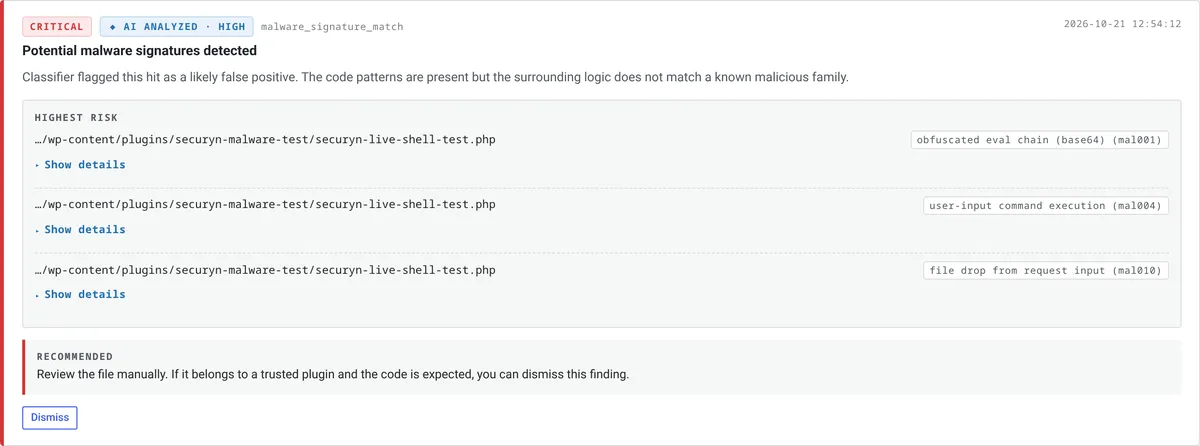
On Pro ($79 per site per year), SecurynAI can propose two kinds of file fix:
- Quarantine: move flagged files in
wp-contentinto a locked quarantine folder, up to 25 at a time, but never files of an installed plugin or the active theme. - Restore: replace a modified core file, or a file in a WordPress.org plugin, with the official copy after checking its checksum.
Both wait in your approval queue by default. Quarantine has an Undo; a restore doesn't, because undoing it would put the infected file back. Neither replaces the manual steps above, backups, updates or good hosting.
Quick check: is your WordPress malware cleanup finished?
- Do you have a labelled copy of the infected site, stored off the server?
- Were core, plugins and themes replaced from clean sources, not edited by hand?
- Can you name every administrator account?
- Have you checked scheduled tasks, mu-plugins, drop-ins, .htaccess and .user.ini?
- Did you change every password and key after the cleanup, not just before?
- Do you know, or have a good guess, how the attacker got in?
Six yeses means you're ready to request a review. A no on the last one is common, and the likeliest to bring the malware back. Our WordPress hardening checklist is the natural next step.
WordPress malware removal FAQ
Can I remove WordPress malware without a plugin?
Yes. Replacing core, reinstalling plugins and themes from their source, and checking users, scheduled tasks and the database is all manual work. A scanner helps you find things faster, but no scanner finds everything, so the manual checks matter either way.
Is deleting the infected file enough?
Rarely. The file you can see is usually the symptom. Sucuri found at least one backdoor on 49.21% of the compromised sites it cleaned in 2023, so assume there's a second way back in until you've checked users, scheduled tasks and the folders attackers use to hide code.
How long does Google take to remove a malware warning?
Google says malware reviews take a few days, phishing reviews about a day, and sites hacked with spam can take several weeks. Once Google finds the site clean, browser and search warnings are removed within 72 hours. Only request a review once the cleanup is finished.
Just finished a cleanup and want to know the day a file changes again? The free SecurynAI plugin starts checking your files from the moment you install it.
Install free →