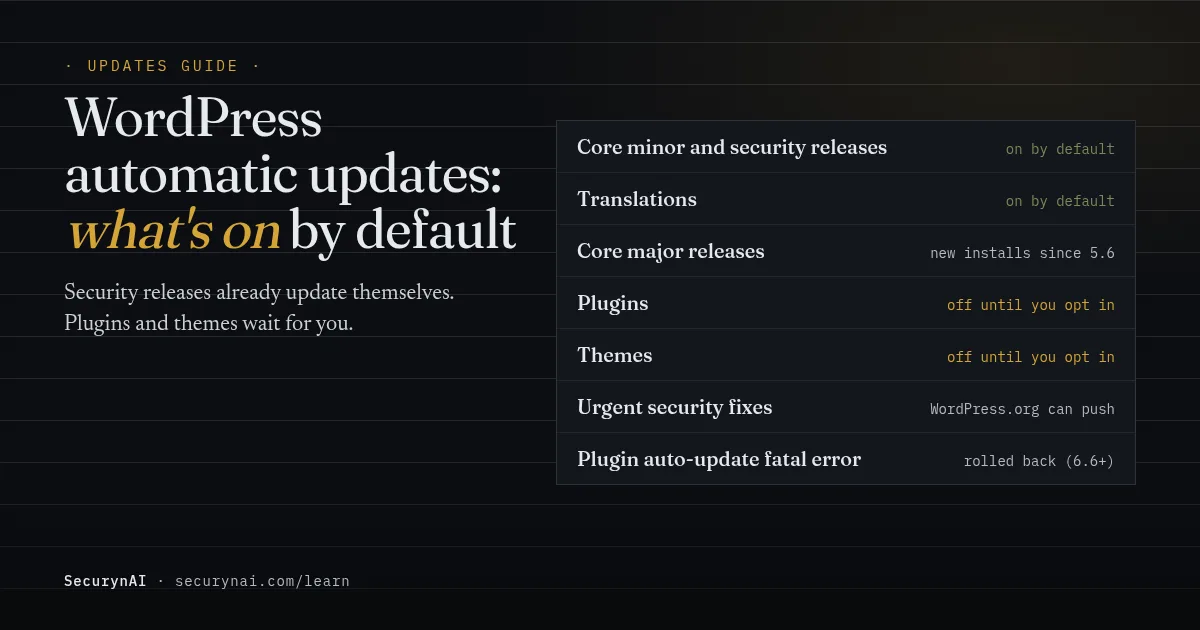
WordPress automatic updates are updates WordPress installs in the background, on a schedule, without anyone clicking "Update now". Some are on for every site already. Plugin auto-updates and theme auto-updates are off until you turn them on, one by one.
So "should I turn on auto-updates?" is really three questions: core, plugins and themes. This guide answers each, shows what can go wrong, and gives you a policy you can apply in ten minutes. If you look after client sites, the same policy scales; we note where agencies tend to differ.
What WordPress updates automatically by default
Security releases of WordPress itself already install on their own on most sites. WordPress's upgrading guide says "automatic updates of WordPress are enabled on most sites", that translation files update by default, and that "disabling these updates is strongly discouraged" for minor releases and translations.
| What | Default | Where you change it |
|---|---|---|
| Core minor and security releases (e.g. x.y.1) | On | wp-config.php or a filter |
| Core major releases (e.g. 7.0 to 7.1) | On for new installs since 5.6; off on older sites | Dashboard › Updates |
| Translations | On | A filter |
| Plugins | Off, plugin by plugin | Plugins screen, "Automatic updates" column |
| Themes | Off, theme by theme | Appearance › Themes, in each theme's details |
Major releases are the split one. A WordPress 5.6 core note says existing sites kept major updates off, while new installs got them on. Dashboard › Updates shows a link to "Enable automatic updates for all new versions of WordPress", or to switch back to security releases only.
Plugins and themes: off until you opt in
Since WordPress 5.5, you can switch on auto-updates per plugin and per theme. WordPress's auto-updates article says it "runs auto-updates twice per day" and emails the site owner after each attempt, whether it worked or failed. Those runs rely on WP-Cron, so a site that gets few visits or has cron turned off may update late.
The exception: forced security fixes
WordPress.org can push an urgent plugin fix to every site that runs the plugin, even with auto-updates off. In 2020, WP Tavern reported a forced update to Loginizer, and quoted WordPress.org's Samuel Wood: "WordPress.org has the ability to turn on auto-updates for security issues in plugins."
In a December 2025 WordPress.org forum thread, a store owner wrote: "I have a ban on automatic updates of all plugins. But your plugin has been updated automatically on all my sites today." A WooCommerce developer replied that "we asked the WordPress.org plugins team to trigger a forced patch update to all Woo stores", for a Store API flaw.
Why security updates shouldn't wait for you
Attackers move in hours; most of us update in days. Patchstack's State of WordPress Security in 2026 counted 11,334 new vulnerabilities in the WordPress ecosystem in 2025, 91% of them in plugins. For heavily targeted flaws, "the weighted median time to first exploit is 5 hours".
The same report says "approximately half of high impact vulnerabilities get exploited within 24 hours". If you log in to click Update once a week, a plugin with a public flaw can sit open for days. Turning on WordPress automatic updates for that plugin closes the gap to the next twice-daily run.
Major core versions lag too. WordPress.org's version stats showed about 63% of sites on 7.1 and roughly 29% on something older than 7.0 when we checked in October 2026. Minor security releases still reach many of those older sites, but new hardening in a major release doesn't.
What can go wrong with plugin auto-updates?
An update can break your site, and with auto-updates nobody is watching when it happens. That's the honest case against them. A WordPress.org moderator put it plainly in a forum thread about update controls: "My advice would generally be not to use automatic updates", because after a bad one "the entire website could no longer be accessible".
WordPress has narrowed that risk. Its 6.6 field guide lists "the automatic rollback of plugin auto-updates upon detecting PHP fatal errors". The merge proposal explains how: after updating, WordPress loads your homepage, and if that hits a fatal error it restores the old version and emails the admin address.
That safety net only catches crashes. It won't notice a checkout that stops taking payments, a page builder that scrambles layouts, or a setting that changed meaning. Those are the updates worth testing first.
Minor core updates: low risk, not zero
In a WordPress.org thread asking whether minor updates are safe to automate, a plugin support rep answered: "These are typically safe to automate", since they "mainly focus on maintenance and security issues", while adding there's "always a small risk". We'd leave them on for every site.
A sensible WordPress automatic updates policy
Let the low-risk, high-value updates run themselves, and put a human check only where a bad update would really hurt. Here's the split we'd use on a typical small business site or store.
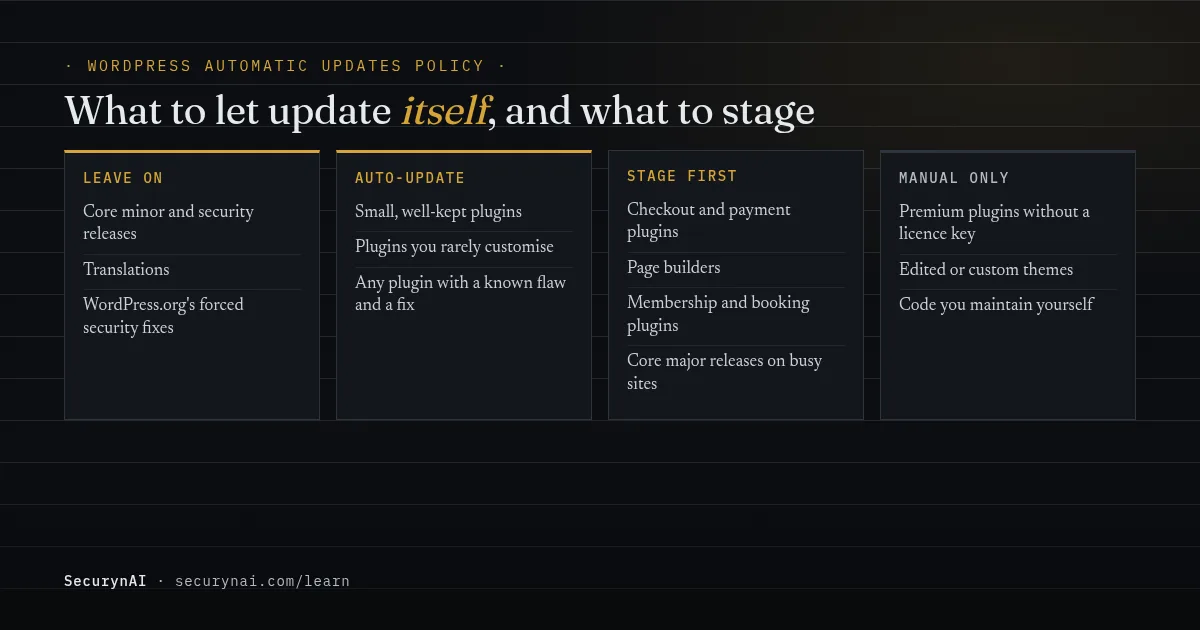
- Leave on: core minor releases and translations. Don't block WordPress.org's forced security fixes either; they only come for serious flaws.
- Auto-update: most plugins, especially small, well-maintained ones you haven't customised. If a plugin has a published flaw and a fixed version, update it now, whatever your schedule.
- Stage first: payment and checkout plugins, page builders, membership and booking plugins, and major core releases on a busy store. Update a staging copy, click through the key pages, then update the live site.
- Manual only: themes you've edited directly, custom plugins and premium plugins that can't update without a licence. Put them on a weekly check.
Before any of this, have a backup you've restored at least once. WordPress's own auto-updates article suggests making sure "you're able to rollback to a previous version of your website in case things go wrong". If you manage client sites, our playbook on staging vs production security covers the staging step.
How to turn on plugin auto-updates
- Go to Plugins › Installed Plugins.
- In the "Automatic updates" column, click Enable auto-updates on each plugin you want, or tick several and choose it from the Bulk actions menu.
- For themes, open Appearance › Themes, click a theme and use the "Enable auto-updates" link under its author.
If you use WP-CLI, the auto-updates commands do the same per plugin. Swap in your plugin's slug:
wp plugin auto-updates status hello
wp plugin auto-updates enable hello
If the "Automatic updates" column is missing, WordPress says auto-updates were probably turned off by your host or by a plugin. Ask your host before forcing them back on.
Check nothing has switched core updates off
One line in wp-config.php can stop security releases, and it's easy to inherit from a previous developer. Open the file (back it up first) and look for either of these:
define( 'WP_AUTO_UPDATE_CORE', false );
define( 'AUTOMATIC_UPDATER_DISABLED', true );
The upgrading guide says WP_AUTO_UPDATE_CORE set to false means "development, minor, and major updates are all disabled", and AUTOMATIC_UPDATER_DISABLED turns off "all types of automatic updates, core or otherwise". Unless you deploy updates another way, change the first to 'minor' and delete the second.
Also check Tools › Site Health. It reports when background updates are blocked or when scheduled tasks aren't running, which is the other common reason auto-updates silently stop.
When updating isn't enough
Sometimes there's no update to install. Patchstack found 46% of 2025's vulnerabilities "were not fixed in time for public disclosure". Auto-updates can't help until the developer ships a fix, so the safe move may be to deactivate or replace the plugin until one arrives.
Plugins that WordPress.org has closed get no more updates at all. Our guide to vetting WooCommerce extensions covers what a closed listing means. To judge how urgent a published flaw is for your site, see how to read a CVE.
And updates are one layer of many. Our WordPress hardening checklist puts updates second, right after locking down logins.
How SecurynAI fits around your WordPress updates
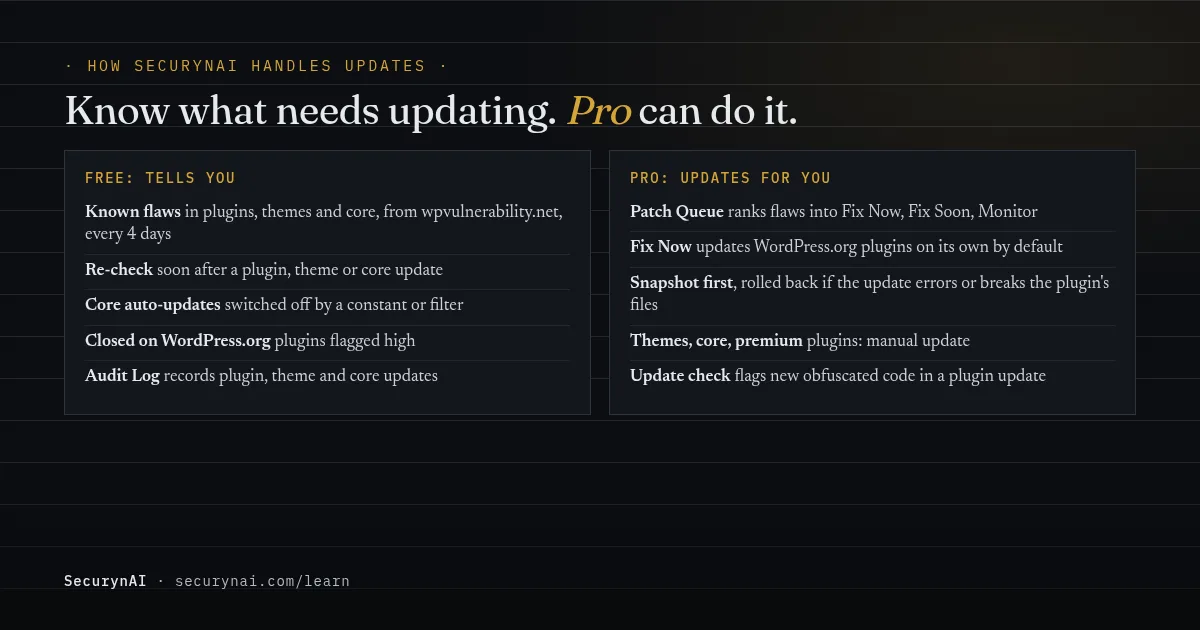
We at SecurynAI don't replace WordPress's updater; we tell you what it has missed. The free plugin checks your installed plugins, themes and core version against a vulnerability feed and tells you which have known flaws. It doesn't update anything itself.
What the free plugin does
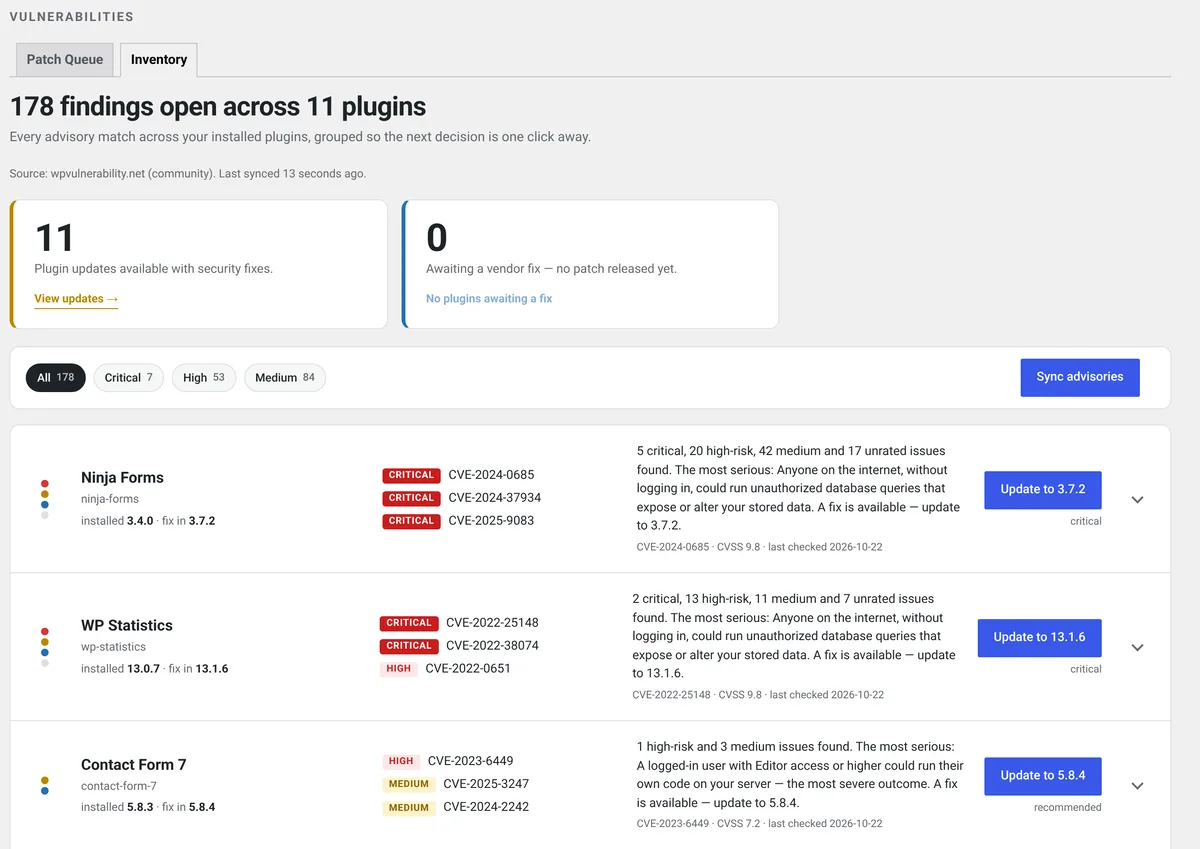
- Known flaws: it syncs advisories from wpvulnerability.net every 4 days by default (1 to 30 days in Settings, or a Wordfence Intelligence feed if you add a key). Each installed plugin, theme and core version with a known flaw becomes a finding. "Sync advisories" on the Vulnerabilities page runs one now.
- After you update: a plugin, theme or core update triggers a re-check within moments, so fixed findings close.
- Core auto-updates: a hardening check fails if
AUTOMATIC_UPDATER_DISABLEDis set (as a constant or a filter),WP_AUTO_UPDATE_COREisfalse, or minor updates are filtered off. - Closed plugins: a plugin WordPress.org has closed gets a high finding.
- Audit Log: plugin, theme and core updates are recorded, automatic ones included.
Routine updates won't set off file-change alerts: when a plugin's version changes, its new files become the new baseline. A file that changes without a version bump is still flagged. If you turn on email alerts in Settings, critical and high findings, such as a serious plugin flaw, reach your inbox.
What Pro adds: Patch Queue and Fix Now
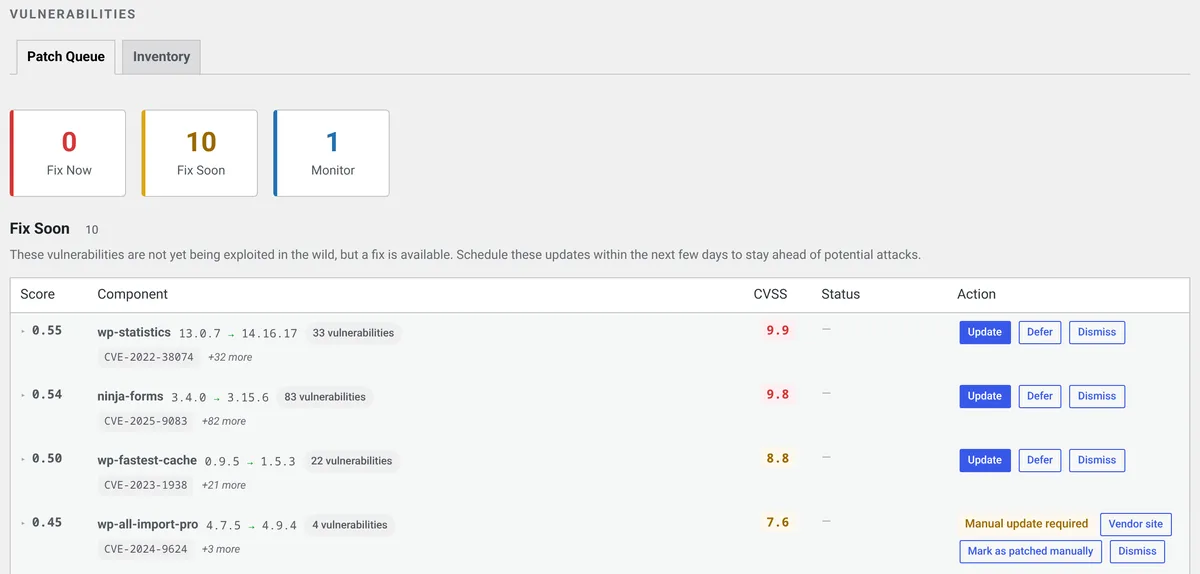
On Pro ($79 per site per year), each flaw is ranked into Fix Now, Fix Soon or Monitor in the Patch Queue. Every five minutes, Fix Now items in WordPress.org plugins are updated automatically. That's the seeded "Auto-update a Vulnerable Plugin (CVE)" policy rule, and you can set it to queue for your approval instead.
Pro snapshots the plugin first. If the updater errors, or the plugin's main file is missing afterwards, it restores the snapshot and stops retrying. It doesn't load your pages to test them. A successful update has no undo. With today's scoring, mostly critical flaws in active plugins reach Fix Now; Fix Soon items get an Update button you click.
Themes, core and plugins not on WordPress.org show "Manual update required". Pro also compares a plugin's files before and after each update through WordPress, and raises a critical finding if the new version adds obfuscated code, new outbound URLs or unexpected PHP files. See what Pro adds for the full list, or our SecurynAI vs Patchstack comparison.
None of this replaces backups or good hosting. It tells you which updates matter, and on Pro, it applies the urgent ones.
Quick check: are your WordPress updates covered?
- Is
wp-config.phpfree ofWP_AUTO_UPDATE_COREset to false andAUTOMATIC_UPDATER_DISABLED? - Does Site Health show no problems with background updates or scheduled events?
- Are plugin auto-updates on for every plugin you haven't marked "stage first"?
- Do you have a list of the plugins you stage first, and a staging copy to test them on?
- Does someone read the auto-update emails WordPress sends?
- Would you hear about a known flaw in a plugin within a few days?
- Do you have a backup you've actually restored at least once?
Six or seven yeses is a solid setup. Three to five is common, and most gaps take minutes to close. Fewer than that is a normal starting point: start with questions 1 and 7. If you're already cleaning up after a bad update or a hack, our guide to restoring from backup walks through it.
WordPress automatic updates FAQ
Are WordPress automatic updates safe?
Minor core releases are very low risk and WordPress strongly discourages turning them off. Plugin auto-updates are usually fine too, but any update can break something, so keep a backup you've tested. Since WordPress 6.6, a plugin auto-update that causes a fatal error is rolled back on its own.
Why did a plugin update itself when I had auto-updates turned off?
Usually one of two reasons. WordPress.org can push an urgent security fix for a plugin to every site that runs it, as it did for WooCommerce in December 2025. Some hosts also apply security updates for you, whatever your WordPress settings say. Check your host's control panel if it keeps happening.
Should I turn on automatic updates for major WordPress versions?
On a simple site with a tested backup, yes; new installs since WordPress 5.6 have them on already. On a store or a heavily customised site, test major releases on a staging copy first. Either way, keep minor and security releases on.
Does SecurynAI update plugins for me?
The free plugin tells you which installed plugins, themes and core version have known flaws, but leaves the updating to you. Pro can update WordPress.org plugins in its Fix Now group automatically, with a snapshot and rollback if the update fails. Themes, core and premium plugins stay manual.
Turned on auto-updates and want to know when a plugin you run has a known flaw? The free SecurynAI plugin checks every installed plugin, theme and core version against a vulnerability feed and tells you what to update.
Install free →