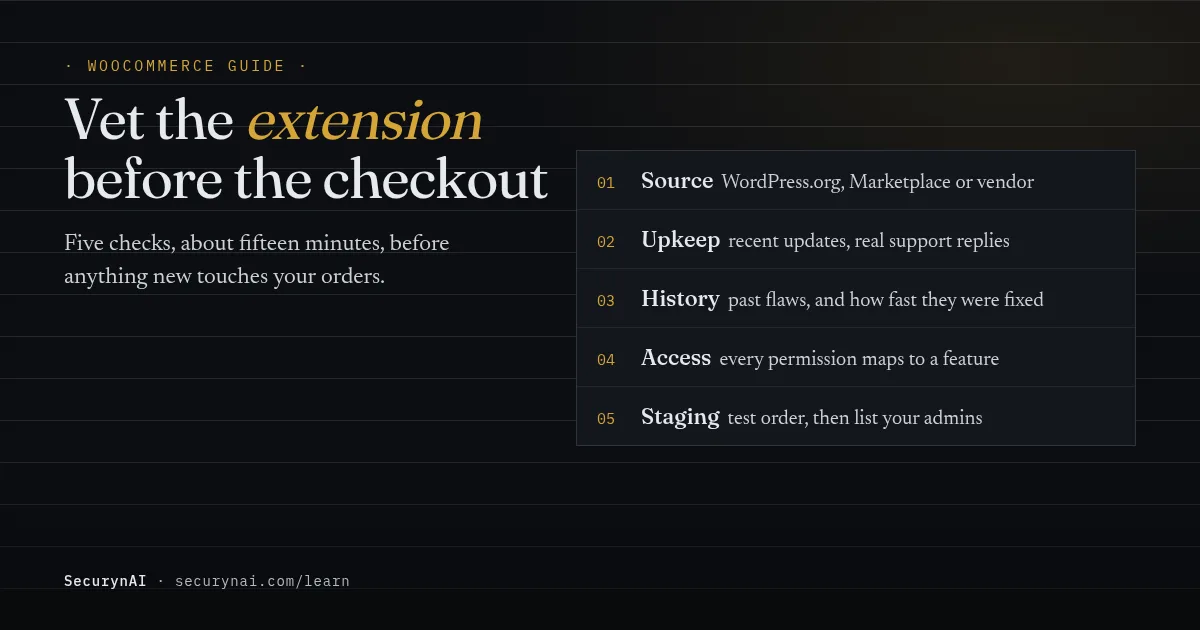
Vetting a WooCommerce extension means checking where it came from, who maintains it and how it has behaved in the past, before you give it access to your orders and checkout. It's the same habit as reading reviews before hiring a contractor, just with better records.
You've found a shipping, payment or upsell extension that does exactly what you need. Before you click Install, run five quick checks. None of them needs a developer. Together they're most of what WooCommerce plugin security comes down to for a small store.
Why vetting WooCommerce extensions matters more than vetting other plugins
A related-posts widget sees your blog posts. A WooCommerce extension often sees orders, customer addresses and the checkout itself. The question isn't "is this plugin good?" but "what happens to my store if this one goes wrong?"
Plugins are where most problems start. Patchstack's State of WordPress Security in 2026 report counted 11,334 new WordPress vulnerabilities in 2025, with 91% in plugins. It found 46% didn't get a fix from the developer in time for public disclosure.
Paid code isn't exempt. The same report says premium or freemium components made up 29% of reports, and 76% of premium-component flaws were exploitable in real attacks. Its top ten exploited flaws include one in WooCommerce Payments from 2023, which let attackers with no account act as an administrator.
Step 1: Is the extension really from who it says?
Where you download an extension matters more than anything on its sales page. There are three normal places to get one, and one you should never use.
Good sources
- The WordPress.org plugin directory. Free extensions, public code, public support forums and a version history you can read.
- The WooCommerce Marketplace. WooCommerce says it assesses submitted extensions "using QIT and a structured review process", including checks for common vulnerabilities (WooCommerce developer blog, 2025).
- The vendor's own website. Fine for established companies. Check the domain carefully and buy with a real account.
Never: nulled copies or "patches" sent by email
A nulled extension is a paid one with its licence check stripped out, shared for free. Wordfence wrote in 2021 that "many nulled plugins and themes also inject hidden administrator users into your site's database." The money you save isn't worth it.
The same goes for emailed fixes. In April 2025, Patchstack documented a phishing campaign sending WooCommerce owners a fake "patch" from a lookalike domain. Installed, it hid itself and a new administrator account. WooCommerce's advisory was blunt: "Do not install any plugins from these emails."
Step 2: Is anyone still looking after it?
An extension nobody maintains will never get the fix for the flaw someone finds next year. On the plugin page, look at four things:
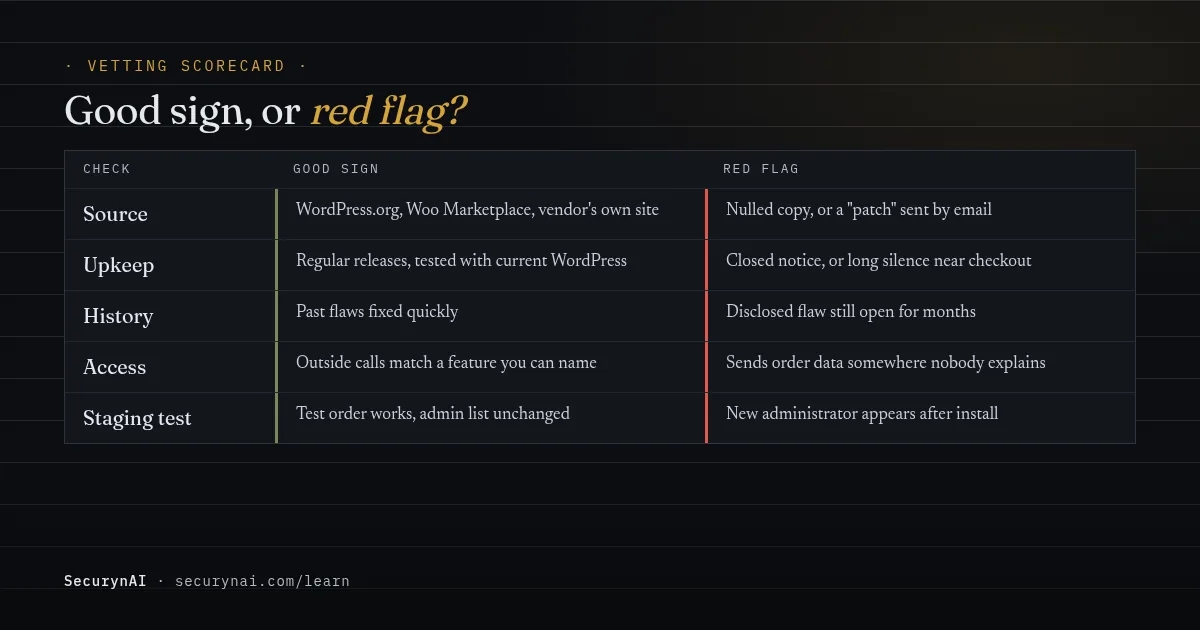
- Last updated. Regular small releases are a good sign. A long silence is a yellow flag for anything near your checkout.
- The "hasn't been tested" warning. WordPress.org shows it when a plugin hasn't been tested with the latest 3 major releases. It means the author isn't keeping up.
- Support replies. Skim the forum. Unanswered "this broke my checkout" posts tell you more than star ratings.
- A closed notice. A red "This plugin has been closed" box means no more downloads. Security is one of the listed reasons.
Closed notices confuse people. In one WordPress.org thread, a site owner asked why a plugin was pulled: "Wondering if I should stop using this on my projects." Nobody replied. In another, the notice read "Reason: Security Issue" and the question "is this plugin abandoned?" also went unanswered.
Sometimes even the authors don't know. In a third thread, the current maintainer wrote, "I'm unaware of the plugin being removed." The poster quoted Wordfence's advice: unless you know the code, remove plugins that have been pulled from the directory. That's what we'd do too.
Step 3: Check its WooCommerce plugin security history
A past flaw isn't a deal-breaker. A slow or missing fix is. Search the extension's name in Patchstack's vulnerability database or WPScan's plugin list. Both are free to browse.
Look at three things for each entry: how serious it was, whether it needed a login, and how long the gap was between the report and the fixed version. Our guide to reading a CVE explains the scores in plain English.
Step 4: Does what it asks for match what it does?
Every permission and outside connection should map to a feature you can name. A tax calculator talking to a tax-rate service makes sense. A shipping add-on that wants to edit customer accounts, or sends order data to a domain nobody can explain, doesn't.
WordPress's own hardening guide says it simply: "Do not get plugins/themes from untrusted sources." It also suggests reading the code of plugins that want to write files, or checking with someone you trust. If you can't read PHP, ask the vendor plain questions and judge the answers.
Payment gateways get one extra check
Use the gateway's official integration, or one the provider lists. For Stripe, that's WooCommerce Stripe Payment Gateway, published by WooCommerce. How the gateway handles card data also decides your paperwork, so read our PCI DSS for WooCommerce guide before you switch.
Step 5: Try it on a copy, and watch the first update too
Vetting doesn't end at install, because a safe extension can ship a bad update. In June 2024, Wordfence reported five WordPress.org plugins injected with code that "attempts to create a new administrative user account." The plugins themselves had been fine.
Install new extensions on a staging copy first if your host offers one. Place a test order. Then, if you have SSH and WP-CLI, these read-only commands show whether anything unexpected appeared:
wp user list --role=administrator --fields=ID,user_login,user_registered
wp plugin verify-checksums --all
The first lists every administrator. A new one you didn't create needs our new admin user guide. The second compares plugin files against WordPress.org's checksums. Paid extensions have no published checksums, so it skips them.
Deactivated isn't the same as removed
Switching an extension off stops WordPress loading it, but every file stays on your server. Some attacks request a plugin's files directly by URL, and you'll also stop noticing its updates. WordPress's hardening guide is clear: "if you are not using a specific plugin, delete it from the system."
To see what's sitting idle, check Plugins > Inactive, or run wp plugin list --status=inactive. Back up first, then delete from the Plugins screen. Some extensions remove their saved settings or data when deleted, so export anything you'll need, such as order notes or reports.
What SecurynAI checks once an extension is installed
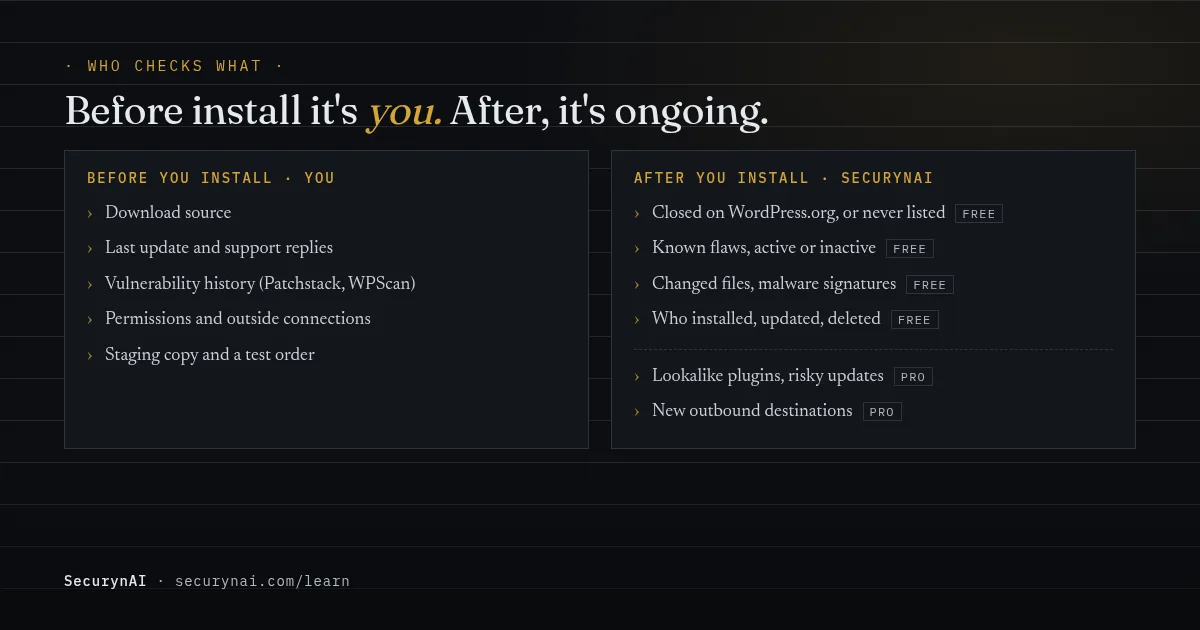
We at SecurynAI can't vet an extension before you install it. That part is yours. What the free plugin does is keep checking it afterwards, every day, including the extensions you've switched off.
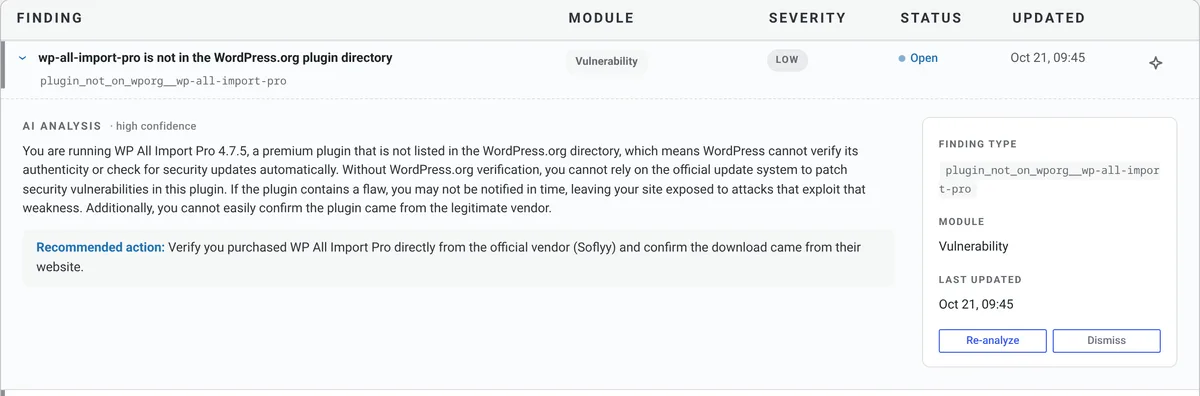
- Closed or never listed. Every few days, we ask WordPress.org about each installed plugin. One it has closed gets a high finding, and Pro can propose deactivating it, after your approval. A paid extension that was never listed gets only a low "verify where it came from" note, with no alert email.
- Known flaws. Each installed plugin, active or not, is matched against a vulnerability feed (wpvulnerability.net by default) every few days.
- Changed files. WordPress.org plugins are checked against official checksums daily. For every plugin, a PHP file that changes without a version update is flagged.
- Known malware. The daily file scan checks every PHP file under wp-content against 13 bundled signatures, with no live feed. It flags high-confidence obfuscation only, such as a decoder fed into eval. It detects and doesn't clean.
- Who did what. The Audit Log records plugin installs, activations, updates and deletions, with the user.
Serious findings can reach you by email if you turn on Email serious findings in Settings > General. It's off by default.
What Pro adds for extensions
Pro ($79 per site per year) adds three checks. A lookalike check runs when a plugin is activated and after each daily scan. It flags a plugin that uses a WordPress.org plugin's name but not its author or homepage, or whose name is a letter or two off a popular one such as woocommerce.
When a plugin updates through WordPress, Pro compares files before and after, raising a critical finding for new obfuscated code, unfamiliar outbound links or PHP files in asset folders.
Pro also records the requests your site makes through WordPress's HTTP functions. After it has seen about 100, it flags outbound requests to unknown domains. That's how an extension quietly sending data somewhere new shows up. See the Free vs Pro breakdown for the rest.
The firewall in the free plugin starts in Monitor mode, logging attacks until you switch it to Block. None of this replaces backups, updates or good hosting, and none of it can tell you whether a paid extension is well written.
Your WooCommerce extension vetting checklist
- Download it from WordPress.org, the WooCommerce Marketplace or the vendor's own site.
- Never install a nulled copy, or a "patch" that arrived by email.
- Check the last update, the "tested" warning and recent support replies.
- Search its name in Patchstack's or WPScan's database, and note how fast past flaws were fixed.
- Make sure every permission and outside connection matches a feature you need.
- For payments, use the gateway's official or listed integration.
- Install on a staging copy, place a test order and list your administrators.
- Delete extensions you've stopped using, after a backup.
Eight ticks means you're vetting like a pro. Five to seven is common and easy to tighten up. Fewer is a normal starting point. Our WooCommerce security checklist and WordPress hardening checklist cover the rest of the store.
WooCommerce extension vetting FAQ
Are WooCommerce Marketplace extensions safe to install?
They're a safer starting point than a random download, because WooCommerce reviews submissions with its own testing toolkit, which includes security checks. That review doesn't guarantee an extension is flawless, and premium code has plenty of published flaws. Keep it updated and check its vulnerability history like any other plugin.
Is a WooCommerce plugin with few active installs unsafe?
Not by itself. Plenty of niche extensions are small and well kept. Low installs just mean fewer people will notice a problem, so lean harder on update history, support replies and a staging test before it reaches your live store.
I got an email telling me to install a WooCommerce security patch. Is it real?
Almost certainly not. WooCommerce says its emails come from WooCommerce.com or Automattic.com addresses and asks you never to install plugins from an email. Real fixes arrive as normal updates in your dashboard. Delete the email and update from Dashboard > Updates instead.
Why does SecurynAI flag my paid WooCommerce extension?
It's a low-severity note, not an alert: the extension isn't in the WordPress.org directory, so it can't be checked against official checksums. That's normal for paid extensions. If you bought it from the vendor and recognise it, dismiss the note with a short reason so the decision is on record.
Vetted it and installed it? The free SecurynAI plugin keeps an eye on every extension from then on, including the ones you've switched off.
Install free →