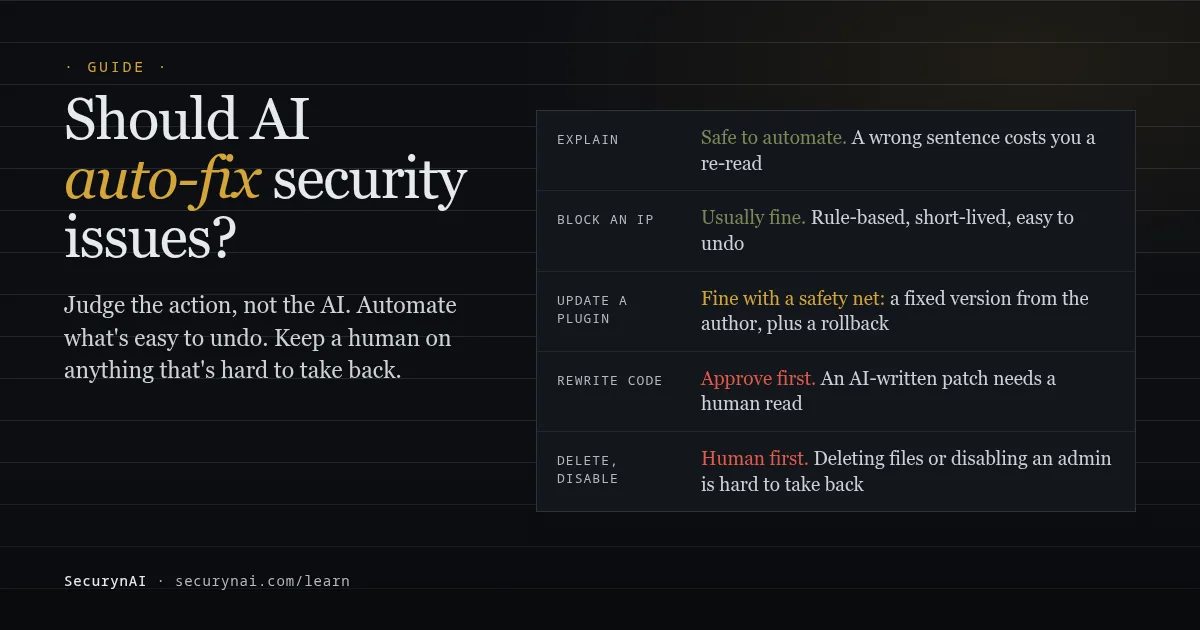
Short answer: AI should auto-fix security issues only when the fix is small, rule-based and easy to undo. An automatic security fix is any change a tool makes to your site without you clicking a button, such as blocking an IP or updating a plugin. Explaining a problem is always safe to automate. Changing your site depends on the change.
If you're choosing a tool, or deciding which "auto-fix" switches to turn on, this guide gives you a simple rule and a checklist. If you've already had an automatic update or a security plugin break something, the FAQ near the end covers what to do next.
Should AI auto-fix security issues at all?
The useful question isn't "do I trust the AI?" It's "what happens if this particular change is wrong?" A wrong sentence in an explanation costs you a minute of re-reading. A wrong file deletion can take your site down, and you may not have a copy. Same tool, very different risk.
So split what a security tool can do into three jobs:
- Find the problem. Ideally with fixed rules: a known-bad pattern, a file that doesn't match the official copy, a plugin version listed in a vulnerability database.
- Explain it. This is where AI is genuinely good, turning a cryptic finding into plain English.
- Change something. Update, block, restore, delete, rewrite. This is the part that needs a decision about who's in charge.
Our guide to what "AI-powered" WordPress security really means covers the first two jobs. This one is about the third.
The case for automatic security fixes
Speed matters, because attackers move within hours of a flaw going public. Patchstack's State of WordPress Security in 2026 report says "approximately half of high impact vulnerabilities get exploited within 24 hours", with a weighted median time to first exploit of 5 hours. Few people check their sites every five hours.
That's the honest case for automation. If a plugin you run has a known flaw and the author has shipped a fix, updating within minutes beats updating on Friday. The same goes for blocking an IP that's guessing passwords: a rule that acts at once does better than an alert you read tomorrow.
But the same report also says "46% of vulnerabilities did not receive a patch by the time of disclosure." Auto-update only helps when there's something to update to. Otherwise a human decides: deactivate the plugin, replace it, or accept the risk for now. Our guide to reading a CVE helps with that call.
Where automatic fixes go wrong
Every automatic change can fail in two ways: the fix itself breaks something, or the tool fixed the wrong thing. Neither is rare, and AI adds a third way.
The fix breaks something
Plugin updates are the classic case. In one WordPress.org support thread, a site owner running a popular optimisation plugin wrote that after an automatic update "my site went down with the dreaded 'WordPress Critical Error'". Support replied that "a fix has just been through testing", and others were told to roll back a version meanwhile.
It still happens. In a 2026 thread about a poll plugin, an update left a user unable to use the admin panel "due to a critical error in the plugin." Their conclusion: "automatic updates for the plugin need to be disabled." The plugin team agreed that "it was a good decision to disable automatic updates for now."
WordPress now has a safety net. Since WordPress 6.6, a plugin auto-update that triggers a fatal error is rolled back. The core team's write-up says it "performs a loopback request to the homepage to check for PHP fatal errors." That catches a homepage crash, not a broken checkout.
The tool fixes the wrong thing
Deleting is the hardest action to take back. In another WordPress.org thread, a user deleted files a security scan had flagged, and their site broke. The plugin's support explained the difference plainly: quarantined files are kept for a while, "but if they are deleted – that's it." The way back was a backup, "if you have such backup."
Security scanners flag legitimate code more often than people expect. Our guide to why security scans flag safe code walks through the usual causes. A tool that quarantines or deletes on its own turns each of those false alarms into an outage.
The AI is confidently wrong, or gets steered
Language models write fluent answers whether they're right or not. That's fine when a human reads the answer first. It's a problem when the answer becomes an action. OWASP's 2025 Top 10 for LLM Applications names this risk "Excessive Agency" and recommends that tools "require a human to approve high-impact actions before they are taken."
There's also the question of who's talking to the AI. If a model reads text an attacker wrote, such as a comment, that text can try to give it instructions. Our guide to prompt injection in AI WordPress plugins explains how. An AI that can only suggest is much harder to abuse than one that can act.
A simple rule for automatic security fixes: judge the action
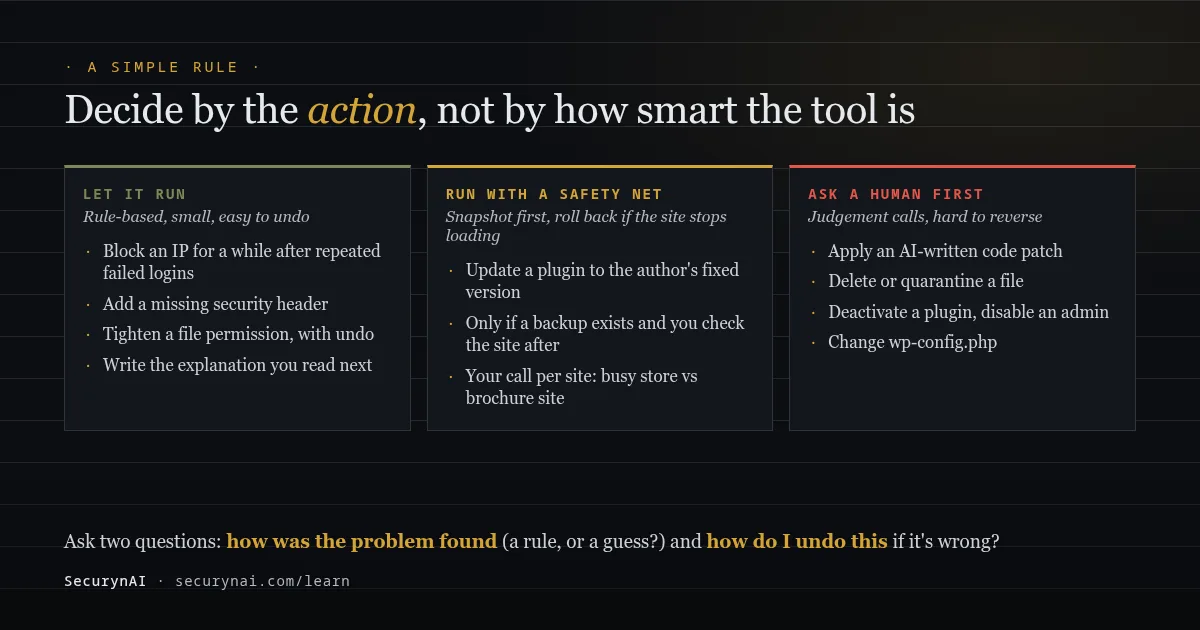
Ask two questions about any automatic fix: how was the problem found, and how do I undo the change if it's wrong? A problem found by a fixed rule (20 failed logins, a checksum mismatch, a version listed as vulnerable) is a fact. A problem found by an AI's judgement is an opinion, even a good one.
| Action | How it's decided | How you undo it | Our view |
|---|---|---|---|
| Explain a finding | AI or a template | Nothing to undo | Automate |
| Block an IP after repeated failed logins | Fixed rule | Expires, or unblock in one click | Automate |
| Add a security header, tighten a file permission | Fixed rule | One-click undo, if the tool keeps a snapshot | Automate, with undo |
| Update a plugin to the author's fixed version | Vulnerability database | Roll back to the old version, ideally right after a check that the site still loads | Automate with a backup, or approve on busy stores |
| Apply a code patch an AI wrote | AI judgement | Restore the original file | Approve first |
| Quarantine or delete a file, deactivate a plugin | Rule or AI judgement | Quarantine: restore. Delete: backup only | Approve first |
| Ask a user to log in again, end their sessions | Risk score, sometimes AI | They log back in | Automate when the signal is strong |
| Lock or disable an admin account | Judgement | Re-enable, if someone can still log in | Approve first |
Your answer can differ by site. A brochure site with daily backups can take more automation than a store doing a sale this week. If you look after client sites, decide per site, and write it down. Our playbook on managing 30+ client sites shows one way to keep that consistent.
A rollback isn't a health check
"Rolls back if it fails" only helps if the tool can tell that it failed. Most checks look for a crash: a missing file, a fatal error on the homepage. Few notice a payment step that stopped working. After any automatic update, it's worth clicking through the one or two pages that earn your money.
What SecurynAI fixes automatically, and what waits for you
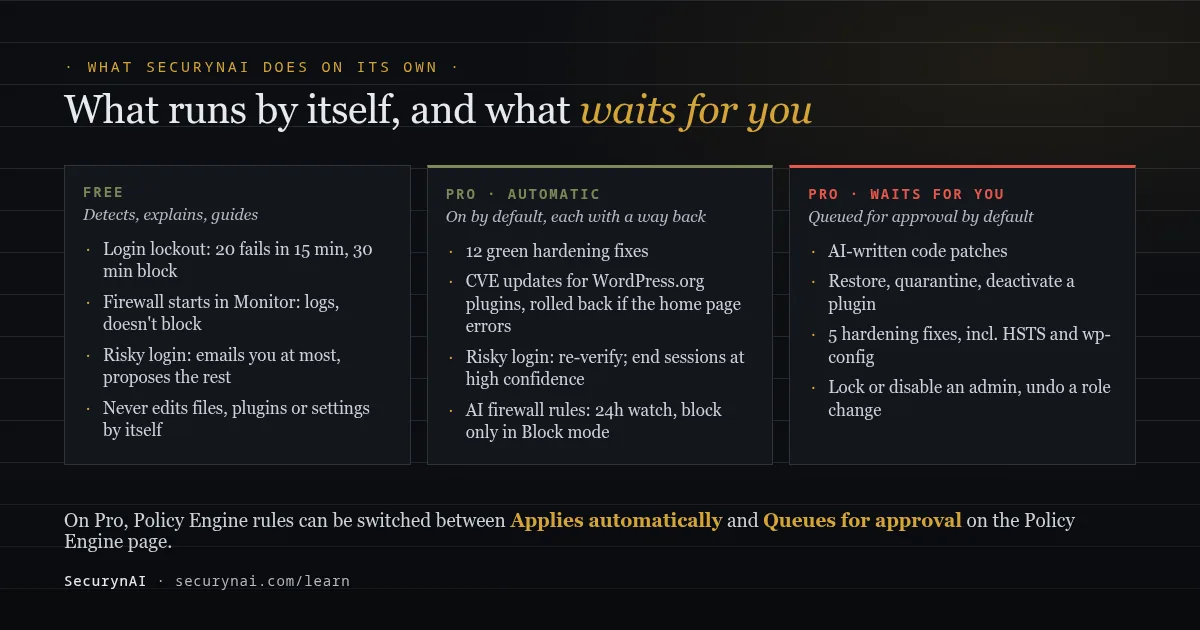
We at SecurynAI built the free plugin to detect and explain, and Pro to fix, with a rule for every kind of change. Here's exactly what each one does without asking, based on the plugin code as of October 2026.
Free: explains, and only blocks by rule
The free plugin never edits your files, updates your plugins or changes your settings by itself. Its hardening checks tell you what to change and how. The automatic parts are all rule-based:
- Login lockout: 20 failed logins in 15 minutes blocks that IP from logging in for 30 minutes. It works in both firewall modes, and you can unblock from the Identity page.
- The firewall starts in Monitor mode. It logs attacks it recognises without blocking them until you switch it to Block. Block mode adds 403 responses and a short automatic blocklist for repeat offenders.
- Risky logins: SecurynAI suggests a response, from "email the admin" up to locking the account. On its own it goes no further than emailing you. Anything stronger appears on the Identity page for you to approve, and can be reverted.
Pro: rules decide, and you can change them
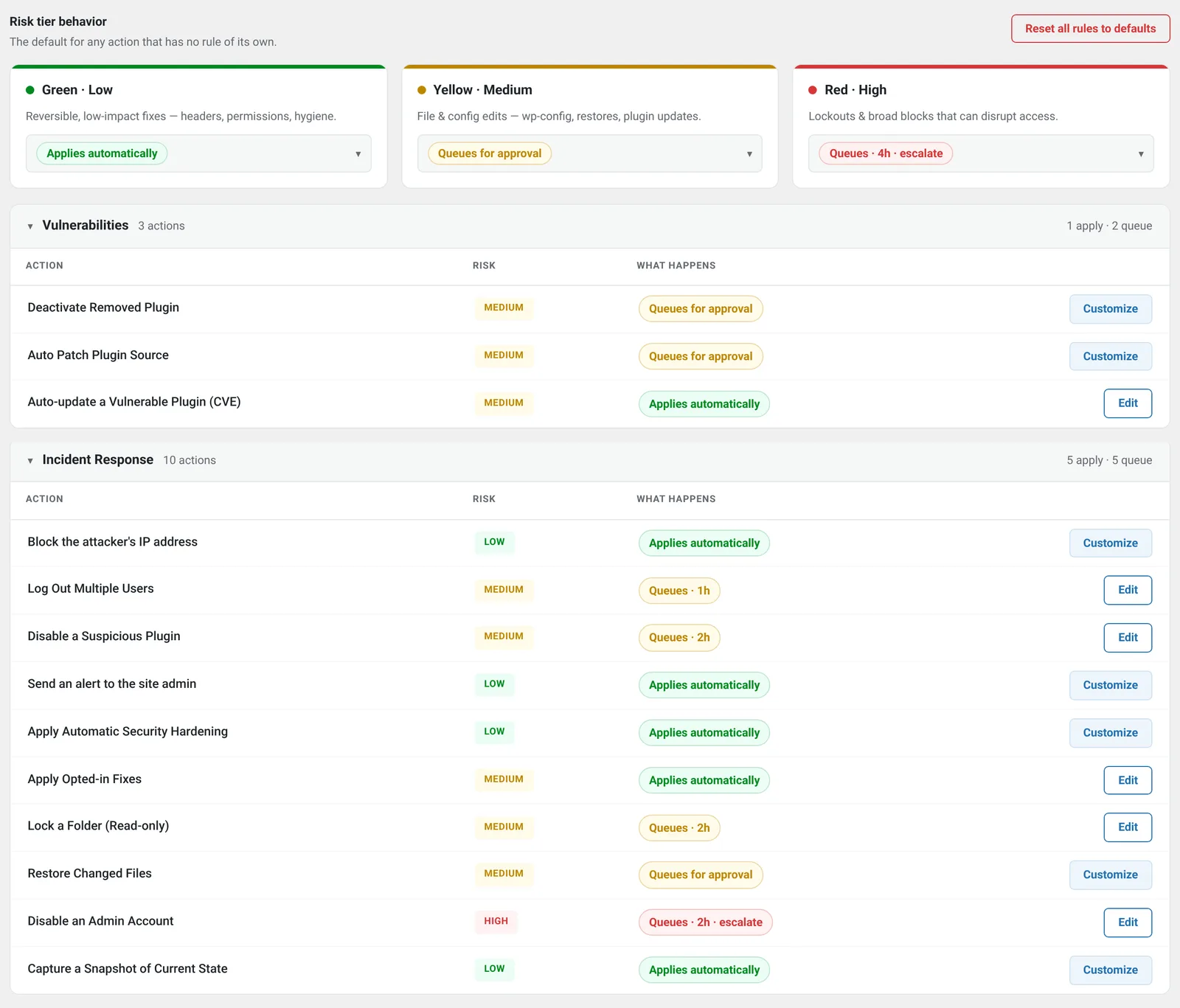
SecurynAI Pro ($79 per site per year) adds automatic fixes. Most are governed by a rule on the Policy Engine page, showing "Applies automatically" or "Queues for approval", and you can switch each one. These run on their own out of the box:
- 12 low-risk hardening fixes, such as security headers, file permissions and resetting the default user role, each with undo.
- Security updates for WordPress.org plugins that have a fixed version and score high in the Patch Queue. Pro snapshots the plugin, updates it, then loads your home page. A server error or WordPress's "critical error" screen rolls the plugin back. If the home page can't be reached at all, nothing is rolled back, and other pages aren't checked. Themes, core and premium plugins show "Manual update required".
- Reversible risky-login responses. Asking the user to re-verify runs on its own. Ending their sessions runs on its own only when the recommendation is high-confidence. You can revert either on the Identity page.
- AI-written firewall rules, with your AI key. They're built from attacks the firewall already caught and tested against normal requests. Each one only logs for its first 24 hours, blocks only when the firewall is in Block mode, and expires after 30 days. You can disable one, or mark it a false positive.
These wait for your approval by default: restoring or quarantining files, five riskier hardening fixes such as HSTS and wp-config.php edits, deactivating a suspicious plugin, logging out many users, undoing a role change, disabling an admin, and locking an account after a risky login.
If nobody answers, a queued request keeps waiting, or after its time limit is skipped or escalated. None of the default rules treats silence as a yes.
With your own AI key, Pro can also read a vulnerable plugin's code and propose a patch. It does so only at high confidence, checks the patched file still parses as PHP, and keeps the original for undo. Even so, AI-written code patches queue for your approval by default. A file that parses isn't the same as a correct fix.
Where the AI stops
In both versions, AI explanations only explain. Pro's Copilot answers questions and writes step-by-step guides, but has no way to run a fix.
When Pro's AI reviews a file flagged as malware, it adds its own finding and never closes the original, even when it thinks the file is safe. That call stays with you. Our guide to fact-checking an AI security explanation shows how to check what it tells you.
None of this replaces backups. SecurynAI doesn't make them. If a fix goes wrong in a way undo can't reach, your backup is the way back. Our guide to restoring from a backup covers doing that safely.
Checklist: setting up auto-fix you can live with
Whatever tool you use, these steps keep automatic fixes on your side:
- Confirm you have a recent backup stored off the server, and that you've restored from it at least once.
- List what your tool does without asking. If the settings don't tell you, ask the vendor in writing.
- Turn on automatic security updates for well-maintained plugins, and decide case by case for checkout, payment and membership plugins.
- Keep deletions, plugin deactivation and admin changes on "approve first".
- Make sure approval requests reach a real inbox that someone reads every day.
- After any automatic update, check your money pages: checkout, contact form, login.
- Know your undo path: where the tool's undo button is, and how to get in over SFTP if wp-admin is down. Our guide to getting back into wp-admin covers the second part.
If you can tick all seven, automation is working for you. If you're stuck on the first one, fix that before turning anything on. For the update side specifically, our WordPress automatic updates guide goes deeper.
Auto-fix FAQ
Should I turn on automatic updates for plugins with security fixes?
For most sites, yes, as long as you have a recent backup and know how to roll a plugin back. A known flaw with a published fix is exactly what attackers scan for. On a busy store, you may prefer to approve updates for checkout and payment plugins yourself.
Can an AI security tool break my site?
Yes, if it's allowed to change things without a check. Updates can clash, deleted files can be ones you needed, and an AI can be confidently wrong. Look for tools that snapshot before a change, offer undo, and ask before anything hard to reverse.
Does the free SecurynAI plugin fix anything automatically?
It never edits your files, plugins or settings on its own. It does lock out an IP after 20 failed logins in 15 minutes, and its firewall can block attacks once you switch it from Monitor to Block mode. Everything else, it explains and leaves to you.
What happens if nobody approves a queued fix in SecurynAI Pro?
Nothing runs. Default rules either wait for you or, after their time limit, skip the step or escalate it. None of the seeded rules treats silence as a yes.
Want fixes applied for you, with a rule you can see and change for every kind of change? See what SecurynAI Pro automates, what it asks you about first, and how it compares with the free plugin.
Compare Free and Pro →