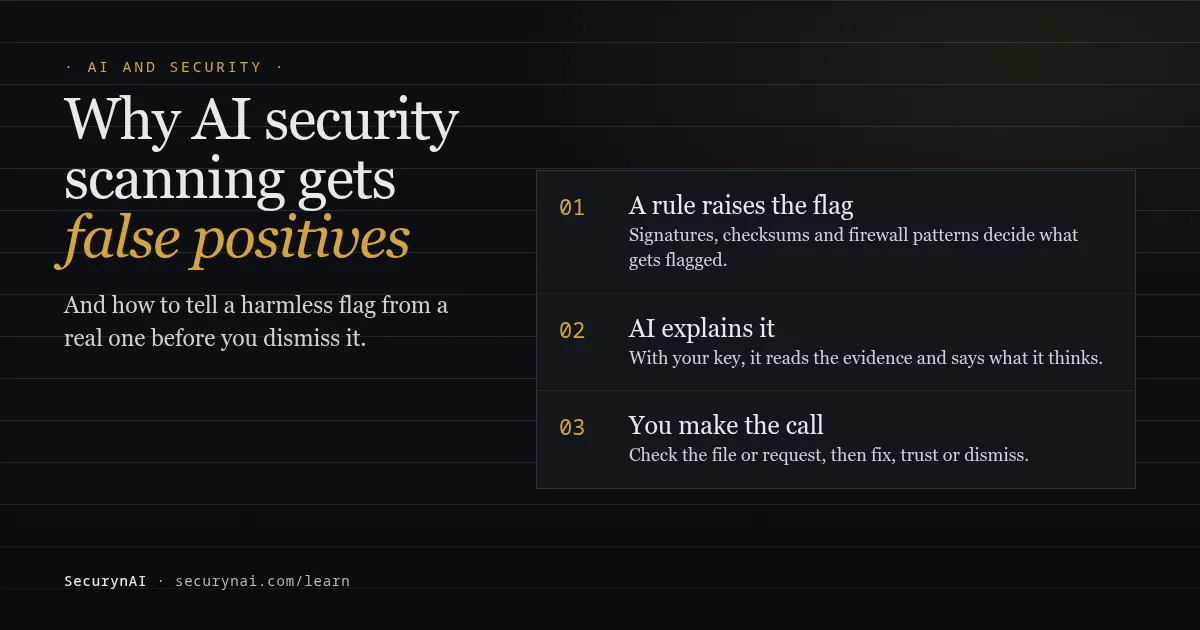
A false positive is a security warning about something that turns out to be safe. In AI security scanning, false positives come from two places: the rules that raise the flag, and the AI that judges or explains it. A security plugin false positive is normal and usually fixable. The real risk is dismissing a true one.
If you're here with a warning you think is wrong, here's the safe first step. Don't delete or dismiss anything yet. Find the exact file, rule or request the warning names, and write it down. The rest of this guide shows how to check it in a few minutes.
Why every scanner raises false alarms, AI or not
A scanner has to guess from the outside, and some safe code looks a lot like unsafe code. A backup plugin writes uploaded files to disk. A page builder stores code in odd places. A developer edits a plugin file to fix a bug. To a scanner, each of those can look like an attacker doing the same thing.
There are two broad ways to decide something is bad. A signature or checksum compares against something known: a malware pattern, or the official copy of a file. It's specific, but it only knows what it was told.
A judgement approach, which is where AI models usually sit, guesses from how something looks. It can spot new things, and it can be confidently wrong.
That second failure is well documented. Daniel Stenberg, who maintains the curl tool, wrote in July 2025 that "about 20% of all submissions" to its security reports that year were AI slop, and only "about 5%" turned out to be genuine vulnerabilities.
WordPress sees it too. Patchstack's State of WordPress Security in 2026 reports "a significant increase of AI generated 'slop' vulnerability reports in 2025."
So the question isn't "does this tool have false positives?" It's "what decides a flag, and can you check it?" The same Patchstack report counts 11,334 new vulnerabilities in the WordPress ecosystem in 2025, 91% of them in plugins. A scanner that stayed silent to avoid false alarms would miss real ones.
Where SecurynAI's flags come from (rules, not AI)
In the free plugin, we at SecurynAI raise every flag with a fixed rule, then use AI to explain it. No AI key is needed for detection. (Two Pro features do use AI to look for problems, covered below.) Here's what each free check compares against, and the innocent change that most often trips it.
| Check (free) | What decides the flag | Common innocent cause |
|---|---|---|
| Malware signatures (critical) | 13 bundled patterns over PHP files under wp-content | Legitimate code that pipes request data into a file write or command |
| Obfuscated PHP (high) | A decoder fed straight into eval, or preg_replace with /e | Encoded loader or very old code in some premium plugins |
| Core file mismatch (high) | WordPress.org checksums for your installed version | A host's leftover index.html or a tool's PHP file in the site root |
| Plugin file mismatch (high) | WordPress.org checksums for that plugin version (plain-text docs skipped) | A hand edit to one of the plugin's code files |
| File drift (high) | A file changed without a version update | You or a developer edited a theme or plugin file |
| PHP in uploads (high) | A PHP-runnable file in the uploads folder (empty placeholders aside) | A plugin that stores its own PHP files there |
| Firewall hit (log only in Monitor) | 13 request patterns: SQL injection, XSS, traversal and more | An editor saving a post with a script tag or onclick code |
The malware scan in the free SecurynAI plugin was built to keep noise down. It strips PHP comments before matching, so a code example in a comment can't trip it. It skips vendor/ and node_modules/ folders, and it drops weaker obfuscation scores instead of showing them. It detects only; it doesn't clean files.
The false positives you're most likely to see, and what to do about each
A malware signature on a plugin you trust
A signature match means the pattern is there, not that the plugin is hostile. One signature looks for PHP's backtick shell operator next to request data. Database code also uses backticks around table names, so a line of SQL that mentions $_GET can match. Another looks for request data written straight to a file, which some upload handlers do.
Other scanners hit the same wall. In a 2026 WordPress.org thread, a host's scanner flagged a migration plugin. Its developer said the scanner "saw the literal string and immediately flagged the file": the code listed dangerous function names in order to block them.
In a 2016 thread, Wordfence's own staff said of a flagged redirect plugin, "we've confirmed that this is a false positive."
To check it, download a fresh copy of the same plugin version from WordPress.org or the vendor and compare the flagged file. Identical file, from a source you trust: it's a false positive. A file that doesn't exist in the official copy is much more worrying; our guide to the signs of WordPress malware covers what to look at next.
A core warning about a file WordPress didn't ship
The core check also lists files WordPress never shipped: PHP files in wp-admin, wp-includes or the site root, plus an index.html or index.htm in the root. Some hosts leave a placeholder index.html from before WordPress was installed. Some tools drop a PHP loader or test file in the root. Untidy, but innocent.
Find out who put the file there before you remove it, and back up first. A host placeholder can go once your host confirms it's theirs. An unknown PHP file inside wp-includes is far more worrying; our guide to a core file that was silently altered walks through reading the change.
If a real core file was edited, the Re-install button on Dashboard › Updates restores core files without touching your content. Deleted readme.html, license.txt or wp-config-sample.php files aren't reported, since removing them is common hardening advice.
A plugin file mismatch from your own edit
If someone edited a WordPress.org plugin by hand, the checksum check is right: the file isn't the official one. Plain-text docs such as readme.txt and changelogs are skipped, as WP-CLI's wp plugin verify-checksums does by default. So a mismatch means a file that can run, such as PHP or JavaScript, changed.
The clean fix is to stop editing plugins directly, because the next update will wipe the change anyway. Move the change into a small custom plugin or your child theme, then reinstall the official plugin.
File drift after you edited your theme
File drift clears on its own: SecurynAI records the new version of the file after reporting it, so the next daily scan resolves the finding if nothing else changed. You don't need to dismiss it. If you didn't make the edit and can't name who did, read the changed file before that next scan.
A firewall hit on your own editor's save
The free firewall starts in Monitor mode, logging matches without blocking until you switch it to Block. It reads form fields and JSON bodies, so an editor saving a page that contains a <script> tag or an onclick= attribute can match the cross-site scripting rules. In Monitor mode that's a log line; in Block mode the save would fail.
This is common across firewalls. In a 2019 WordPress.org thread, a site owner who couldn't save a post found the cause at their host, which added a rule exception for "a false positive response to the post update activity of the Gutenburg editor." Our XSS guide explains why stored script in posts is hard for any firewall to judge.
In SecurynAI, check the Firewall page's Traffic tab before switching to Block. If one rule keeps matching your own work, untick it on the Rules tab. There's no per-page or per-IP exception in the screen; a developer can skip the firewall for a specific endpoint, such as a payment webhook, with the securyn_firewall_should_run filter.
Does SecurynAI's AI ever decide a finding is safe?
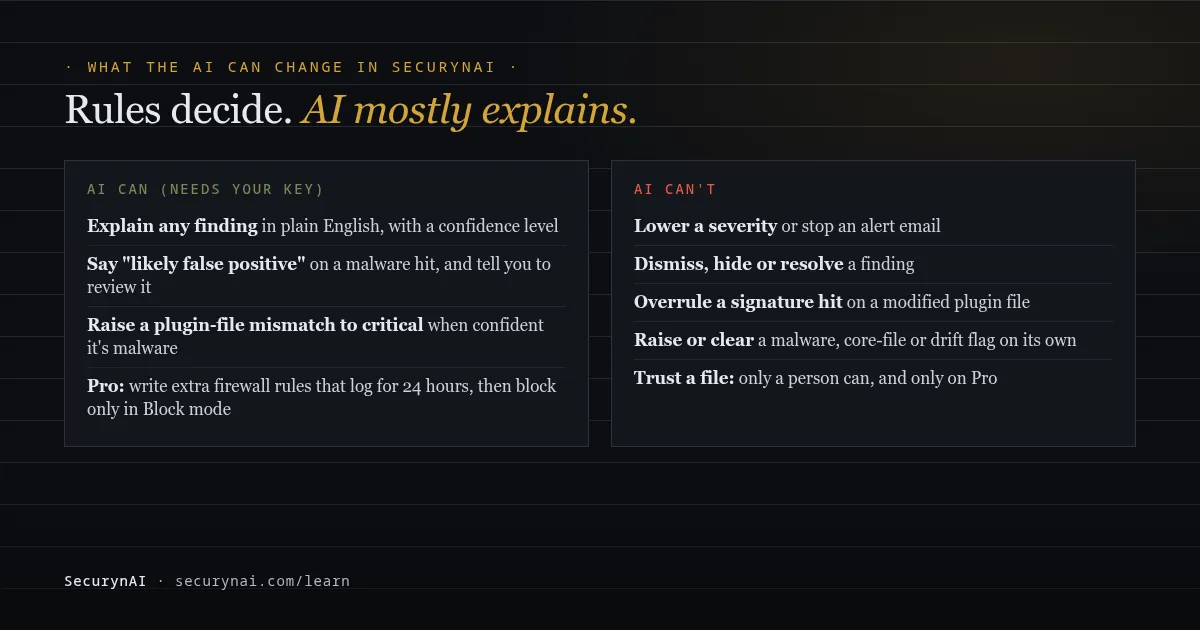
It can say so, but it can't lower a severity, and it never dismisses, hides or resolves anything. The AI parts need your own API key. Without one, you get shorter built-in explanations and the same detection.
On malware hits: an opinion, never an action
For signature, obfuscation and uploads findings, SecurynAI sends up to 3 flagged files to your AI provider: the first and last 2,000 characters of each, plus the code that matched. Email addresses and API keys are replaced first.
If the model says benign, the finding reads: "Classifier flagged this hit as a likely false positive." The next line tells you to "Review the file manually." The finding stays open, at the same severity.
Treat that verdict as a second opinion, not proof. The model read the same file you're unsure about, and a malicious file can contain text written to sway an AI reader, a trick called prompt injection. That's one reason the AI's view never closes a malware finding.
On modified plugin files: it can only raise the severity
This is the one place the free plugin lets AI change a finding, and only upwards. When a WordPress.org plugin file doesn't match the official copy and no malware signature hit that file, SecurynAI asks the AI. A confident malware verdict raises the finding from high to critical.
A "benign" or unsure verdict is recorded, but the finding stays high and the opt-in alert email still goes out. Text planted in a tampered file shouldn't be able to silence it. The Findings page shows the flagged files and a verdict line such as "Benign, from AI (medium confidence)."
A signature hit on a modified file always makes it critical, and the AI can't argue it down. AI answers are cached for 30 days, keyed to a hash of the whole file, so any edit gets a fresh answer. The Re-analyze button skips the cache and asks again.
On Pro: AI-written firewall rules and code checks
Pro's adaptive firewall goes further. With your AI key, it can write extra rules from attack traffic the built-in rules didn't match. Each rule is tested against a set of normal requests first, only logs for its first 24 hours, and after that blocks only when the firewall is in Block mode.
You can mark a Pro rule as a false positive; enough of those switch it off.
Pro can also have the AI read part of a plugin's code and point at risky lines, with file and line number. Those are leads for a developer, not verdicts; the finding itself says to "dismiss if it is a false positive." Our guide to whether AI should auto-fix security issues covers Pro's approval rules.
How to check a false positive before you dismiss it
Two mistakes are common: deleting things in a panic, and dismissing out of habit. The first breaks working plugins. The second is exactly what a well-hidden infection relies on. This short routine avoids both.
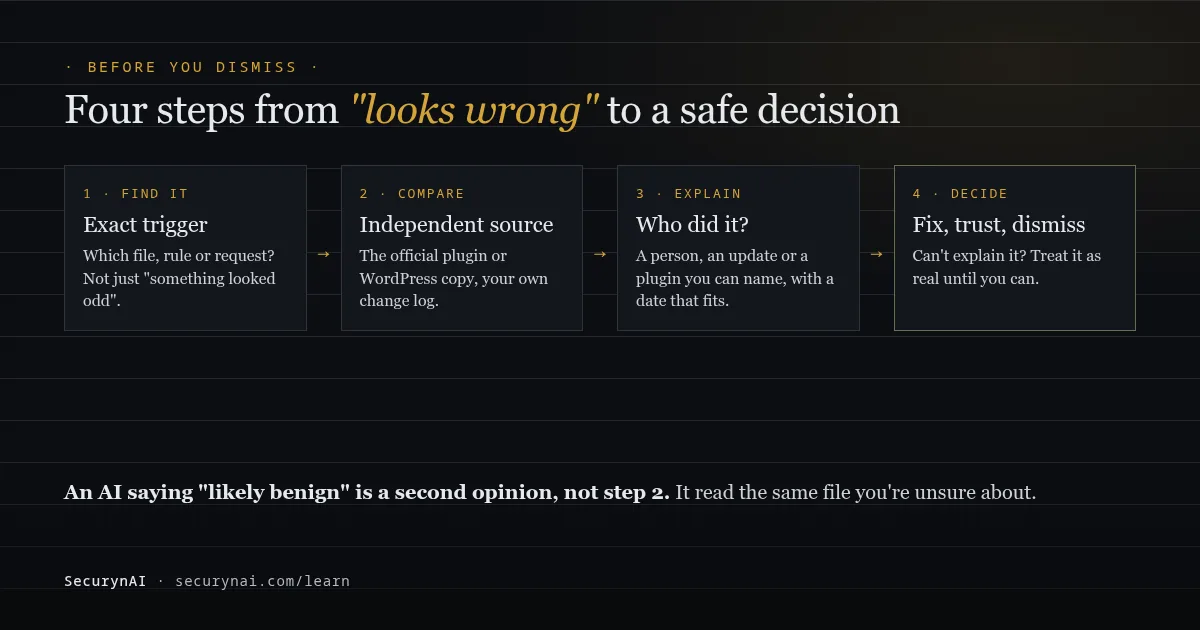
- Find the exact trigger. Note the file path (the Findings page lists the flagged files), the signature or rule name, and the date. A warning you can't pin down isn't ready to dismiss.
- Compare against an independent source. For plugin and core files, use a fresh download of the same version, or WP-CLI's
wp core verify-checksums. For firewall hits, check the request against what you were doing at that time. - Name who made the change. You, a developer, a plugin update, your host. The date should fit. The Audit Log shows plugin, theme, user and settings changes.
- Then decide. Fix the cause where you can. If you can't explain the change, treat it as real and follow our guide to removing WordPress malware.
Our guide to fact-checking AI security explanations shows how to test what the AI says.
Dismiss, trust or fix: which button for which false positive?
In the free plugin, Dismiss covers the files flagged at that moment, not the whole check. The prompt says future scans won't resurface it "unless a file scan flags a new file." If a later scan flags a different file, or more hits, the finding reopens and the alert goes out again. Fixing the cause is still usually better.
| The false positive | Best response | Why |
|---|---|---|
| Host's leftover index.html in the site root | Delete it once your host confirms it's theirs | WordPress never uses it; the core check clears |
| Your own edit to a theme file | Nothing: it clears on the next scan | Drift re-records the file after reporting it |
| Your own edit to a plugin file | Move the change out, reinstall the plugin | The next update would undo it anyway |
| Signature hit on a file identical to the official copy | Dismiss with a reason | Covers that file; a newly flagged file reopens it |
| Firewall rule matching your own saves | Untick that rule, or ask a developer for an endpoint exception | Keeps the other 12 rules active |
Dismissing from the Findings page asks for an optional reason, and the dismissal is written to the Audit Log with your name, so anyone can see later why. Reopen it from the Dismissed tab at any time. One limit: in the free plugin, a later edit inside a file you already dismissed doesn't reopen it.
Pro pins trust to the file's contents. On Pro ($79 per site per year), dismissing a Pro malware finding suppresses only that file as it is now: if the file changes, it's flagged again.
For a modified plugin file, the approval card has a "Mark this change as intentional" option that trusts those exact files at that version. A plugin update or any further edit brings the warning back.
SecurynAI doesn't replace backups, updates or good hosting, and no scanner, AI-assisted or not, will be right every time. What you want is one that tells you what tripped the flag and lets you make the call.
AI security scanning false positives FAQ
Is it safe to ignore a security plugin warning I think is a false positive?
Only after you've checked it. Compare the flagged file with the official copy, or tie the change to something you or a plugin update did. If you can explain it, dismissing is fine. If you can't, treat it as real until you can.
Can SecurynAI's AI mark a finding as safe by itself?
No. It can say a malware hit looks like a likely false positive, but the finding keeps its severity and stays open. The AI can raise a modified plugin file to critical, never lower it. Only a person can dismiss or resolve a finding.
Will dismissing a false positive hide future problems?
Not new ones. In SecurynAI, dismissing a file-check finding covers the files flagged at that moment, and a newly flagged file reopens the finding and sends the alert again. In the free plugin, a later edit inside a file you already dismissed won't reopen it, so dismiss only files you've checked.
Do AI-based scanners have more false positives than signature scanners?
Usually, when the AI is the one deciding what's malicious. A signature only fires on a known pattern, while a model guesses from what code looks like, and it can be confidently wrong. That's why SecurynAI uses rules to raise flags and AI mainly to explain them.
Tired of warnings that don't say what tripped them? The free SecurynAI plugin names the file, rule or request behind every flag, explains it in plain English, and leaves the final call with you.
Install free →