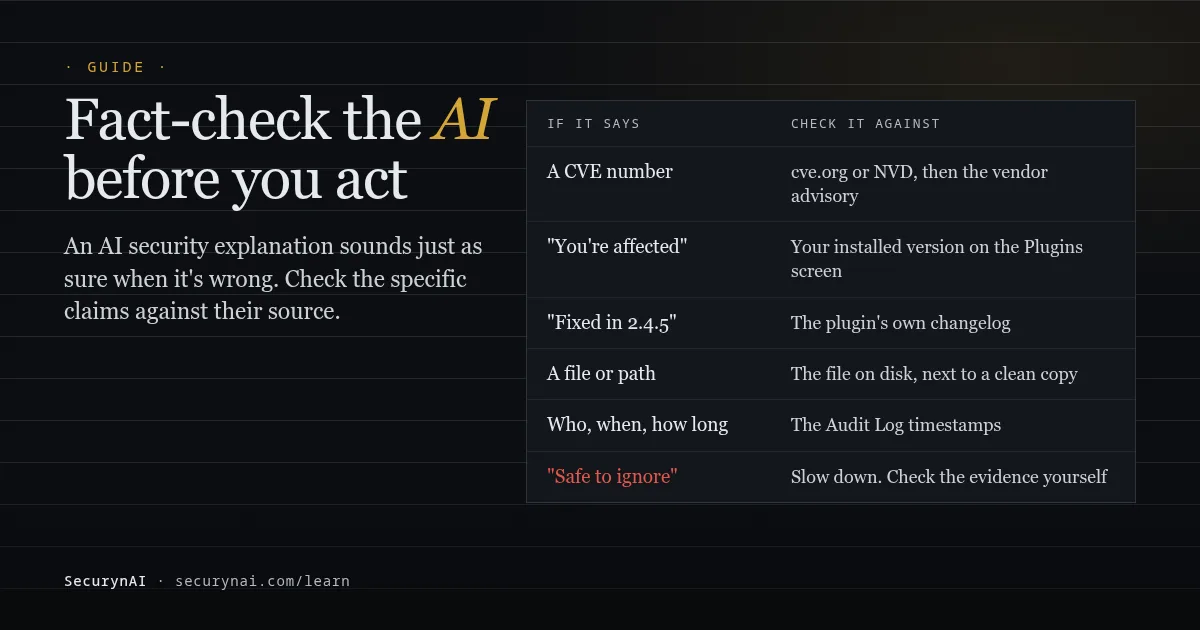
An AI security explanation is a plain-English summary, written by a language model, of something a security tool found, such as a vulnerable plugin or a changed file. To fact-check AI security explanations, you check the few claims that would change what you do: the CVE number, the versions, the file, the dates, and any "this is safe".
If you have one open right now, here's the short version. Find the evidence the explanation is about (the advisory, the file, the log entry) and read that first. If the AI's specifics match the evidence, act on the advice. If even one specific doesn't match, treat the whole explanation as a rough draft.
Why an AI security explanation can sound sure and still be wrong
A language model writes the most likely-sounding answer, and a wrong answer can be just as likely-sounding as a right one. There's no wobble in the tone to warn you. The US standards body NIST, in its Generative AI Profile (NIST AI 600-1, July 2024), calls this confabulation: "the production of confidently stated but erroneous or false content".
NIST adds a detail that matters for security work: models can also produce "confabulated logic or citations that purport to justify or explain the system's answer." In other words, a wrong conclusion can arrive with a neat, wrong reason attached. That's why a convincing explanation isn't evidence on its own.
CVE numbers are the clearest example. In a 2025 study, Using LLMs for Security Advisory Investigations: How Far Are We?, researchers gave ChatGPT 100 real and 100 fake CVE numbers. It wrote plausible security advisories for 96% of the real ones and for 97% of the fake ones. It couldn't reliably tell them apart.
Open-source maintainers see the same thing from the other side. In May 2025, curl's lead developer Daniel Stenberg told The Register about an AI-written bug report that described functions curl doesn't have, yet "sounded almost plausible." If a security maintainer has to stop and check, so should you.
None of this makes AI explanations useless. Turning "Authenticated (Contributor+) Stored XSS via shortcode attribute" into "anyone with a Contributor account could plant a script on your pages" is real help. The risk sits in the specifics, so that's where your checking goes.
Which claims in an AI security explanation are worth checking?
Check anything specific enough to be wrong in a way that changes your next step. The general "here's why this matters" framing is low-stakes. A version number that decides whether you're exposed is not. This table covers the claims we'd check every time, and where the truth lives.
| If the explanation says... | Check it against | Why it goes wrong |
|---|---|---|
| A CVE number | cve.org or the NVD, then the vendor's own advisory | Models invent believable IDs, or attach a real ID to the wrong plugin |
| "Your site is affected" | Your installed version on the Plugins screen, against the advisory's affected range | The AI may not have been told your version at all |
| "Fixed in version X" or "no fix yet" | The plugin's changelog and its WordPress.org page | Advisory data lags, and a cached answer can predate the fix |
| A file path or function name | The file on your server, next to a fresh download of the same version | Paths and function names are easy to make up |
| Who did something, when, or for how long | Your audit or activity log's raw timestamps | Models are poor at date maths |
| "Likely a false positive" or "safe to ignore" | The evidence itself, read by you | A wrong "safe" stops you acting; a wrong "danger" only costs time |
That last row deserves extra weight. If an AI wrongly calls something dangerous, you lose ten minutes checking. If it wrongly calls something harmless, you might leave a backdoor in place. Be most sceptical when an explanation tells you to do nothing.
A five-minute routine to fact-check an AI security explanation
Work from the evidence outwards, and stop as soon as something doesn't match. You don't need a security background for any of these steps. You need the finding in front of you, a browser tab, and sometimes your hosting file manager.
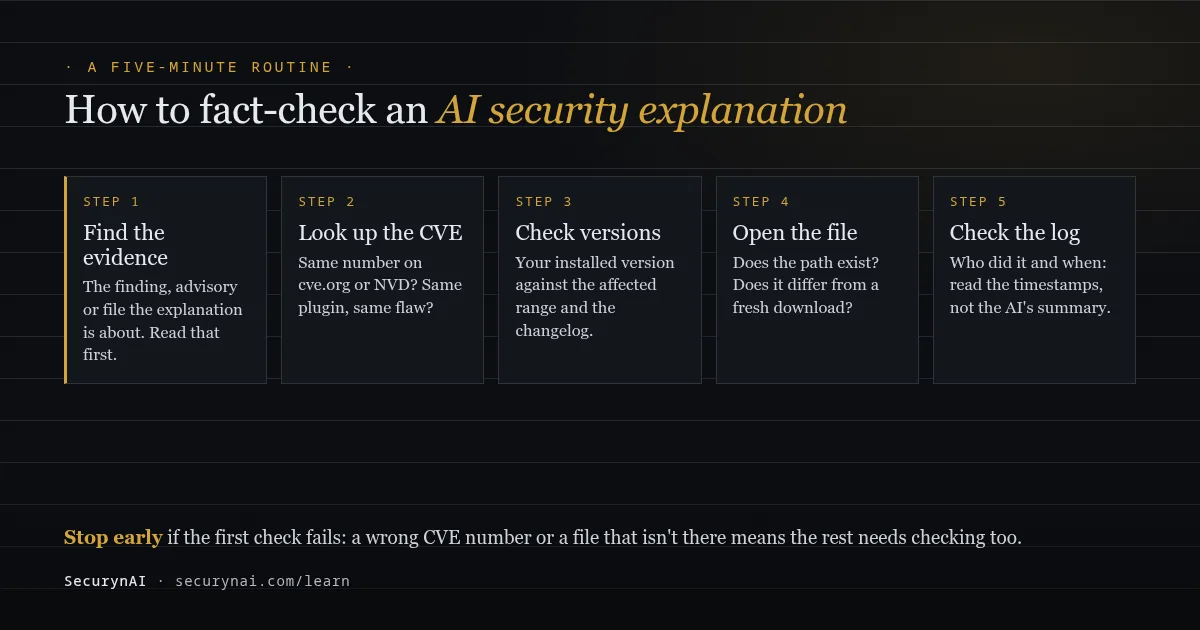
- Find the evidence. Every explanation is about something concrete: an advisory, a file, a login, a settings change. Open that raw record before you read the summary again. If you can't find any evidence behind the explanation, that's your answer.
- Look up the CVE. Paste the number into cve.org or the NVD. A real record names the product and describes the flaw. Make sure it's the same plugin and the same kind of problem the AI described. Our guide on how to read a CVE explains the fields.
- Check versions. Find your installed version under Plugins, or run
wp plugin listif you use WP-CLI. Compare it with the affected range in the advisory, then read the plugin's changelog for the fix. - Open the file. If a path is named, confirm it exists. For plugin or core files, download a fresh copy of the same version and compare. Look at the whole file, not just the first screen.
- Check the log. For "an admin changed X" or "this started three days ago", read the timestamps and user names in your activity or audit log yourself.
When the evidence itself is wrong
Sometimes the AI explains the data correctly and the data is wrong. Scanners match plugins by their folder name (slug), and slugs collide. In one WordPress.org thread, a 2025 theme was flagged for a 2014 flaw in an older namesake. The scanner's support team said: "We can only reliably identify themes and plugins by their slug names."
Paid plugins hit the same problem. In another WordPress.org support thread, a Pro add-on was reporting itself under its free version's slug, so it inherited the free version's advisories.
Malware scanners slip as well. In a third thread about a malware warning, a scanner flagged a standard Symfony library file inside a plugin. The plugin's author replied that it was "a false positive as the code in question does not expose a vulnerability on the site."
"No fix yet" can be genuinely true, too. Patchstack's State of WordPress Security in 2026 report found that "46% of vulnerabilities were not fixed in time for public disclosure" in 2025. So if the changelog shows no fix, believe the changelog, and decide whether you can live without the plugin for now.
How SecurynAI grounds its AI explanations, and where they can still slip
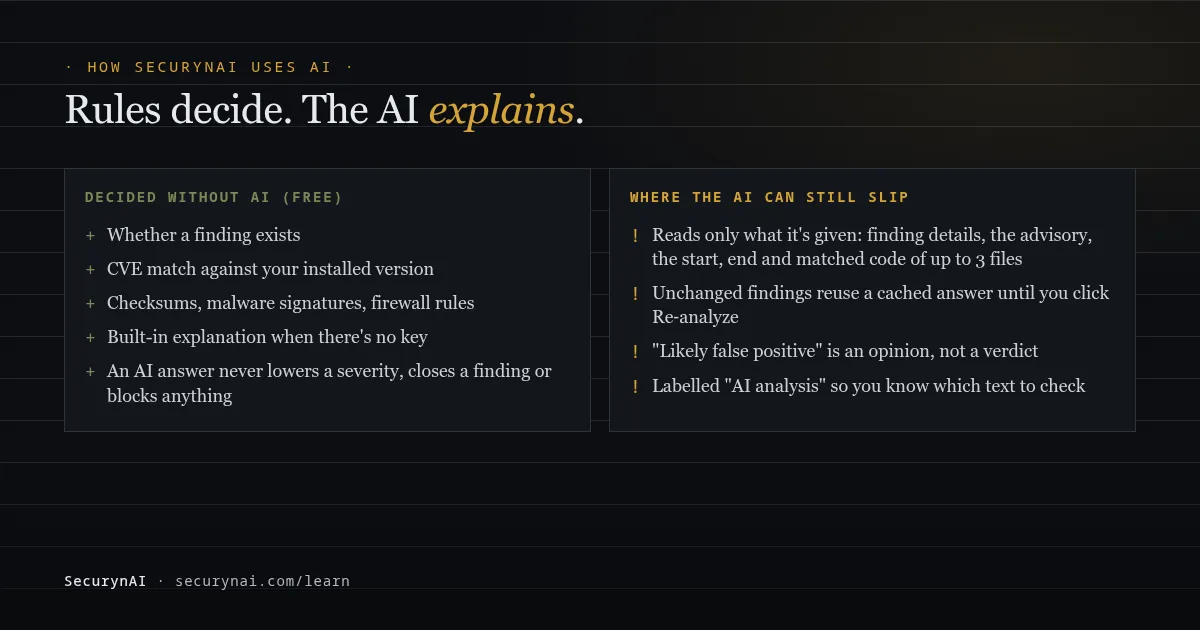
At SecurynAI, we use AI to explain findings, not to make them. The free plugin decides whether something is wrong using fixed rules: checksums from WordPress.org, 13 bundled malware signatures, firewall rules, the wpvulnerability.net feed matched against your installed versions, and hardening checks. Only after a finding exists does the AI get asked to explain it.
What the AI is given, and what it's told
The AI sees only what we send: usually the finding's title, severity and stored details. For a vulnerability it's the advisory text, your installed version and the fixed versions from the feed. For a malware hit it also gets up to three flagged files: the first and last 2,000 characters of each, plus the exact code that matched.
Before anything is sent, email addresses are swapped for "[email]", and API keys and wp-config secrets for "[secret]". Usernames and IP addresses are still sent, because the analysis needs them.
The instructions tell the model to "Trust the detection signals provided. Do not invent others," and, for vulnerabilities, "Do not invent details that are not in the advisory." It's also told never to work out dates or elapsed time itself, because that's a common slip.
Answers must come back as structured data with the expected fields. Anything else is thrown away, and you get the built-in explanation instead.
That checks the shape of the answer, not whether it's true. Instructions reduce invented details; they can't rule them out. So we label AI text clearly and keep the evidence beside it.
How to tell which text came from the AI
- Findings page: the detail panel is headed "AI analysis" with a confidence level (low, medium or high), or "Built-in explanation" when no AI was used. It also lists the flagged files and says whether a verdict came from the AI or the signature scan.
- File Integrity page: each finding carries an "AI analyzed" or "built-in" tag, and lists the flagged file paths, the signature name and a snippet you can check.
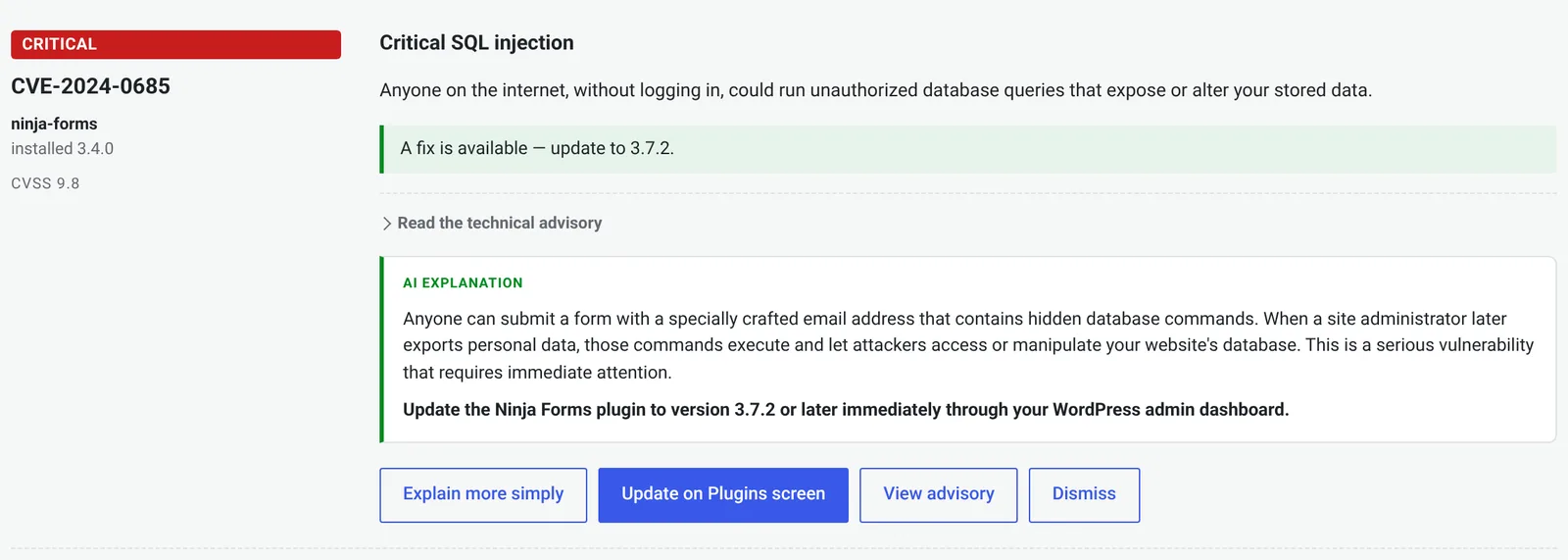
- Vulnerabilities page: each card shows the CVE, your installed version and, when the feed has one, the CVSS score, with "Read the technical advisory" and a "View advisory" link to check the source. "Explain more simply" adds a box marked "AI explanation", or "Plain-language summary" when no AI answered.
Where our AI explanations can still slip
- Repeat answers come from a cache. An unchanged finding shows the same AI text for up to 30 days. Re-analyze asks the provider again, and a vulnerability analysis is rewritten when the advisory's fixed versions change. If no fix is listed, the AI is told to send you to the changelog.
- The AI doesn't read the middle of long files. It sees the start, the end and the matched code. Injected code can sit anywhere, so read the whole file before you agree with a "likely false positive".
- "Likely false positive" never closes anything. The finding stays open until you dismiss it, and on a changed WordPress.org plugin file an AI "benign" verdict doesn't lower the severity. Your dismissal and reason go to the Audit Log, and the finding reopens if a later scan flags a new file.
What Pro adds, and where Pro leans on AI
On Pro ($79 per site per year), the Copilot answers questions about your site and tags the records it used. A tag shows the record was in front of it, not that the answer matches it, so open the record. Its suggestions appear as a plain list headed "Suggested next steps (Copilot does not run these)".
Two Pro features do use AI judgement, and we'd rather you knew. Pro's extra webshell check asks the AI about files its heuristics flag. The AI can add a file to the report, with its view attached, but it can't hide one the heuristics would report on their own.
Pro's adaptive firewall rules are written by the AI and tested against a set of normal WordPress requests. Each new rule only logs for its first 24 hours, then blocks if the firewall is in Block mode. Our guide on whether AI should auto-fix security issues covers Pro's approval rules for fixes and quarantine.
Here's what neither version does. SecurynAI doesn't check its AI text against the outside world, doesn't guarantee an explanation is right, and doesn't replace reading the advisory before you change a live site. Prompt injection, where text in a file or post tries to steer the AI, is a separate risk covered in our prompt injection guide.
When can you act on an AI security explanation without checking?
When the action is safe whatever the truth turns out to be. "Update this plugin to the fixed version" is fine to do straight away, as long as you have a backup and the fixed version exists. Our guide to automatic updates covers making that routine.
| The explanation suggests... | Check first? |
|---|---|
| Updating a plugin to a released fixed version | No, if you have a backup |
| Changing a password or ending sessions | No: low cost if it was unneeded |
| Deleting or replacing a file | Yes: back up first, compare with a clean copy |
| Deactivating a plugin a shop or form depends on | Yes: confirm the advisory and your version |
| Dismissing the finding or doing nothing | Yes, always |
| Telling a client "you were hacked" | Yes: confirm with the log and files first |
If you look after client sites, that last row matters most. Our playbook on explaining a hack to a client shows how to word findings you've confirmed. And if you're wondering why a scanner flagged something in the first place, see why AI security scanning gets false positives.
Quick check: are you fact-checking the right things?
- Did you open the evidence (advisory, file or log entry), not just the summary?
- Does the CVE number exist on cve.org or the NVD, for the same plugin?
- Is your installed version really inside the affected range?
- Did you confirm the fixed version, or the lack of one, in the changelog?
- If a file is named, did you look at all of it?
- If the advice is "do nothing", did you check the evidence yourself?
Six yeses and you can act with confidence. A no on the first one is the one to fix: everything else depends on having the evidence in front of you.
Fact-checking AI security explanations: FAQ
Can ChatGPT tell me whether a CVE number is real?
Not reliably. In a 2025 study, ChatGPT wrote a believable advisory for 97% of made-up CVE numbers. Paste the number into cve.org or the NVD instead: a real one has a record, and the record names the product.
The AI says a flagged file is a false positive. Can I dismiss the finding?
Only after you've looked at the file yourself. Check that it belongs to a plugin you installed, compare it with a fresh copy of the same version, and look at the whole file, not just the top. If it matches the clean copy, dismissing it is reasonable.
Why does SecurynAI show "Built-in explanation" instead of "AI analysis"?
Built-in explanations are fixed text written for that type of finding. You see them when there's no AI key, or when the AI call failed or returned something that didn't fit the expected format. They're shorter, but they never invent details.
Does SecurynAI's AI ever block, delete or change anything on its own?
Not in the free plugin. The AI writes explanations, and a confident malware verdict on a changed plugin file can raise that finding to critical, but it never lowers a severity, closes a finding or blocks anything. In Pro, two features use AI judgement: the extra webshell check and adaptive firewall rules.
Want security findings explained in plain English, with the evidence sitting right next to the explanation so you can check it? The free SecurynAI plugin labels every AI answer and keeps the advisory, file and log one click away.
Install free →