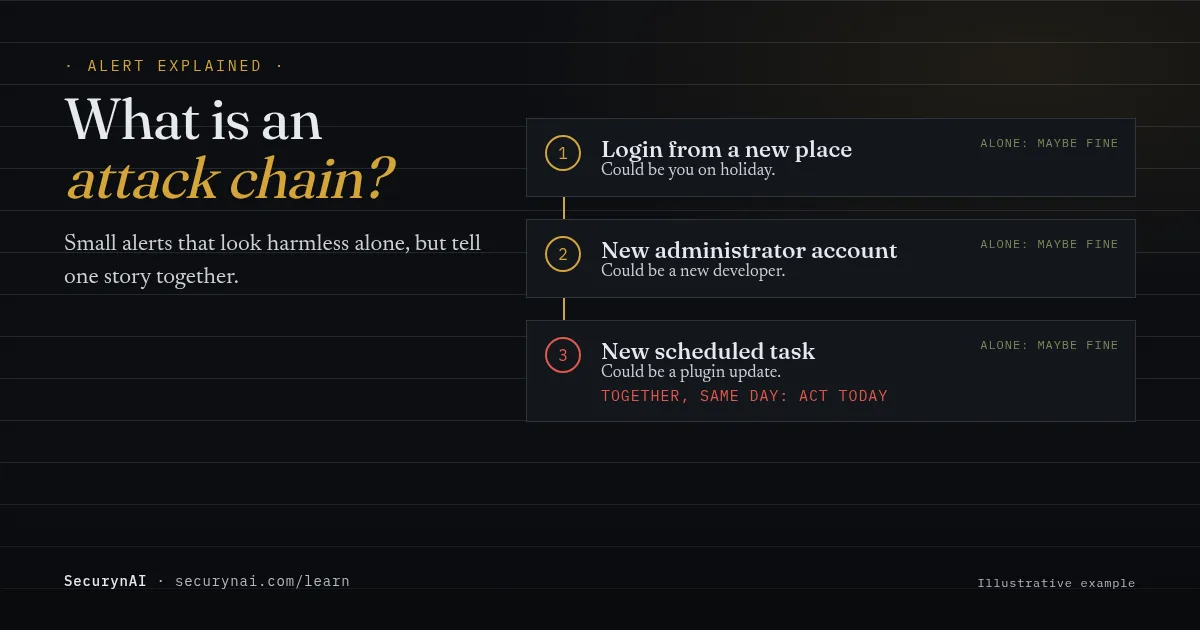
An attack chain is the run of steps an attacker takes on a site, from getting in to staying in. Each step on its own can look like normal admin work. A login from a new place. A new administrator. A new scheduled task. Put them in one afternoon, and they read like a break-in.
So you've got grouped security alerts: one incident instead of three separate warnings. Don't delete anything yet. First, read the timeline from the top and ask one question about each event: can someone on your side explain it? That sorts most grouped incidents in a few minutes.
Is a grouped incident more serious than a single alert?
Usually, yes. Two linked events deserve more attention than either one alone, because attackers rarely stop after one step. But grouped doesn't mean hacked. It means the events happened close together and share something, like the same account, the same IP address or the same site.
The first step is often small. Verizon's 2025 Data Breach Investigations Report found that stolen or abused logins were the way in for 22% of breaches, and exploited software flaws for 20%. A login that works and a plugin bug both look quiet when they happen.
On WordPress, plugin flaws are the big source. Patchstack's State of WordPress Security in 2026 counted 11,334 new WordPress vulnerabilities in 2025, with 91% in plugins. For the most heavily exploited ones, it put the weighted median time to first exploit at five hours.
When it's probably fine
- You or a teammate did every step, like adding a developer and installing their plugin.
- The events match planned work, such as a migration, a redesign or a big update.
When to act today
- Any step involves an administrator account nobody on your side created.
- A scheduled task, plugin or file appeared that nobody installed.
- It starts with an admin login from an unusual location and something changes soon after.
What does a WordPress attack chain look like?
Here's an illustrative chain, not a real client. Most WordPress chains follow the same three moves: get in, get more access, then make sure you can come back. The public MITRE ATT&CK framework names these moves Initial Access, Privilege Escalation and Persistence.
- Getting in. A password that works, or a flaw in an out-of-date plugin. ATT&CK calls the first one Valid Accounts (T1078).
- Getting more access. A user is promoted to administrator, or a new admin account appears. Our guide to privilege drift covers the role-change side.
- Staying in. A hidden admin, a new scheduled task or a file planted to reopen the door. ATT&CK lists Create Account (T1136) under Persistence for this reason.
The third step is why chains matter. In a WordPress.org thread, a site owner wrote, "I have an unknown user account that cannot be deleted." It kept coming back. A volunteer's advice: a restore is worth a try, "but you would still need to identify and plug the vulnerability, or else it will happen again."
Sucuri's Mystery Admin User case shows why. An admin called "user" was recreated "every time the website is visited in a browser," by code planted in the theme's functions.php. Deleting the user removed one link and left the rest.
Why separate alerts hide the chain
Separate alerts make you judge each event alone. Each one looks explainable, so each one gets dismissed, and the pattern never shows up. And when alerts pile up, people stop reading them closely.
In a Wordfence support thread, a site owner getting repeated block emails wrote, "I'd expect just one email alerting us of the block, not several in rapid succession." The fix offered was to turn that alert off. Fair for blocks, but it shows how fast noise gets muted.
Cleanup suffers too. In an older WordPress.org thread, a moderator said "there is probably still a backdoor in the files which the hacker is using to get back in." Fix only the alert in front of you, and you can miss that link.
How to check a grouped security alert
Look first, change things later. Start with the earliest event in the timeline, not the newest. In the dashboard, check Users filtered by Administrator, then Plugins. If you have SSH and WP-CLI, these commands only read.
1. List every administrator
wp user list --role=administrator --fields=ID,user_login,user_email,user_registeredCan you name everyone on the list? A recent user_registered date on an admin you don't know is the strongest single sign in a chain. Our guide to a new admin user you didn't create covers what to do next.
2. List scheduled tasks
wp cron event list --fields=hook,next_run_relative,recurrenceThe cron event list command shows each hook and how often it runs. Most hooks belong to plugins you know. A random-looking name that runs every few minutes is worth a closer look.
3. Look for plugins that load on their own
wp plugin list --status=must-useMust-use plugins load automatically and don't appear in the normal plugin list. plugin list accepts --status=must-use. Your host may add one or two. Anything else needs an owner.
What to do if part of the chain has no owner
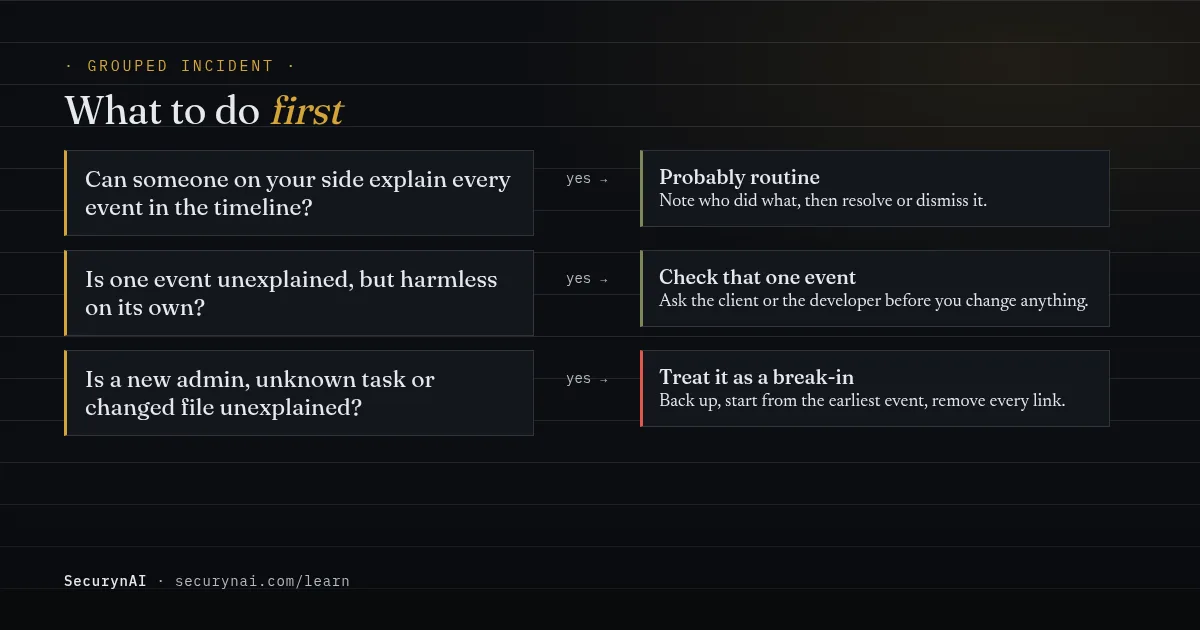
Treat it as a break-in and remove every link, not just the loudest one. Back up the site first, files and database, so you keep the evidence and have a way back. Then work through these in order.
- Start from the earliest event. That's usually closest to how they got in.
- Remove the extra access. Delete unknown admins, put changed roles back and reset admin passwords. Log each admin out with
wp user session destroy admin --all, using their username. - Remove the way back. Unknown scheduled tasks, must-use plugins and planted files. Our guide to finding a webshell helps here.
- Close the way in. Update every plugin and theme, and remove ones you don't use.
- Watch for a repeat. If an admin or task comes back, a link is still there. Our malware removal guide goes deeper.
If it's a client site, tell them what happened in plain words: what changed, what you removed and what you're watching. Our playbook on explaining a hack to a client has wording you can borrow.
How SecurynAI groups alerts into one incident
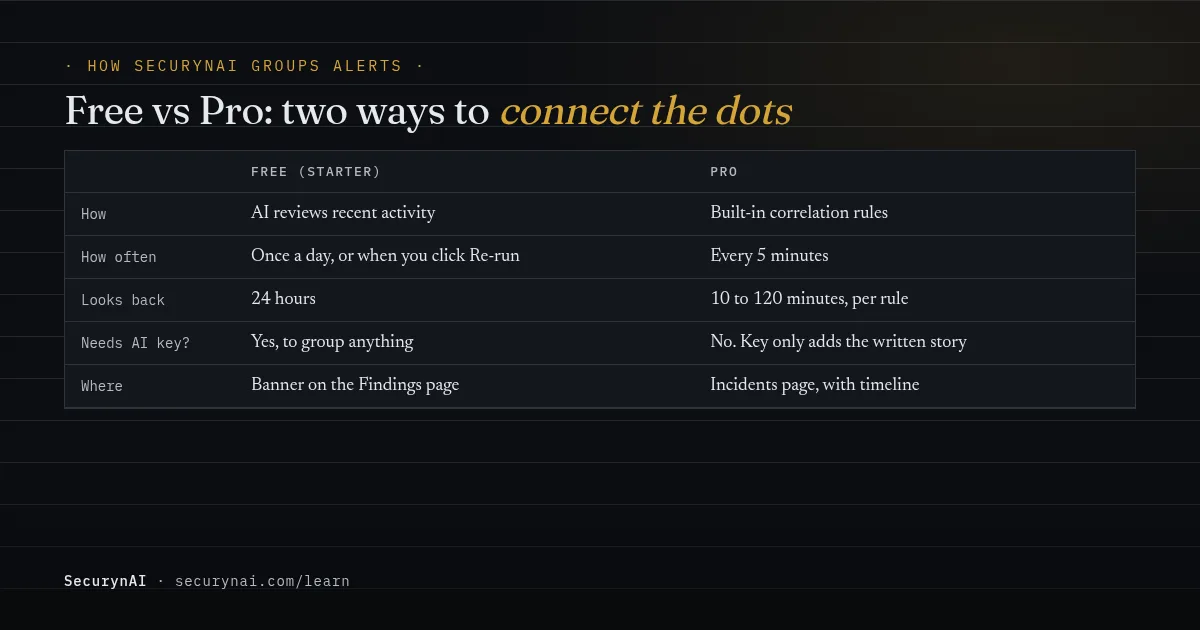
We at SecurynAI built incident grouping because a pile of separate findings leaves the connecting to you. The free plugin groups alerts with a daily AI review. Pro replaces that with built-in rules that run every five minutes. They work differently, so here's each one honestly.
On the free plugin: a daily AI incident review
Once a day, the free plugin gathers the last 24 hours of open findings, logins and admin actions, new administrators, scheduled tasks and must-use plugin changes. Your AI provider decides whether they're one incident, and is told not to declare one when the events look unrelated.
If it finds one, a banner appears on the Findings page with a confidence level. View timeline marks unrelated events as ruled out, says why it thinks this is an incident and suggests up to five containment steps. You can Re-run it any time.
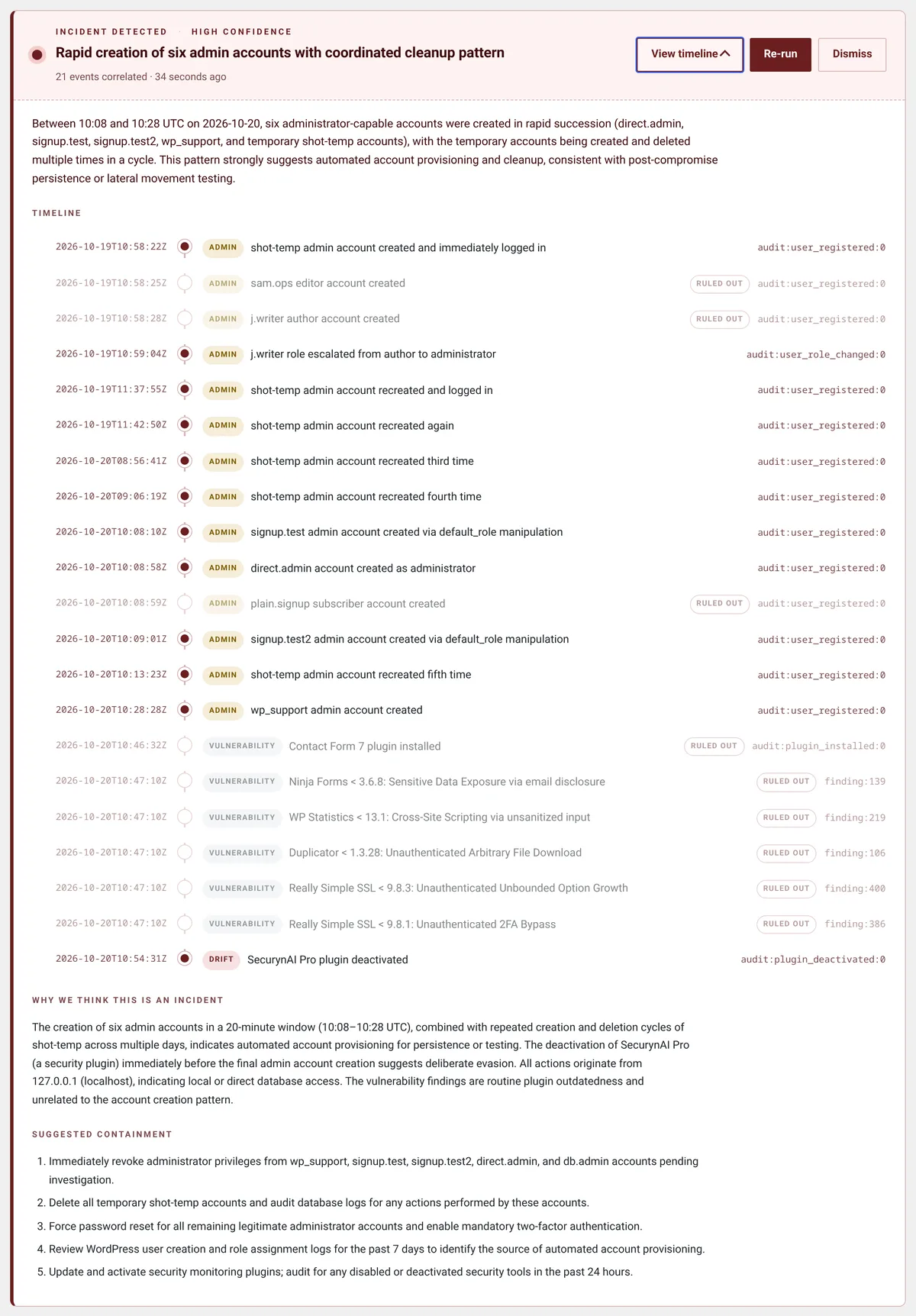
The honest limit: without your own AI key, the free plugin doesn't group anything. You still get every finding with a plain-English explanation, but you connect them yourself. Severity follows the AI's confidence: high confidence shows as critical, medium as high, low as medium.
On Pro: built-in correlation rules every five minutes
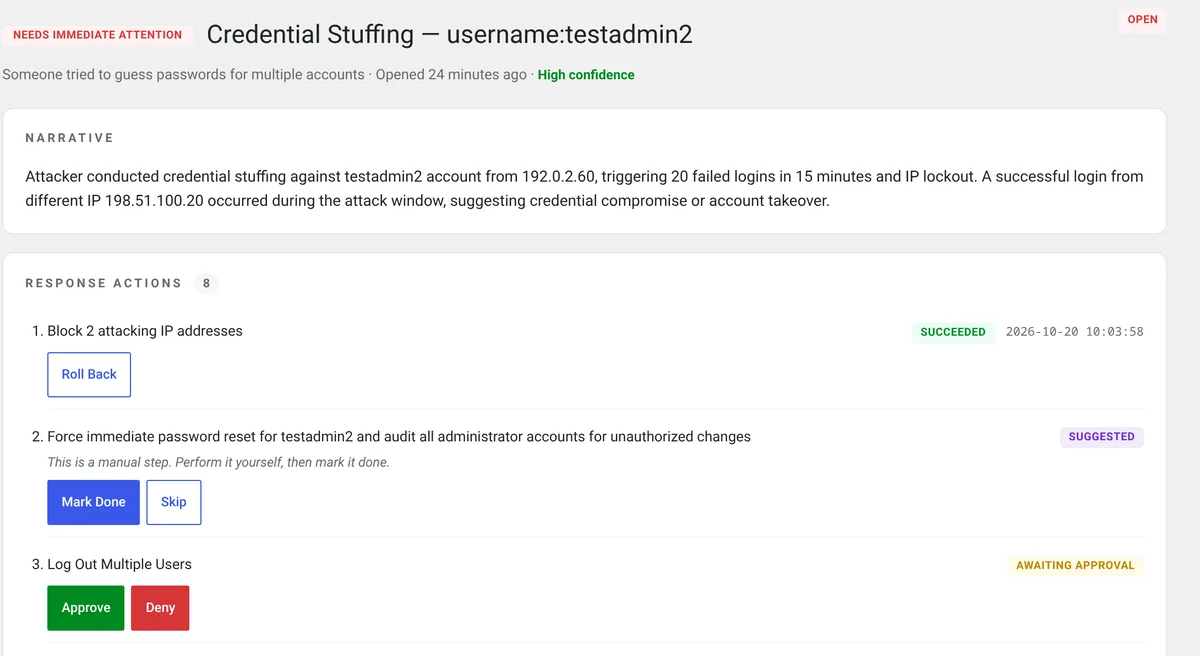
Pro ($79 per site per year) checks recent findings, behaviour anomalies, firewall blocks and audit events against a built-in rule set every five minutes. A rule fires when its signals land within its time limit, from 10 to 120 minutes, and share the same account, IP address or site.
Two examples from the rules: a brute-force lockout on an account plus a successful login to that same account within 30 minutes, often from a different IP, and, on WooCommerce stores, card testing plus coupon abuse from the same IP within 30 minutes. Pro doesn't need an AI key to open the incident. Each rule sets its own severity.
Each incident sits on the Incidents page with a timeline in time order and a sealed copy of the evidence, marked Tampered if it later changes. A key adds a written narrative; without one you get a short summary and default steps. Steps that need sign-off show Approve and Deny.
Rules only catch the pairs they were written for, so Pro won't spot every chain. Related matches merge into one open incident, and incidents still open after 30 days are closed automatically. None of this replaces backups, updates or a good host.
| Free (Starter) | Pro | |
|---|---|---|
| How alerts are linked | AI review of recent activity | Built-in correlation rules |
| How often | Daily, or on Re-run | Every 5 minutes |
| Needs your AI key | Yes, to group anything | No, only for the written narrative |
| Where you see it | Banner on the Findings page | Incidents page |
| Response steps | Suggested, you act | Approve or deny, roll back where supported |
Quick check: would you spot an attack chain on your site?
- Can you name the person behind every administrator account?
- Do you know which scheduled tasks your plugins add?
- Would you notice a new must-use plugin within a day?
- Do alerts reach someone who reads them, instead of a muted inbox?
- Are plugins and themes updated within days of a security release?
Five yeses means you're in good shape. Two to four is common and quick to fix this week. Fewer is a normal starting point. Our WordPress hardening checklist covers the basics, and the guide to outbound requests to unknown domains explains another link that often shows up in chains.
Attack chain FAQ
Is an attack chain the same as the Cyber Kill Chain?
Not exactly. The Cyber Kill Chain is one named model, published by Lockheed Martin, that splits an intrusion into seven steps. "Attack chain" is the everyday term for the steps one real attacker took on one real site. You don't need either model to act on a grouped alert.
Does a grouped incident mean my site was hacked?
No. It means two or more events happened close together and look related. Often one person on your side explains all of them. Treat it as a break-in only when part of the chain, like a new admin or an unknown scheduled task, has no owner.
Why is one event in the timeline marked "ruled out"?
On the free plugin's incident review, the AI lists every notable event it looked at, then marks the ones it judged unrelated as ruled out. That's useful, because you can see what it considered. Check those events yourself anyway if you don't recognise them.
Do I need an AI key to see attack chains in SecurynAI?
On the free plugin, yes. The daily incident review is AI-based, so without your own key it doesn't group anything and you read findings one by one. Pro groups alerts with built-in rules and no key. A key only adds the written story.
Looking after sites where nobody has time to read every alert? See what Pro adds, including incident grouping every five minutes with no AI key needed.
See what Pro adds →