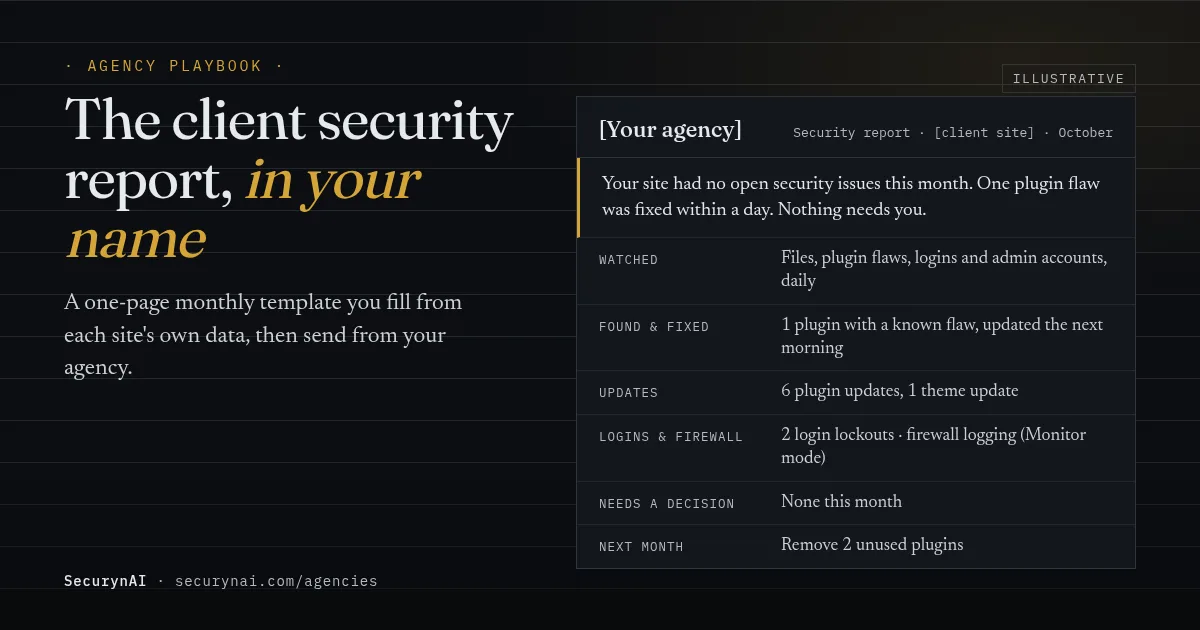
A white-label security report is a short, regular summary of the security work on a client's site, written and sent under your agency's name rather than a tool's. It covers what you watched, found and fixed, and what needs a decision. Below is a client security report template you can copy, and where to find the data for each line.
When did your client last see any sign that their security plan does something? If nothing went wrong, the honest answer is often "never". The report fixes that, once a month, in about a page.
Why send a client security report at all?
A client can't see a firewall log or a file scan, so the report is the only part of the work they see. Without one, a maintenance fee can look like money for nothing. A report turns that into something concrete.
There's real work to show, too. Patchstack's State of WordPress Security in 2026 counted 11,334 new WordPress vulnerabilities in 2025, 91% of them in plugins. It also found that about half of high-impact flaws were exploited within 24 hours. "We updated it the next morning" is a line worth putting in front of a client.
If you already send the five-line monthly note from our guide to security in your maintenance plan, keep it for small plans. This page is the fuller version: one page, a fixed layout, and a record you can file.
What should a white-label security report include?
Seven short sections, with the summary on top, because most clients will read only that. Keep the same order every month, so a client learns where to look and notices when a line changes.
- Summary. Two sentences: the overall state, and whether the client needs to do anything.
- What we watched. The checks that ran all month, in plain words.
- Found and resolved. Each issue, what you did, and when.
- Updates. Plugins, themes and core updated, and which updates fixed a known flaw.
- Logins and firewall. Lockouts and firewall activity, worded to match how the firewall is set.
- Needs a decision. Anything you can't fix without the client's yes, such as a paid upgrade or removing a plugin they use.
- Next month. One or two planned items, or "nothing planned".
Backups and uptime belong in the report too, if your plan covers them. They come from your backup and uptime tools, not a security plugin, so add them as their own lines.
The client security report template
Copy this into your own document or email tool, add your logo and colours, and fill in the brackets. Delete any line that doesn't apply rather than writing "N/A".
[Your agency name and logo]
Security report: [client site]
Period: [1 Oct to 31 Oct 2026]   Prepared by: [name]

SUMMARY
[No open security issues this month. Nothing needs you.]
[or: One item needs your decision, see "Needs a decision".]

WHAT WE WATCHED
- Website files compared with the official copies, daily
- Plugins and themes checked against known security flaws
- Logins, lockouts and administrator accounts
- Firewall: [logging suspicious requests / blocking them]

FOUND AND RESOLVED
- [Date] [What we found, one plain sentence] -> [what we did, when]

UPDATES
- [N] plugin updates, [N] theme updates, WordPress [version]
- [N] of these fixed a known security flaw

LOGINS AND FIREWALL
- [N] login lockouts after repeated failed passwords
- [N] suspicious requests [logged / blocked]

BACKUPS AND UPTIME (if in your plan)
- [Last tested restore: date]   [Uptime: from your monitor]

NEEDS A DECISION
- [Item, the choice, and our recommendation] or "Nothing this month"

NEXT MONTH
- [One or two planned items]

Questions? Reply to this email or call [number].
If you're handing the site over, the last report is a good place for the handover record. Our playbook on offboarding a client site securely lists what goes in it.
Where does the data for each section come from?
Each client site runs its own copy of SecurynAI, so you collect the numbers site by site. There's no central console across client sites, and the plugin doesn't write or brand the report. What it gives you is the raw material for most of the sections above.
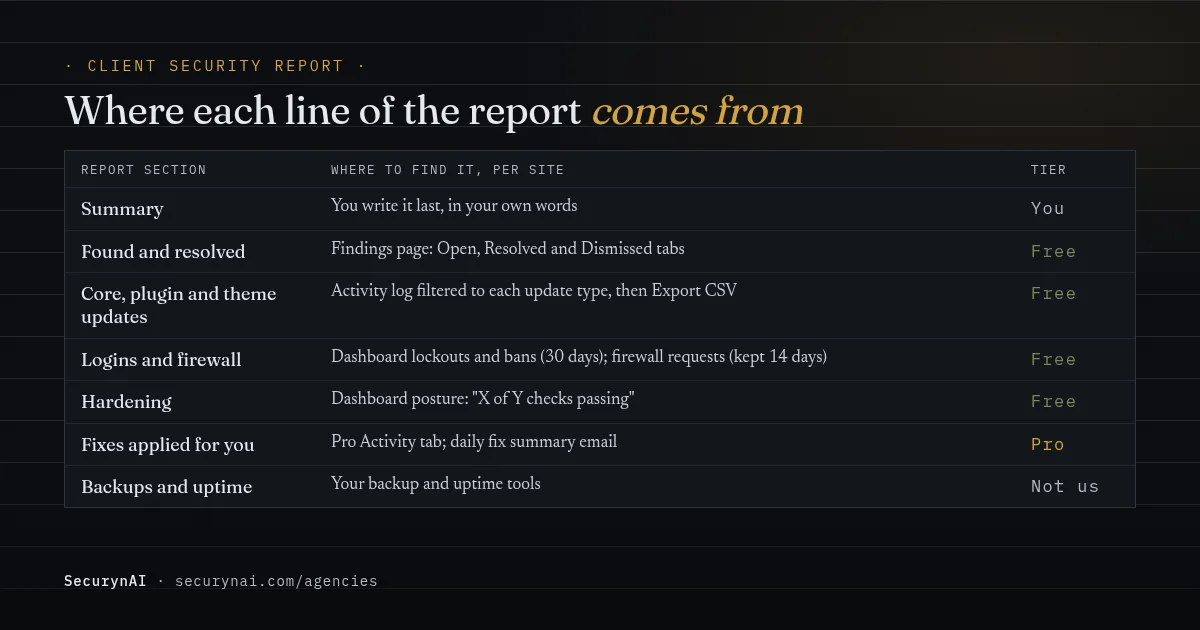
- Found and resolved. The Findings page has Open, Resolved and Dismissed tabs. If someone dismissed a finding, the Audit Log records who and the reason they gave.
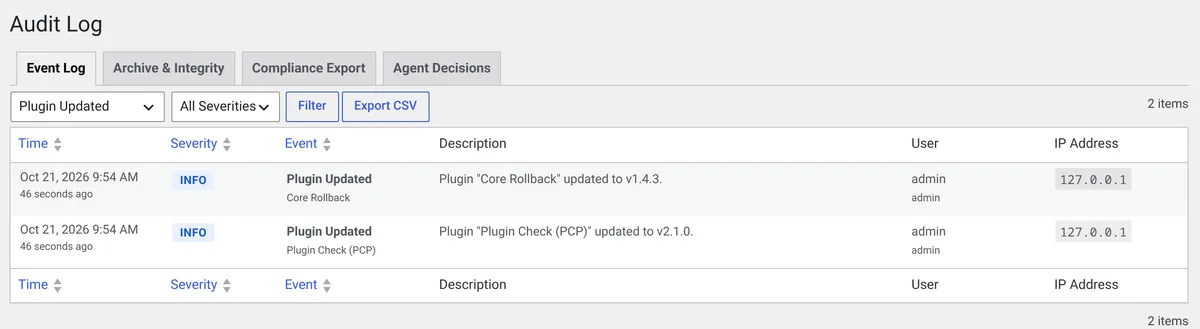
- Updates. The Audit Log records WordPress core, plugin and theme updates, manual or automatic. Filter it to
core_updated,plugin_updatedortheme_updatedone at a time, and use Export CSV for each. - Logins and firewall. The Dashboard's Live protection panel counts IPs banned and brute-force lockouts over the last 30 days. Firewall requests are kept for 14 days, so the "Requests blocked" count and the Firewall page only reach back two weeks. Note those numbers mid-month and again at month end.
- Hardening. The Dashboard shows posture as "X of Y checks passing", with a 30-day trend. The checks re-run daily.
Monitor mode changes what you can say
The free firewall starts in Monitor mode, so on most new installs the right word is "logged", not "blocked". It logs matches without blocking until you switch to Block. The dashboard's "Requests blocked" count only includes real blocks, which in Monitor mode means only IPs you blocked by hand. The Firewall page lists the rest as "Matched".
Login lockout works in either mode, so lockout counts are fair to report as they are. If you switch a site to Block during the month, say so in the report and note the date. The Audit Log records the switch, with who made it.
Set two things on day one, or month-end is empty
The Audit Log keeps 7 days by default, which is too short for a monthly report. Open Settings > General and set Keep activity for to 45 days or more; it goes up to 365. Older entries are deleted on a daily clean-up, so set this before the month you want to report on.
In the same place, switch on Email serious findings (off by default) and put your agency inbox in Send alerts to. Only new critical and high findings are emailed. Each subject names the site and host, with a "STAGING:" style prefix on non-production copies, so you can tell 30 clients apart in one inbox.
How do you keep the report white-label?
White-label means the report is written by you, in your words, not that you hide what you use. If a client asks which tools protect their site, tell them. What you're selling is your attention and judgement, and the report should sound like it.
- Don't paste raw alert text. Rewrite each finding in one plain sentence. Our playbook on explaining a hack to a client has the wording for the serious ones.
- Don't forward tool emails. SecurynAI alert emails name SecurynAI in the subject and body, and so does Pro's daily fix summary. Send them to your agency inbox and report from there.
- Watch screenshots. Any admin screenshot shows the plugin's name and layout. Use a table of numbers instead, or crop on purpose.
- Reformat the CSV, don't attach it. The export is plain columns: time (UTC), severity, event type, user, IP address, object and description. Count from it; keep the file.
People do want something they can hand over. In one WordPress.org thread, a user asked how to save Wordfence scan results "to pdf" for client reporting. Support's answer was to print the scan log to PDF from the browser. A raw export works as evidence. It doesn't work as a report.
If you'd rather have a tool assemble branded reports automatically, dedicated maintenance and reporting tools exist; check what each one's branding and scheduling actually cover before you rely on it. Either way, the summary is still yours to write.
What does a filled-in client security report look like?
A quiet month should produce a short report, and an eventful one should say exactly what happened and when. Both examples below are illustrative, not real clients.
SUMMARY
No open security issues in October. Nothing needs you.

UPDATES
- 6 plugin updates, 1 theme update. 1 fixed a known security flaw
  (a form plugin), applied the morning after the fix was released.

LOGINS AND FIREWALL
- 2 login lockouts after repeated wrong passwords.
- 37 suspicious requests logged. Your firewall records these
  for review rather than blocking them; nothing reached your data.
Watch the last line. "Nothing reached your data" is only fair if your checks back it up, such as clean file scans and no unknown admins. If you can't stand behind a sentence like that, cut it.
SUMMARY
One item needs your decision. Everything else is up to date.

FOUND AND RESOLVED
- 9 Oct: an old administrator account (a former contractor) had no
  login for months. We removed its admin access the same day.

NEEDS A DECISION
- Your events plugin has a known flaw and no fixed version yet.
  We recommend switching it off until the developer releases a fix.
  Reply "yes" and we'll do it this week.
That second report tells the client what happened, what you already did, and the one thing you need from them. It doesn't use alarm words, and it doesn't make them hunt for the ask.
Which words keep a security report honest?
Say what your checks showed, not more. A report that overclaims in a quiet month is hard to walk back in a bad one. Here are the swaps we'd make.
| Instead of | Write | Why |
|---|---|---|
| "Your site is secure" | "Our checks found no open issues" | No check can prove a site is secure. |
| "We blocked 61 attacks" | "61 suspicious requests were logged" (Monitor) or "blocked" (Block) | The word should match the firewall mode. |
| "Hackers tried to get in" | "2 lockouts after repeated wrong passwords" | Most failed logins are bots, not a person after this client. |
| "Fully compliant" | "Here is the evidence of what we checked" | A report isn't a certification. |
That last row comes up more than you'd think. In a WordPress.org forum thread, someone asked for WordPress's SOC 2 and ISO 27001 reports. The reply: the project "hasn't commissioned any independent audit of its codebase", and the hosting provider is the place to ask about certifications.
Where SecurynAI fits in a monthly client report
We at SecurynAI built the plugin to do the daily checking, so the report is mostly copying and writing. It gives you per-site data for the report; it doesn't write, brand or send the report. It also doesn't replace backups, updates or good hosting.
In the free plugin
- Files. A daily scan compares core, plugin and theme files with official checksums. It also checks every PHP file under wp-content against 13 bundled malware signatures, with no live feed, and flags only high-confidence obfuscated code. It detects; it doesn't clean.
- Plugins. Vulnerability alerts for installed plugins, themes and core, in plain English.
- Hardening. Checks re-run daily, and the Dashboard tracks the posture score over 30 days.
- Audit trail. The Audit Log records logins, core, plugin and theme updates, user and role changes, and every SecurynAI settings change with who made it. API key values are never logged. Export CSV follows your filters.
- Alerts. Opt-in email for new critical and high findings, to the addresses you choose.
What Pro adds
Pro ($79 per site per year) can apply many fixes for you, with undo, and its Remediation Activity page lists what it applied. The optional daily fix summary email (Settings > Modules) covers the last 24 hours. Its Patch Queue updates vulnerable plugins from WordPress.org when a fixed version exists; themes, core and premium plugins show "Manual update required".
Pro also has a compliance export: a ZIP of JSON files that maps findings to SOC 2, GDPR, PCI DSS or ISO 27001 controls, with an audit-trail excerpt and 90 days of incidents and decisions. It's evidence for an auditor, not a client report. For pricing your reporting time, see what to charge for security monitoring.
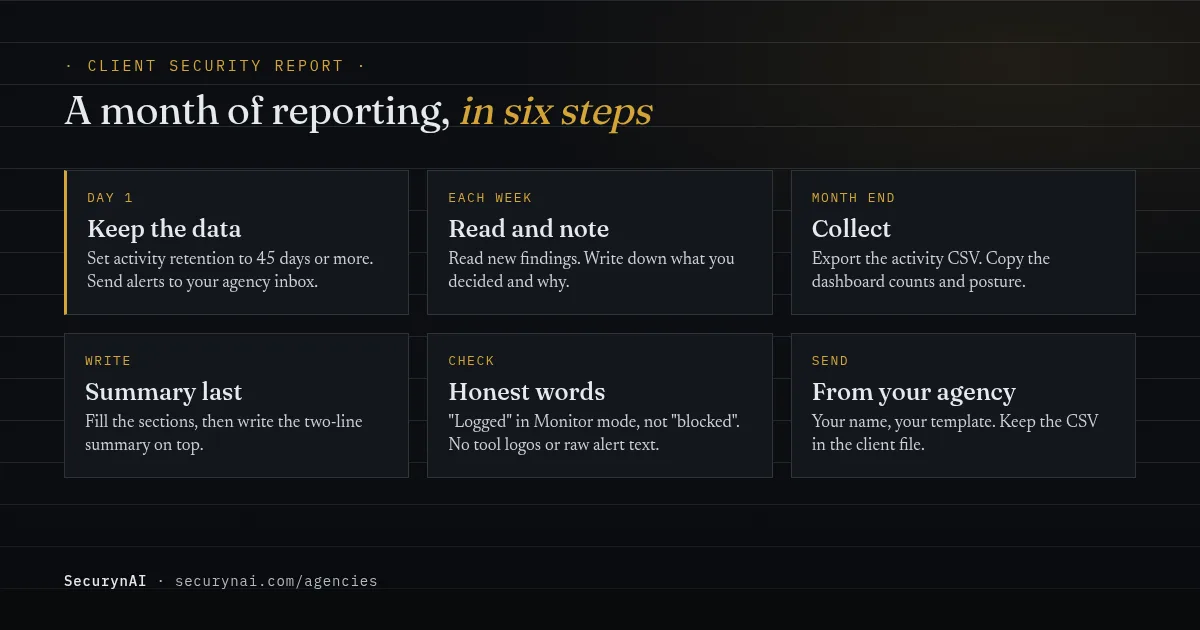
Month-end client security report checklist
- Confirm the Audit Log keeps at least 45 days on every client site.
- Confirm serious-finding alerts go to your agency inbox, not the client's.
- Open the Findings page and note what was resolved, dismissed and still open.
- Export the Audit Log CSV for core, plugin and theme updates.
- Add backups and uptime from your own tools.
- Copy the Dashboard counts and posture score; firewall counts mid-month too, since requests are kept 14 days.
- Check the firewall mode and use "logged" or "blocked" to match.
- Rewrite every finding in one plain sentence, in your voice.
- Write the two-line summary last, then read it on its own.
- Send it from your agency, and file the CSV with the client's records.
Ten steps, and after the first month most of them take a few minutes per site. If you manage a lot of sites, our playbook on managing 30+ client sites covers the weekly routine that feeds this report.
Client security reports: FAQ
How often should I send a client security report?
Monthly suits most care-plan clients, and quarterly can work for small sites on a lighter plan. Pick one, say it in the contract, and keep to it. Anything serious goes to the client when it happens, not in the next report.
Should I attach raw logs to a client security report?
Not to the report itself. Most clients won't read them, and raw logs can include IP addresses and usernames. Keep the exported CSV in your own client file and offer it if the client or their auditor asks.
Can SecurynAI generate a branded PDF report for clients?
No. SecurynAI has no report builder, no PDF reports and no white-label branding, and each site runs its own copy of the plugin. It gives you the per-site data, such as findings, the Audit Log CSV and dashboard counts, and you write the report in your own template.
What if a client asks for a compliance report?
Be clear about what you can give. A monthly report shows the checks you ran; it isn't a certification. SecurynAI Pro has a compliance export that maps findings and the audit trail to SOC 2, GDPR, PCI DSS or ISO 27001 controls as JSON evidence, but an auditor or the hosting provider covers the rest.
Sending monthly reports to clients? Install the free plugin on each site, set the log to keep a full month, and your next report has its numbers ready.
Install free →