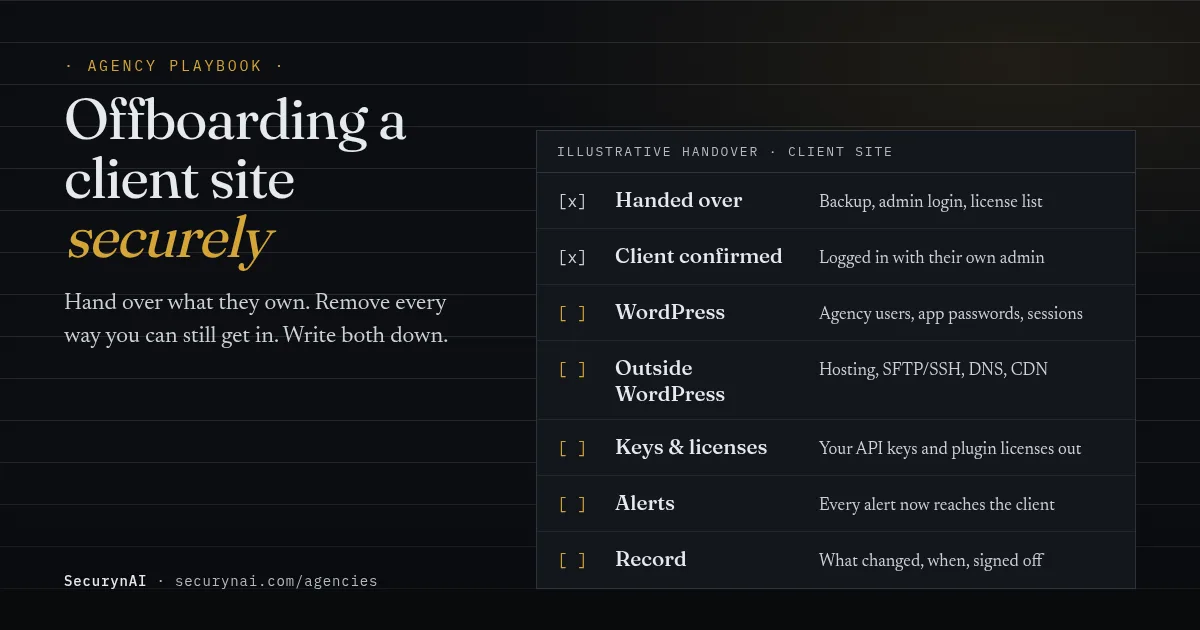
Offboarding a client site securely means handing over everything the client owns, then removing every way your agency can still log in, or still gets told about the site, and keeping a dated record of both. Deleting your WordPress user is one step of about a dozen.
Six months after a client leaves, could anyone on your team still get into their site? This WordPress site handover checklist is for agencies and freelancers ending a contract or passing a site on. You'll get the order to do things in, the places access hides, a few WP-CLI commands, and a handover record you can copy.
Why does client offboarding need its own security checklist?
Because access outlives the contract unless someone removes it on purpose. Logins pile up over a few years: one per developer, a hosting user, an SSH key, a seat on the DNS account, an API key in a plugin. Nobody remembers all of them on the last day.
That matters to both sides. Verizon's 2025 Data Breach Investigations Report found that third-party involvement in breaches doubled to 30%, and that credential abuse (22%) was one of the leading ways attackers got in. A former agency is a third party holding credentials. If those logins leak later, the site is exposed and your name is on them.
Clients notice the same gap from their side. In a WordPress.org thread, a company whose site admin had left asked how to be sure that person couldn't get back in. The replies went well past the user list: look for hidden users in the database, change the other passwords, and change the hosting password too.
What order should a secure client handover follow?
Hand over first, confirm the client can get in, and only then revoke. Doing it the other way round is how clients end up locked out of their own hosting, or holding a site that nobody can update.
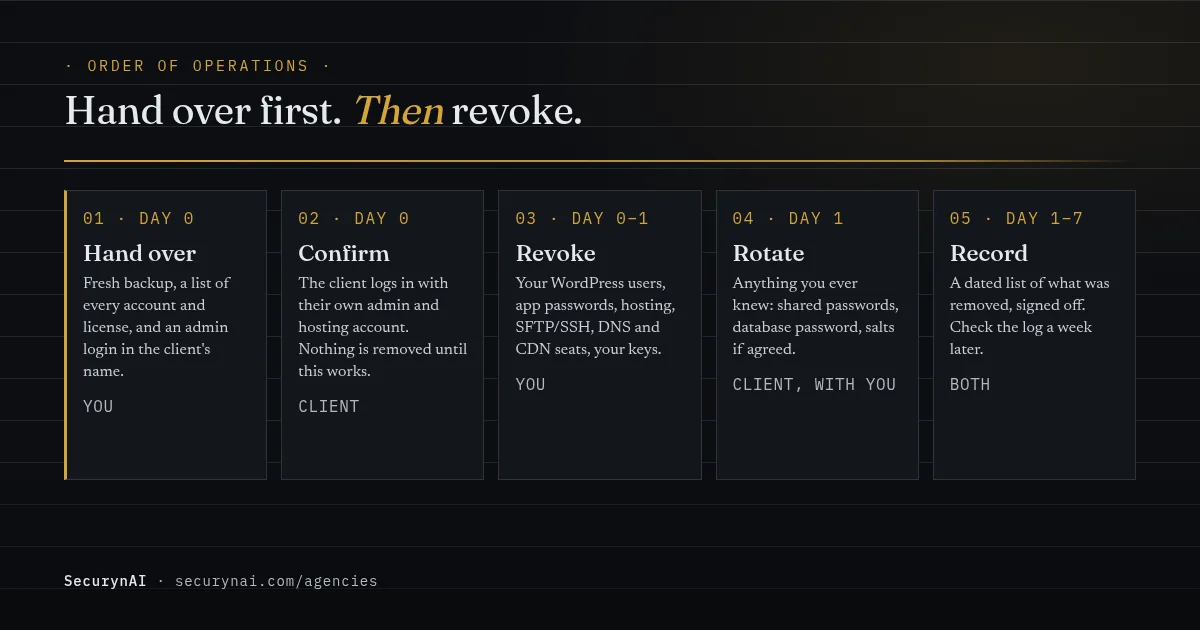
- Hand over. Take a fresh backup and give the client a copy they control. List every account, license and key tied to the site. Make sure an administrator account exists in the client's own name and email.
- Confirm. The client logs in to WordPress, the hosting account and the domain registrar with their own credentials. Nothing gets removed until all three work.
- Revoke. Remove your access, inside WordPress and outside it. The checklist below covers where it hides.
- Rotate. Change anything your team ever knew rather than owned: shared passwords, the database password, the security keys if the client agrees.
- Record. Write down what was removed, where and when, and get the client to sign it off.
If a new agency is taking over, do steps 1 and 2 with them on the call. Our playbook on running a security audit on a new client's site is the mirror image of this one, and it's what a good incoming agency will run next.
The access-revocation checklist for a client WordPress site
Most access lives outside wp-admin, so check every place, not just the Users screen. The map below is a typical picture. Your own list will be shorter or longer, but it's rarely just one row.
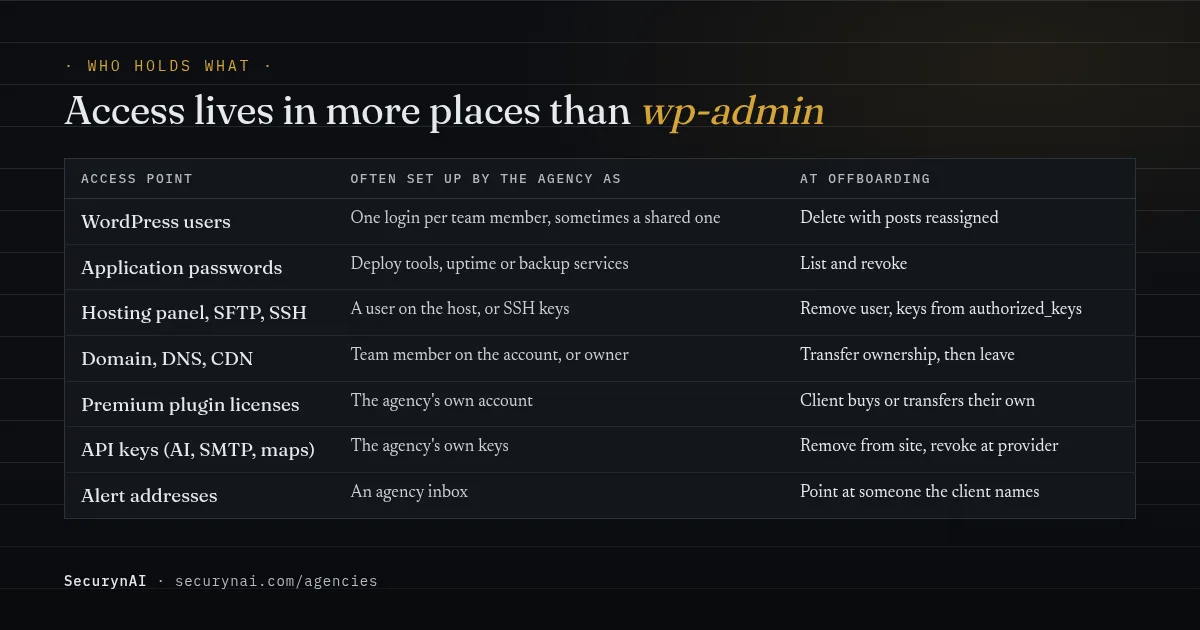
WordPress users, application passwords and sessions
Start by seeing what's there. These commands only read. Run them over SSH, or check Users and each user's profile in wp-admin if you don't have shell access.
wp user list --role=administrator --fields=ID,user_login,user_email,user_registered
wp user application-password list agency-dev --fields=name,last_used,last_ip
The first lists every administrator. The second shows application passwords on a user, with when and where each was last used. These are separate logins for tools and APIs. WordPress's own docs describe them as revocable one by one, without changing the user's main password, so a password reset alone doesn't cover them.
Back up the site before you delete anyone. If you delete a user without reassigning their content, WordPress deletes all of that user's posts. So always reassign to a client account.
wp user delete agency-dev --reassign=12
wp user application-password delete client-admin --all
wp config shuffle-salts
The first deletes your user and hands its posts to user 12, as in the WP-CLI docs. The second clears application passwords from an account that stays, such as the client's admin, if your tools used it. Check with the client first, because their own tools may use one too.
The third replaces the security keys in wp-config.php. WordPress's wp-config documentation says changing them invalidates all existing cookies, so every user, the client included, has to log in again. Agree a time with the client before you run it.
Hosting, domain and everything outside WordPress
- Hosting panel. Remove your user, or hand over ownership if the account is in your name. Don't delete an account that holds the client's site.
- SFTP, SSH and Git deploy keys. Remove your keys from the server's authorized_keys file and any deploy pipeline.
- Database users. If you made a separate database user for yourself, drop it. If you knew the main one, the client should change it, along with wp-config.php.
- Domain, DNS and CDN. Transfer ownership first, then leave the account. One DNS zone often runs both the website and company email, so move it with care.
- Staging copies. Delete staging sites you host, or hand them over. They often hold real customer data and old logins.
Licenses and keys that belong to you, not the client
Your agency's keys should leave with you, and the client needs a list of what to replace. As one agency put it in a 2026 guide to switching agencies, premium plugins like ACF Pro or Gravity Forms are often "licensed to the old agency's account." When that license is removed or lapses, updates can stop quietly.
The same goes for API keys: an AI provider key, an SMTP or transactional email key, a maps key. Remove each one from the site, then revoke it at the provider, so a copy left in a backup can't be used. Our AI API key security checklist covers revoking and rotating.
Where do the site's alerts go after you leave?
Every alert should reach someone the client names, and none should reach you. Otherwise you keep receiving warnings about a site you're no longer paid to fix, and the client hears nothing.
It's easy to miss. In one WordPress.org thread, a former admin kept getting emails from a site and its security plugin after their address had been removed. The fix was in two places: the site's Administration Email Address under Settings > General, and a separate address inside the security plugin's own settings.
Check each of these, and change the address to the client's chosen inbox:
- WordPress's Administration Email Address. WordPress emails the new address a confirmation link, so the client has to click it.
- Your security plugin's alert address.
- Backup, uptime and form notification emails.
- Any monitoring or reporting service you signed the site up to.
How SecurynAI fits into a client offboarding
We at SecurynAI built the plugin to run on each site on its own, so nothing about it is tied to your agency account. There's no central console to remove the site from, because agencies run SecurynAI site by site. What you do need to change is any setting that points at you.
In the free plugin
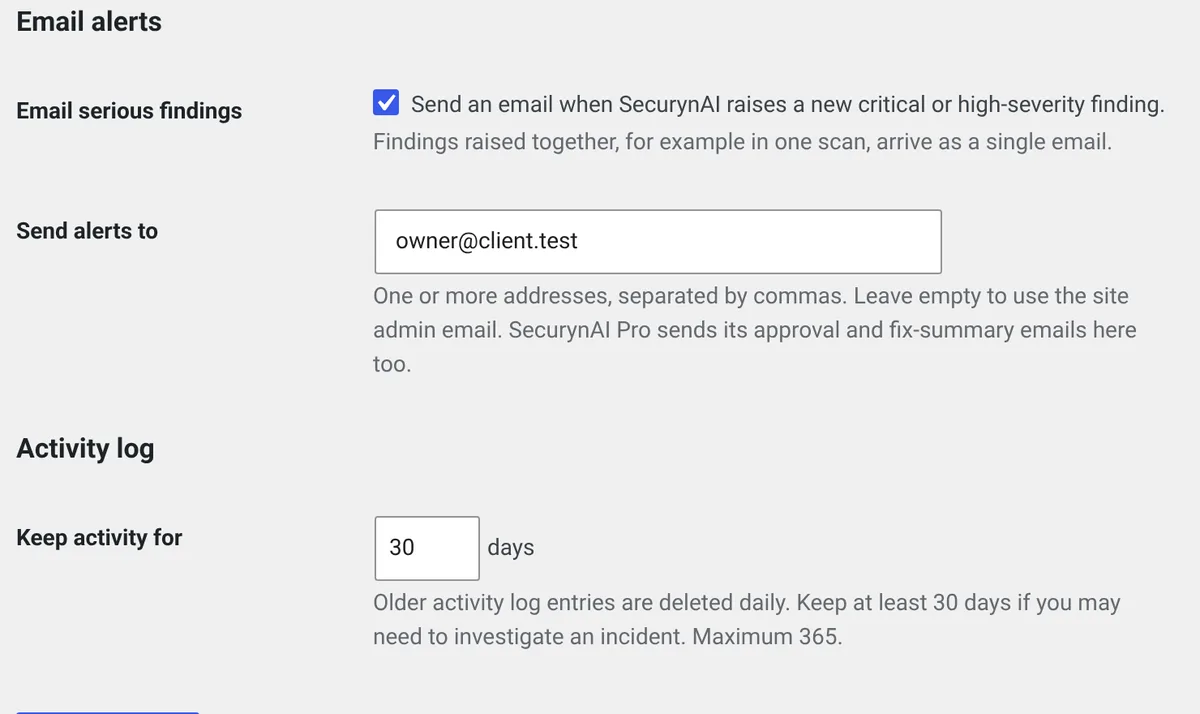
- Alert address. Under Settings > General, replace your address in Send alerts to with the client's. Left empty, alerts go to the site's admin email. Email serious findings, which emails new critical and high findings, is off by default, so agree whether to leave it on.
- Your AI key. If you connected your own OpenAI, Anthropic or Google Gemini key, disconnect it in Settings and revoke it at the provider. The stored key is encrypted with the site's security keys, so after
wp config shuffle-saltsit can't be read. WordPress admin shows a warning, and findings use built-in explanations until the client adds a key. - A Wordfence Intelligence key, if you added one: tick Remove key and save.
- Audit Log. The Audit Log records logins, failed logins, deleted users, role changes, admin email changes and every SecurynAI setting change, with who made it. Export CSV saves the events matching your filters for the handover record. Set Keep activity for to 30 days or more (the default is 7), so the client can check the first weeks.
Two free checks keep working after you've gone. SecurynAI flags any administrator with no login in 90 days (counted from install or account creation, whichever is later), which catches a forgotten second agency account. It also flags new administrator accounts, as our privilege drift guide explains.
If the site runs Pro
Pro ($79 per site per year) emails approval requests for fixes that need a person to the same alert address. If you clear it, they go to the site's administrators instead. So clear the approval queue before you change the address, and nothing waits on an inbox nobody reads.
The optional daily fix summary goes to that alert address too, or to the site's admin email if it's empty. If the Pro license is on your agency's account, use Deactivate License on Pro's License tab. Pro's features need a valid license, so the client either enters their own or carries on with the free plugin.
Pro can also export a ZIP of the last 90 days of security evidence from the Audit Log's Compliance Export tab, which makes a useful attachment to the handover record. Treat it as sensitive and send it securely.
None of this replaces the access checklist above. SecurynAI can tell the client a new admin appeared. It can't remove your SSH key from their server.
A handover record you can copy
A dated record is what protects you if something goes wrong on the site later. It doesn't need to be formal. A shared doc with this shape, signed off by the client, is enough.
Site: example.com            Contract end: 2026-10-31
Handed over (date / to whom):
  [ ] Full backup (files + database), stored by client
  [ ] Admin login in client's name, tested by client
  [ ] Hosting, registrar, DNS: owner is client, tested
  [ ] List of plugin licenses and API keys to replace
Removed (date / by whom):
  [ ] WordPress users: ____  (posts reassigned to ____)
  [ ] Application passwords on remaining accounts
  [ ] Hosting user / SFTP / SSH keys / deploy keys
  [ ] Database user, staging copies
  [ ] Agency license keys and API keys (revoked at provider)
  [ ] Agency address in admin email, security plugin, backups, uptime
Rotated by client (date):
  [ ] Shared passwords   [ ] DB password   [ ] Security keys
Follow-up check (date + 7 days):
  [ ] Audit Log shows no logins by removed accounts
  [ ] Audit Log CSV exported and attached here
Signed off: ______ (agency)   ______ (client)
Keep your copy with the contract. If you report to clients monthly, the final report is a natural place for it, and our client security report template has room for it.
What should the client do in the first week?
The client's first week matters as much as your last day. A few checks, done once, close the gaps that are easy to miss in a busy handover.
- Change any password your agency ever saw, even for accounts you never used.
- Look at the administrator list again. Every admin should be a person they can name. Our guide to an admin user you didn't create covers what to do if one isn't.
- Check the activity log for logins by accounts that were meant to be gone.
- Make sure security alerts actually reach someone who reads them.
If the relationship ended badly, the same list still applies, just with more care. Our playbook on when to fire a risky client covers the conversation; this checklist covers the access.
Offboarding a client site: FAQ
Should I delete my agency's admin account or just downgrade it?
Delete it, once the client has confirmed their own admin login works. A downgraded account is still a login someone could reset or promote later. When you delete it, reassign its posts to a client user, because WordPress deletes a user's posts if you don't.
Do I have to leave my premium plugin licenses on the client's site?
No, unless your contract says the client paid for them. Licenses bought on your agency account are usually yours. Agree a cut-off date, remove your keys, and give the client a list of what to buy in their own name, so updates don't quietly stop.
Does changing passwords log the old agency out?
Not everywhere. Application passwords are separate from the main password and are revoked one by one. Changing the WordPress security keys in wp-config.php invalidates every login cookie, so everyone, including the client, has to log in again.
What if the client wants us to keep access just in case?
Then it isn't an offboarding, it's a smaller contract. Put it in writing: who keeps which login, for how long, and who gets alerts. Open-ended access with no agreement is the situation this checklist exists to end.
Handing sites over regularly, or picking new ones up? See how agencies run SecurynAI site by site, and ask us about bulk licensing. A real person replies.
See agency options →