A security header is a line your server sends with each page that tells the visitor's browser how to protect that page. WordPress security headers can stop your pages being framed by another site, stop browsers guessing file types, and force HTTPS. They're invisible to visitors, and nothing looks broken when they're missing.
That's why most sites never add HTTP security headers. This guide covers the five that matter, what each one actually stops, how to add them on Apache, Nginx or from WordPress itself, and the order that keeps your site working while you do it.
Does your WordPress site send security headers already?
Probably not on your public pages. WordPress core does send a couple on the dashboard and login screen. In the core code, send_frame_options_header() and wp_admin_headers() run on admin_init and login_init, adding X-Frame-Options: SAMEORIGIN and a Referrer-Policy. Your home page, posts and shop pages get none of them from core.
You're not alone. The HTTP Archive's 2025 Web Almanac security chapter found HSTS on 36% of mobile pages, and Content-Security-Policy adoption at 21.9%. Most of the web runs without them, which is also why their absence alone doesn't mean anything is wrong.
Check your headers in one minute
Open your site in Chrome or Firefox, press F12, go to the Network tab, reload, and click the first request. The response headers are listed there. If you're comfortable with a terminal, this does the same (swap in your own address):
curl -I https://example.com/The curl manual describes -I as "fetch the headers only". Check a normal page, not just the dashboard, because WordPress adds its own headers there.
The five WordPress security headers, in plain English
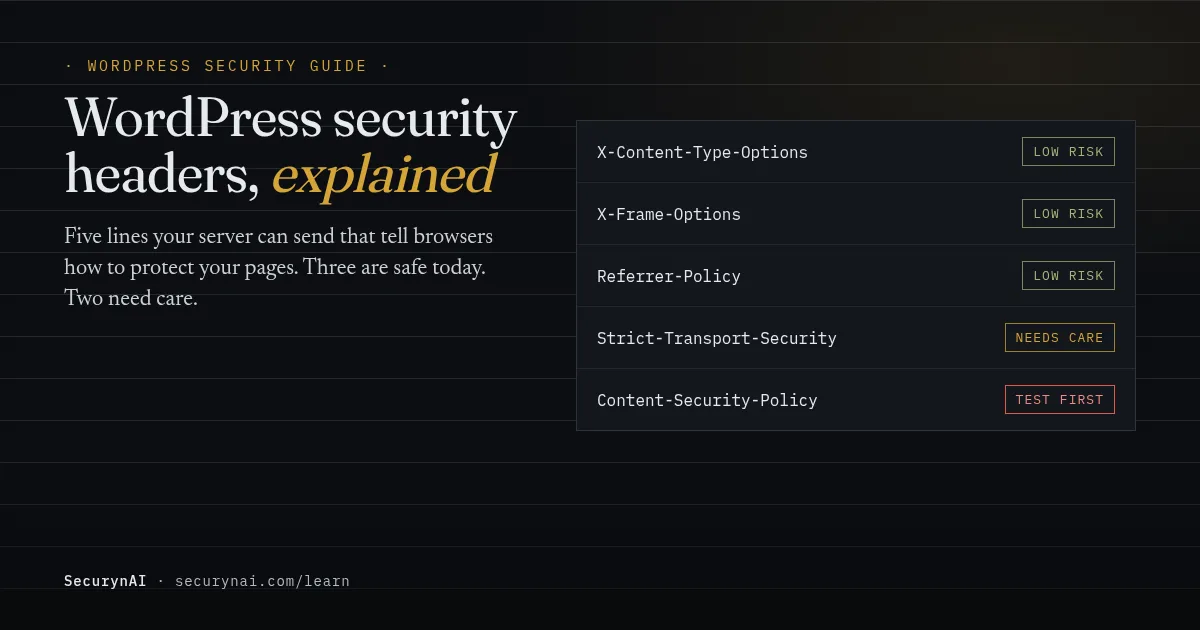
Three are close to zero risk, one needs care, and one needs testing. Here's each one, what it protects against, and the value most WordPress sites can use.
| Header | What it stops | Can it break things? | Typical value |
|---|---|---|---|
| X-Content-Type-Options | Browsers guessing a file's type | Rarely | nosniff |
| X-Frame-Options | Other sites framing your pages (clickjacking) | Only if you embed your pages elsewhere | SAMEORIGIN |
| Referrer-Policy | Full URLs leaking to other sites | Rarely | strict-origin-when-cross-origin |
| Strict-Transport-Security | Visits over plain HTTP | Yes, if HTTPS later fails | Short max-age first |
| Content-Security-Policy | Injected scripts running | Yes, often | Built per site, tested first |
X-Content-Type-Options: stop browsers guessing
Browsers sometimes look inside a file to guess what it is, which is called MIME sniffing. nosniff turns that off. MDN's reference gives the example: a file served as text/plain won't be treated as HTML, "even if the content contains HTML markup". It also blocks scripts and stylesheets served with the wrong type.
X-Frame-Options: stop clickjacking
Clickjacking is when another site loads your page inside an invisible frame and tricks visitors into clicking your buttons. SAMEORIGIN lets only your own site frame your pages. MDN notes it only works as a real header, not a <meta> tag, and points to CSP's frame-ancestors for finer control.
Referrer-Policy: keep full URLs private
When a visitor clicks a link to another site, the browser can tell that site which page they came from. strict-origin-when-cross-origin sends only your domain to other sites. MDN says modern browsers already use this as the default, so setting it mostly makes your choice explicit. It's a small win, not a priority.
Strict-Transport-Security (HSTS): HTTPS only, and browsers remember
HSTS tells the browser to use HTTPS for your domain for the next max-age seconds, and never fall back to HTTP. That closes the gap where a first request over HTTP could be intercepted. The catch is that browsers cache it. MDN is blunt: "By design, you cannot disable HSTS over insecure HTTP."
So if your certificate lapses or HTTPS breaks, returning visitors can't reach the site until it's fixed or max-age runs out. One reviewer of an HSTS plugin on WordPress.org wrote that after removing it, "HSTS is still on". That's the browser cache doing exactly what HSTS promises.
Turn HSTS on only when every page, and every subdomain you include, works over HTTPS. Start with a short max-age, such as a day (86400), then raise it once nothing breaks. MDN adds that browsers ignore HSTS sent over plain HTTP, and that includeSubDomains covers every subdomain, so leave it off if any subdomain is still HTTP-only.
Content-Security-Policy (CSP): the strong one that needs testing
CSP lists where your pages may load scripts, styles, images and frames from. If an attacker injects a script through a vulnerable plugin, a tight policy can stop it running. That makes it one of the better defences against cross-site scripting (XSS). It's also the header most likely to break your site.
WordPress themes, page builders and plugins rely on inline scripts and outside services. In one WordPress.org thread, an owner added a strict policy and reported "that disabled JavaScript on my website". In another, adding one directive meant "my website crashed".
Most sites compromise. The 2025 Web Almanac's charts show about 92% of sites with a CSP still allowing 'unsafe-inline', which weakens its XSS protection. A loose CSP still has value, for example frame-ancestors 'self' or upgrade-insecure-requests, but it isn't a cure for XSS.
The safe way to build one is Content-Security-Policy-Report-Only. It reports what a policy would block "without enforcing" it. Watch the browser console, or a reporting endpoint, across your key pages for a week. Add the sources you trust, then switch to the enforcing header.
Content-Security-Policy-Report-Only: default-src 'self'; img-src 'self' data: https:; frame-ancestors 'self'How to add security headers to WordPress
Set headers as close to the server as you can, and check the result on a live page. There are four common routes: your host's control panel, a CDN in front of the site, your server config, or a few lines of PHP. Ask your host first; some set headers for you or have a panel for it.
Apache (.htaccess)
Back up .htaccess first. A typo here can take the whole site down with a 500 error. Add this near the top, outside the WordPress block:
<IfModule mod_headers.c>
  Header always set X-Content-Type-Options "nosniff"
  Header always set X-Frame-Options "SAMEORIGIN"
  Header always set Referrer-Policy "strict-origin-when-cross-origin"
</IfModule>
Apache's mod_headers documentation explains that always adds the header "even on error" pages too. If nothing changes, your host may not allow header rules in .htaccess, or may not load mod_headers.
Nginx
Nginx ignores .htaccess. These lines go in your server block, or ask your host to add them:
add_header X-Content-Type-Options "nosniff" always;
add_header X-Frame-Options "SAMEORIGIN" always;
add_header Referrer-Policy "strict-origin-when-cross-origin" always;
One trap from the Nginx docs: add_header lines are inherited "if and only if there are no add_header directives defined on the current level". A single add_header inside a location block can silently drop all your security headers for those URLs.
From WordPress itself
If you can't touch server config, WordPress fires a send_headers action on every front-end page it builds. A small plugin or code-snippets entry can use it:
add_action( 'send_headers', function () {
    header( 'X-Content-Type-Options: nosniff' );
    header( 'X-Frame-Options: SAMEORIGIN' );
    header( 'Referrer-Policy: strict-origin-when-cross-origin' );
} );
The limit: PHP only touches pages WordPress generates. Images, CSS and JavaScript served straight by the web server won't get these headers. Pages served from a full-page cache may not either, so check a cached page after adding them.
In what order should you add security headers?
Low-risk headers first, HSTS once HTTPS is settled, CSP last. This is the order we'd use on any site we'd just taken on.
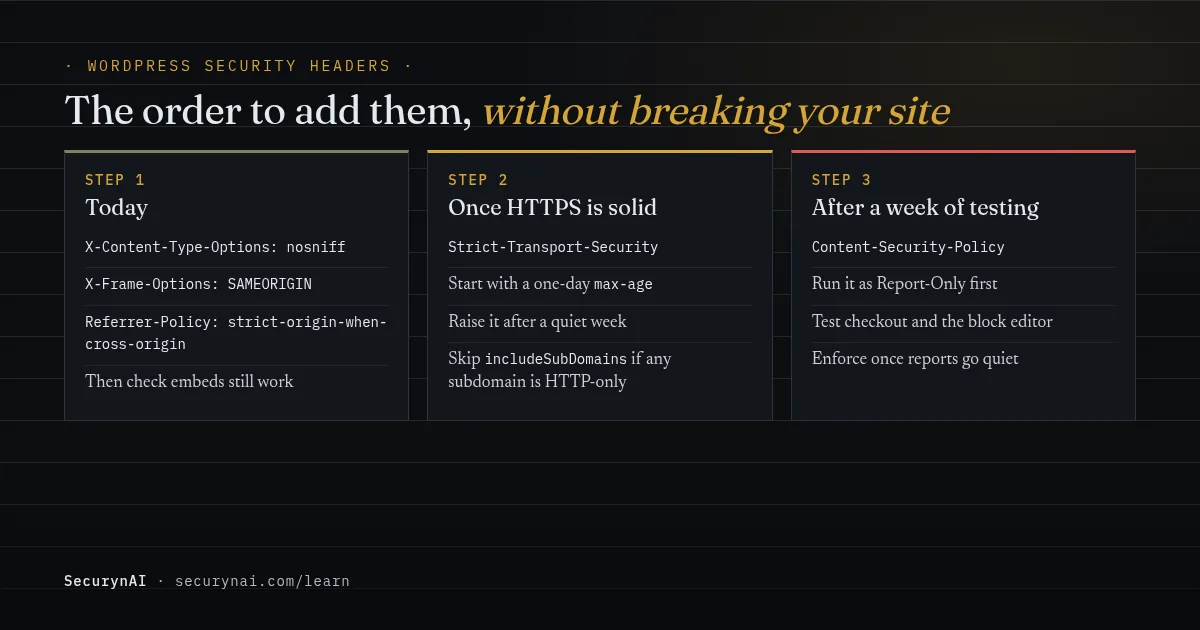
- Today:
nosniff,SAMEORIGINand the referrer policy. Check your site still loads and any embeds still work. - When HTTPS is solid: HSTS with a one-day
max-age. Raise it to months once a week passes without trouble. - When you have time to test: CSP in Report-Only mode on your key pages, including checkout and the block editor. Enforce it only once the reports go quiet.
Our WordPress hardening checklist puts headers in context: they matter less than updates, login protection and file settings. If you look after client sites, add headers to your security audit for each new client.
What security headers can't do
Headers protect visitors' browsers. They don't fix a vulnerable plugin or stop someone logging in with a stolen password. If a plugin has an SQL injection flaw, no header helps. That's a job for updates and a firewall; our guide to whether you need a WAF explains the difference.
Headers also can't hide a hack. If your site has injected spam or redirects, adding CSP won't clean it. Our login security guide covers the far more common way in: password guessing.
How SecurynAI checks your WordPress security headers
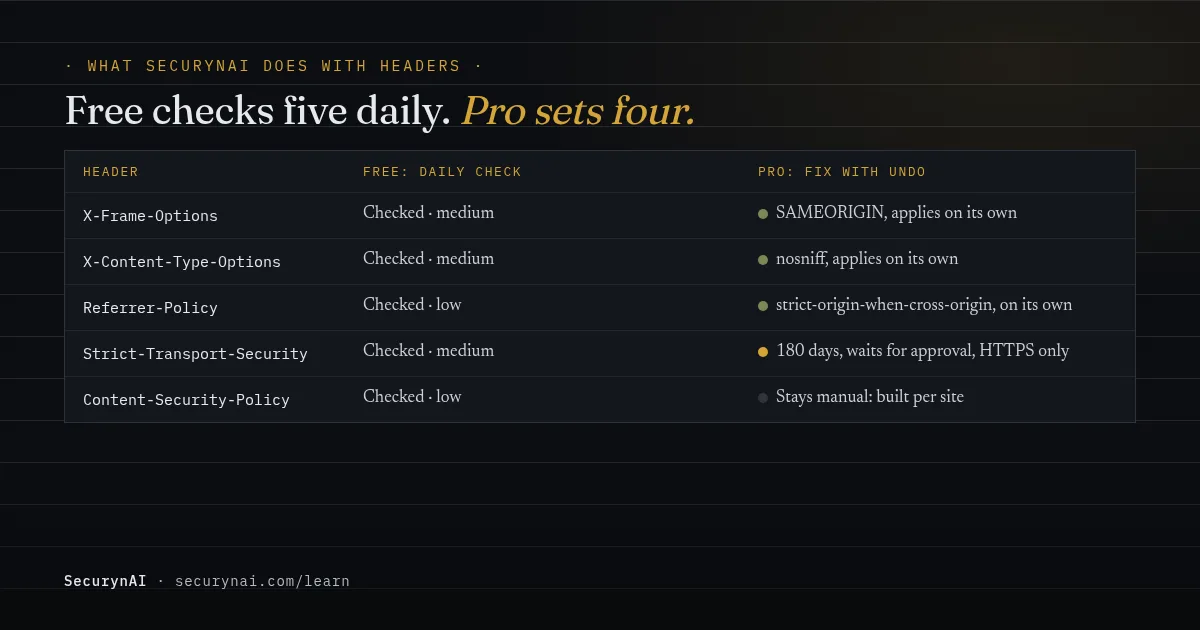
We at SecurynAI added header checks to the free plugin's hardening scan. The free plugin checks five security headers: X-Frame-Options, X-Content-Type-Options, HSTS, Content-Security-Policy and Referrer-Policy. It's part of the 40 hardening checks that re-run every day, with steps to fix each one that fails.
How it checks matters. Once a day, SecurynAI asks your own home page for its headers, the same way curl -I does, and looks for each header by name. It checks that a header is present, not that its value is sensible. It doesn't check Permissions-Policy.
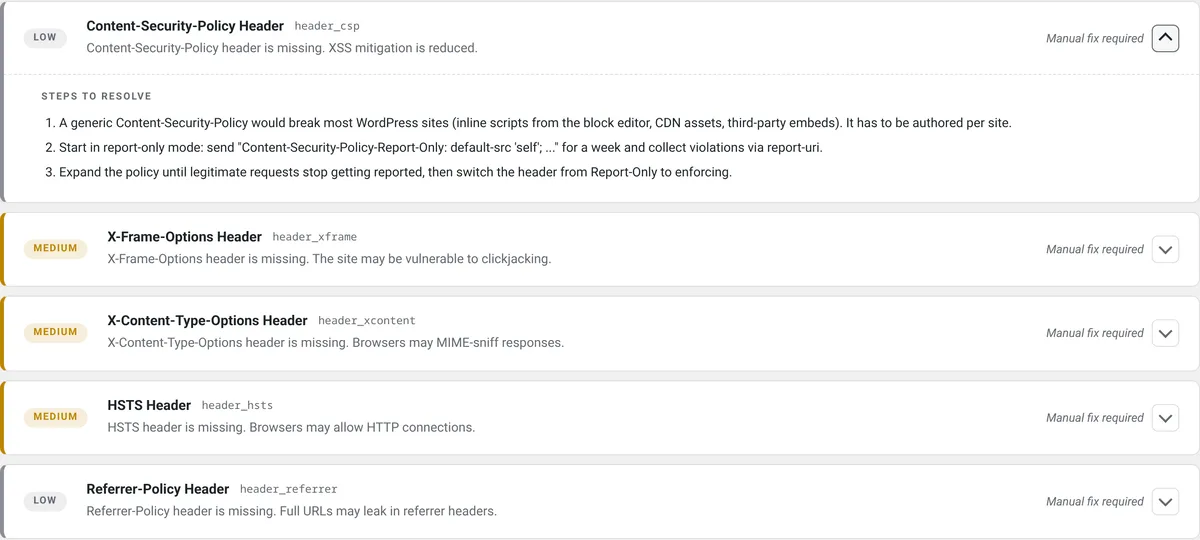
A few honest limits. Missing headers are medium or low severity, so they never trigger the opt-in alert email. A Report-Only CSP is named in the check, but it keeps failing until you send an enforcing policy. If your server can't load its own home page, each check says "Could not check" with the error; use curl -I instead.
What Pro sets for you
On Pro ($79 per site per year), SecurynAI can add four of the five headers, each with undo. X-Frame-Options: SAMEORIGIN, X-Content-Type-Options: nosniff and Referrer-Policy: strict-origin-when-cross-origin apply on their own by default, because they're low risk and fully reversible.
HSTS waits for your approval by default, because browsers remember it even after it's undone. It refuses to run unless your site address already starts with https://, and it sends max-age=15552000 (180 days) without includeSubDomains. Add that yourself once you've checked every subdomain works over HTTPS.
CSP stays manual on both Free and Pro, because a generic policy would break most WordPress sites. Pro's headers are sent from PHP, so the caching limit above applies to them too. See what Pro adds beyond headers. None of this replaces updates, backups or good hosting.
The firewall starts in Monitor mode, logging attacks until you switch it to Block.
WordPress security headers FAQ
Does WordPress add security headers by default?
Only on the dashboard and login screen. There, WordPress sends X-Frame-Options: SAMEORIGIN and a Referrer-Policy. Your public pages get none of the headers in this guide unless your host, your server config, a CDN or a plugin adds them.
Can security headers break my WordPress site?
X-Content-Type-Options, X-Frame-Options and Referrer-Policy rarely break anything, though X-Frame-Options stops other sites embedding your pages. A strict Content-Security-Policy can stop scripts, sliders or the block editor from working. HSTS can make the site unreachable if HTTPS later fails, because browsers remember it.
I added headers to .htaccess and nothing changed. Why?
Your server may be Nginx, which ignores .htaccess, or Apache may not allow header rules in .htaccess. Pages served from a cache may also skip rules added from PHP. Check the live response with curl -I or your browser's Network tab, and ask your host if the headers still don't show.
Do I still need security headers if I have a firewall?
Yes, they do different jobs. A firewall inspects requests coming into your site. Security headers tell visitors' browsers how to treat your pages once they arrive, for example refusing to load them inside someone else's frame.
Added your headers and want to know if one goes missing after a server move or a config change? The free SecurynAI plugin checks all five every day and tells you which one dropped.
Install free →